Username = Email
Single sign-on to core tools
No separate Okta email
Password and MFA resets
Overview
- Your Okta account is created automatically upon initiating the contract acceptance process.
- Okta provides single sign-on (SSO) access to your core Mercor work applications: Slack, RL Studio (for contractor annotators, via the Studio tile), and Google Workspace (your
@mercor.expertemail, Drive, and Calendar, via the Google Workspace tile). - Other tools used on your project, such as Insightful, Feather, or SuperAnnotate, have their own access methods and are not accessed through Okta. Always refer to your project’s onboarding document for tool-specific instructions.
- Your Okta email corresponds to your personal email address — the same one associated with your Mercor profile.
- If your platform email is updated later, your Okta email will be updated as well, and your previous Okta password will remain valid.
How It Works
Account Creation
Login Access
Access Revocation
Slack Access
What is MFA?
Multi-Factor Authentication necessitates an additional verification method beyond your password. This safeguards that only you have access to your account and Mercor-related tools.What is FIDO2 / WebAuthn?
FIDO2 (WebAuthn) constitutes a robust authentication protocol endorsed by Okta. Unlike SMS codes or authenticator applications, FIDO2 employs a secure digital key stored locally on the user’s device. This cryptographic key is called a passkey.What is a Passkey?
A passkey represents a cryptographic credential securely stored within a vault or password manager on your device. Authentication is achieved using methods such as fingerprint recognition, device PIN, facial recognition, or the device’s unlocking mechanism.What is Okta Verify?
Okta Verify is a free mobile authenticator app from Okta. After you enroll it, you approve each sign-in with a push notification, or by entering the 6-digit code the app displays. You can enroll Okta Verify in addition to a passkey — both can be active on your account.Supported Passkey Managers
Passkeys must be stored in a manager that supports WebAuthn. Before configuring Okta, ensure that your preferred passkey manager is installed, active, and signed in.Chrome Password Manager (Recommended)
iCloud Keychain (Apple)
Windows Hello
Android Passkeys
1Password Passkey Vault
Other FIDO2-compatible managers
Important Requirements Before Setup
Use Google Chrome(Browser) for the setup
Chrome is the most stable and universal option for completing the Okta setup. To ensure that Chrome can generate your passkey:- Use Google Chrome (note that Firefox is not supported).
- Log in to Chrome using your Gmail account; otherwise, the Google Password Manager will not be activated.
- Complete the Okta setup on a computer, whether desktop or laptop.
- Avoid using incognito windows or private browsing modes.
Do not use a VPN
Sign-ins to Okta through a VPN, proxy, or other anonymizing network are blocked and show a 403 Access Forbidden error before the sign-in page loads. Turn off any VPN (system-wide app or browser extension) before starting the Okta setup and whenever you sign in to Okta. See the Account Security and Conduct policy.Configuring Password and FIDO2 Passkey
Using Chrome Browser (Recommended)
- Open Google Chrome on your computer.
- Confirm that you are logged into Chrome using your personal Gmail account.
- Ensure sync is enabled.
- Visit work.mercor.com.
- Go to your contract, under your Contracts tab.
- Click on the step: “Okta Account”.
- Select “Reset Password”
- When prompted, click “Set up” under Security Key or Biometric Authenticator.
- In the Chrome pop-up, select “Create Passkey.”
- Chrome will save your passkey in Google Password Manager.
Using Safari Browser (Alternative)
Setting Up Okta Verify
To add Okta Verify to your account, you will need the free Okta Verify app on your phone.- Install Okta Verify from the App Store (iOS) or Google Play (Android).
- On your computer, go to work.mercor.com, open your contract, and click the Okta Account step, then “Reset Password”.
- When prompted to set up a security method, select Okta Verify from the available options.
- A QR code will appear on your computer screen.
- Open the Okta Verify app on your phone, tap Add account, and scan the QR code.
- Approve the prompt to finish enrollment.
Resetting Password and MFA
If you lose access to your device, get a new phone, or cannot authenticate using your passkey:Return to your contract → Okta Account step → Click “Forgot Password.”
This action:- Resets your Okta password
- Resets your MFA enrollment
- Allows you to complete the full setup again
FAQs
Common Issues & Troubleshooting
I see 'Security method can't be set up at this time' or 'Unable to sign in. Contact support for assistance.'
I see 'Security method can't be set up at this time' or 'Unable to sign in. Contact support for assistance.'
- “Security method can’t be set up at this time. Contact support for assistance.”
- “Unable to sign in. Contact support for assistance.”
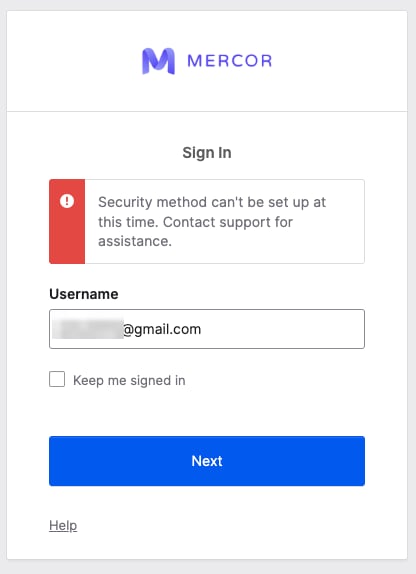
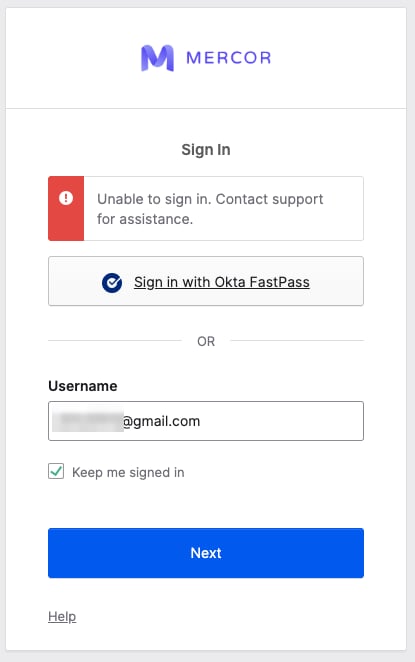
- Go to work.mercor.com and open your contract under the Contracts tab.
- Click the Okta Account step.
- Select Reset Password.
- Complete the setup again. This resets both your password and your MFA enrollment.
Can I use a VPN while accessing Okta?
Can I use a VPN while accessing Okta?
I'm receiving an error when trying to reset the password.
I'm receiving an error when trying to reset the password.
No passkey pop-up appears when I try to set up my verification method.
No passkey pop-up appears when I try to set up my verification method.
Please check the following:
• You are logged into Chrome with your Gmail
• Sync is enabled
• Your device has an active screen lock / device password protection
• You are not using incognito mode
• A passkey manager is configured
After checking, restart Chrome and try again.
I see 'Verification method failed to enroll.'
I see 'Verification method failed to enroll.'
To resolve this:
• Enable a screen lock / password protection on your device
• Confirm that your device supports passkeys
• Ensure you are logged into your passkey manager (Google, iCloud, 1Password, etc.)
• Try again using Chrome
I see a 'Browser not supported' message.
I see a 'Browser not supported' message.
I see a 'Session Expired' message. What does this mean?
I see a 'Session Expired' message. What does this mean?
I switched devices and now I can’t authenticate. What do I do?
I switched devices and now I can’t authenticate. What do I do?
I had Slack access, but now it’s gone.
I had Slack access, but now it’s gone.
Slack shows 'No available workspaces.'
Slack shows 'No available workspaces.'
I see 'Invalid value data type for property abbreviateLastName' when saving my Okta profile.
I see 'Invalid value data type for property abbreviateLastName' when saving my Okta profile.
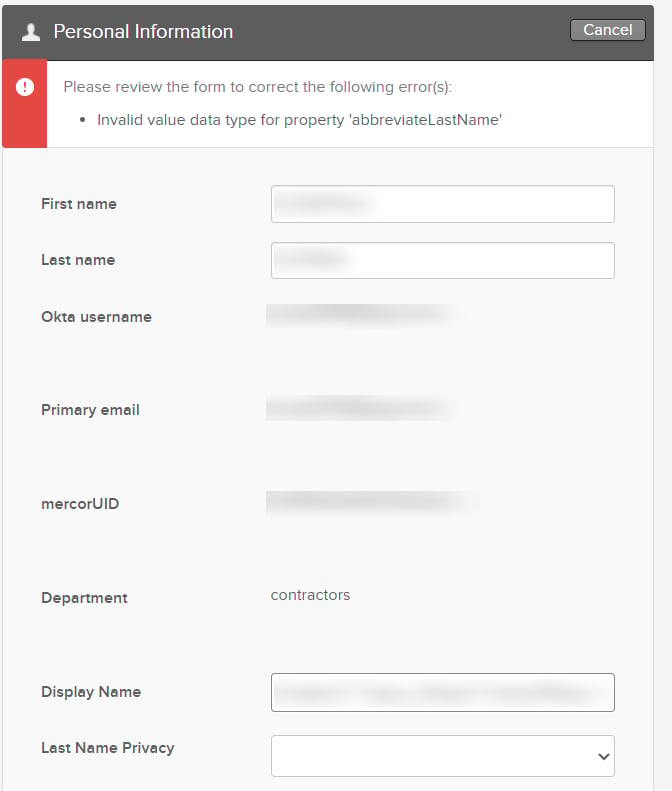
- Scroll down to the Last Name Privacy dropdown.
- Select one of the available options — this setting controls whether your full last name or only its initial is displayed in connected tools such as Slack.
- Click Save again.
My name isn't displaying correctly in Slack after Okta setup. What should I do?
My name isn't displaying correctly in Slack after Okta setup. What should I do?
General Questions
How do I log into Slack on desktop or mobile?
How do I log into Slack on desktop or mobile?
- On your phone, open the same browser you used on your computer during your initial Okta setup.
- Go to work.mercor.com.
- Open the Contracts tab and select the contract associated with the Slack workspace you want to access.
- Tap the Okta tile.
- Log in using the Okta credentials you previously created on your computer.
- Once you are logged into Okta, tap the Slack tile.
- You will be prompted to open or download the Slack mobile application. Open it, and your Mercor workspace will load automatically.
Can I use 1Password / iCloud Keychain / Windows Hello instead of Chrome Password Manager?
Can I use 1Password / iCloud Keychain / Windows Hello instead of Chrome Password Manager?
Do I need to configure my passkey manager before setting up Okta?
Do I need to configure my passkey manager before setting up Okta?
Why didn’t I receive an Okta invite email?
Why didn’t I receive an Okta invite email?
Can I use a different email for Okta?
Can I use a different email for Okta?
If I update my platform email, will Okta update automatically?
If I update my platform email, will Okta update automatically?
I was offboarded. How do I regain access?
I was offboarded. How do I regain access?
Can I use Okta Verify as MFA?
Can I use Okta Verify as MFA?
How do I change my display name in Slack?
How do I change my display name in Slack?
Why does my Slack name show '[EXP]' in front of it?
Why does my Slack name show '[EXP]' in front of it?
automatically prefixed with [EXP] to help differentiate contractors from internal Mercor team members. This is part of our identity and workspace management policy — it cannot be manually removed or changed.I am active on multiple projects. How do I switch between Slack workspaces?
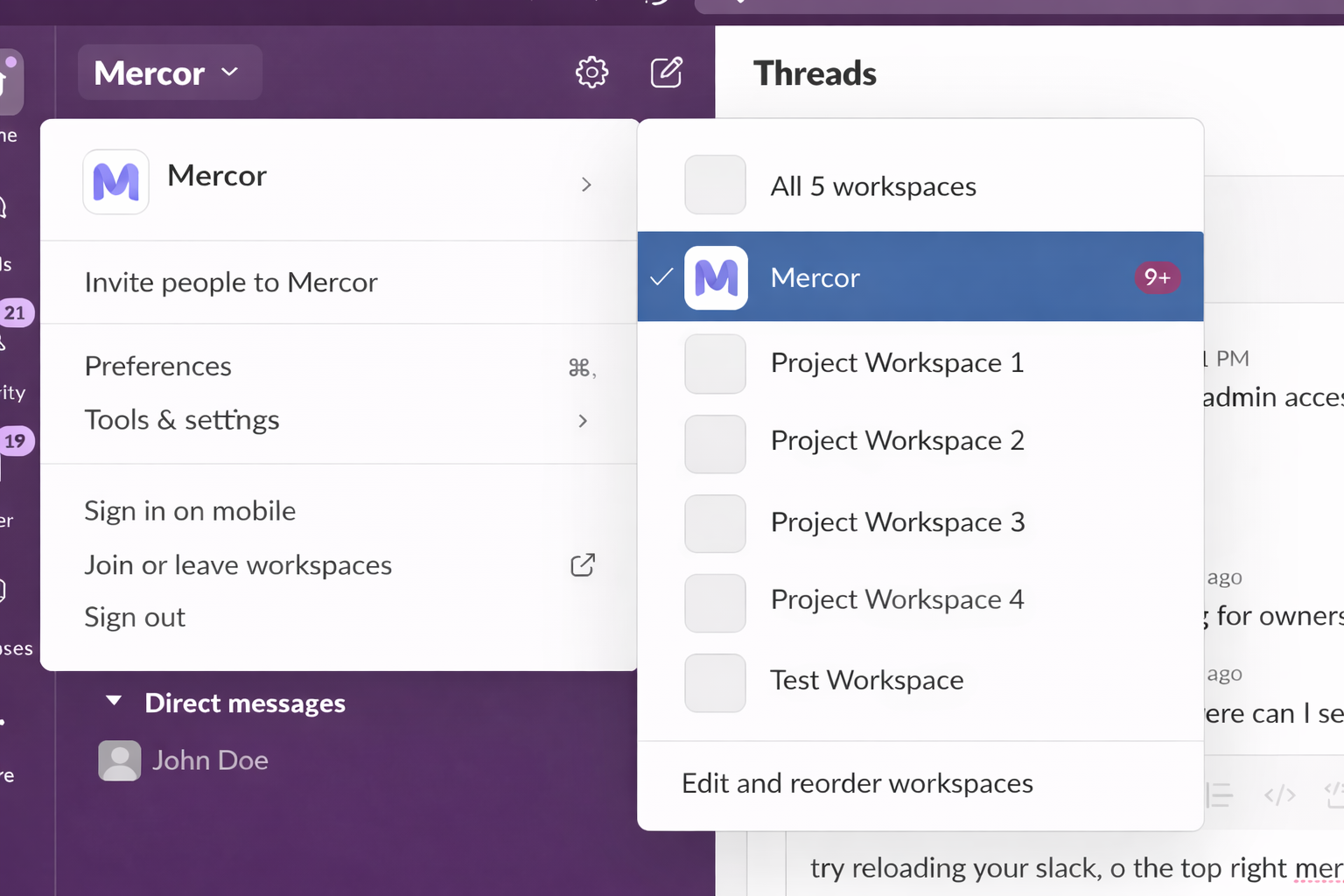
I am active on multiple projects. How do I switch between Slack workspaces?
- Open Slack.
- Click the workspace switcher in the top-left corner.
- Select the workspace for the project you want to access.
Should I log into Okta using my @mercor.expert email?
Should I log into Okta using my @mercor.expert email?
Which Mercor tools are accessed through Okta?
Which Mercor tools are accessed through Okta?
- Slack — log in via the Slack tile in your Okta dashboard.
- RL Studio (for contractor annotators) — log in via the Studio tile in your Okta dashboard. Studio admins log in separately at studio.mercor.com with Google authentication.
- Google Workspace — your
@mercor.expertemail, Drive, and Calendar, accessed via the Google Workspace tile in your Okta dashboard.
My project uses Feather, SuperAnnotate, or another tool — where do I sign in?
My project uses Feather, SuperAnnotate, or another tool — where do I sign in?
How do I access my @mercor.expert email and Google Drive?
How do I access my @mercor.expert email and Google Drive?
@mercor.expert Google Workspace account (email, Drive, Calendar) is accessed through Okta:- Go to work.mercor.com and open your contract.
- Click the Okta tile, then log in using your personal email.
- Once inside the Okta dashboard, click the Google Workspace tile.
@mercor.expert identity. For more details, see the Expert Email page.How do I access RL Studio?
How do I access RL Studio?
- Contractor annotators: log in via Okta. Go to c-mercor.okta.com, sign in with your personal email, then click the Studio tile. You will be automatically signed in to RL Studio — no separate password is required.
- Admins: log in directly at studio.mercor.com using Google authentication.