
This guide comprehensively details each phase of the Mercor offer onboarding process — from the receipt of your contract to configuring payments and recording time.
1. Access Your Offer
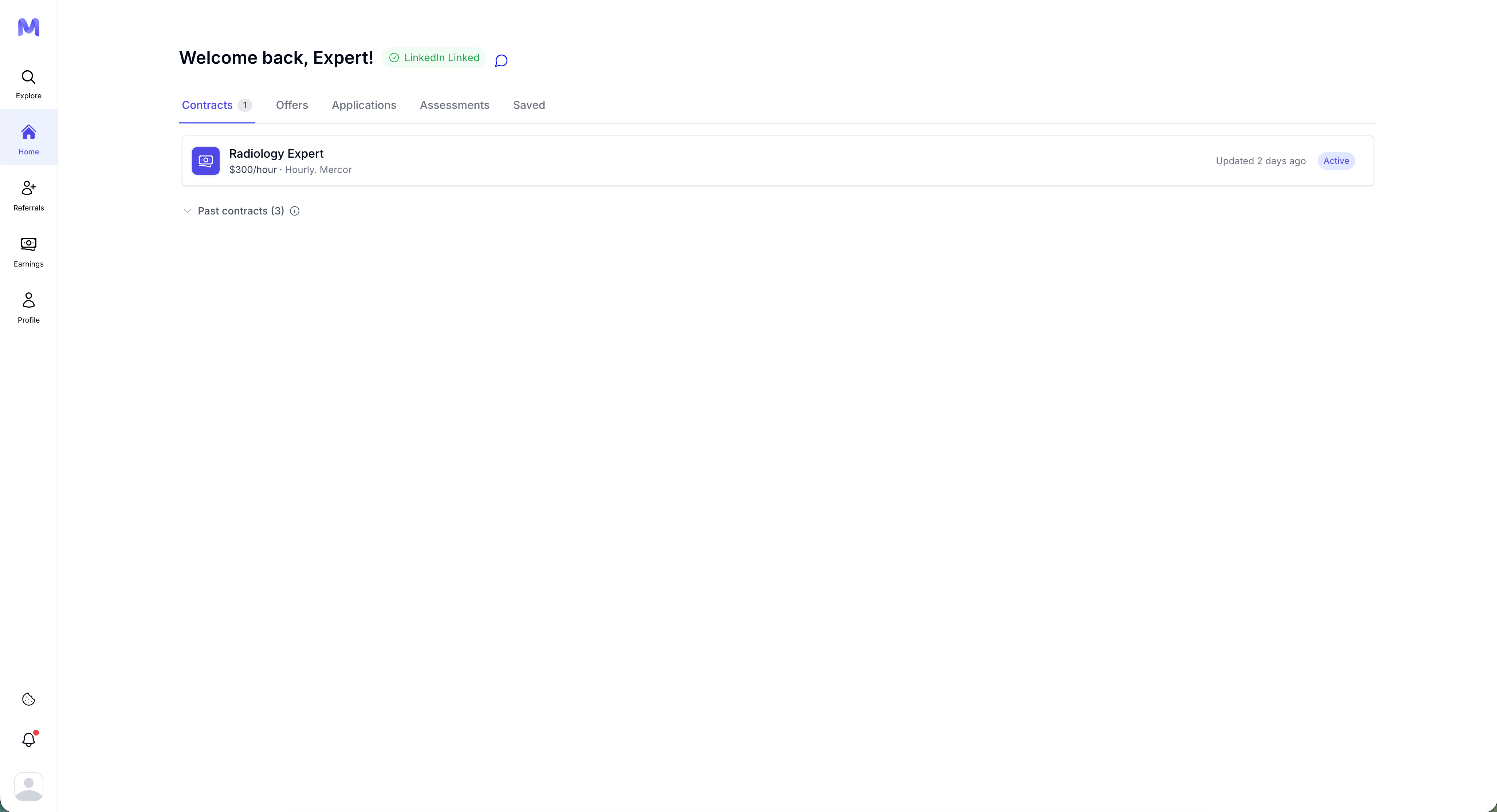
New offers are presented as a significant task within the Offers tab on your dashboard. Please click on ‘View Offer’ to initiate the process. Once you engage with the checklist or accept the offer, it will also be displayed in the Contracts tab.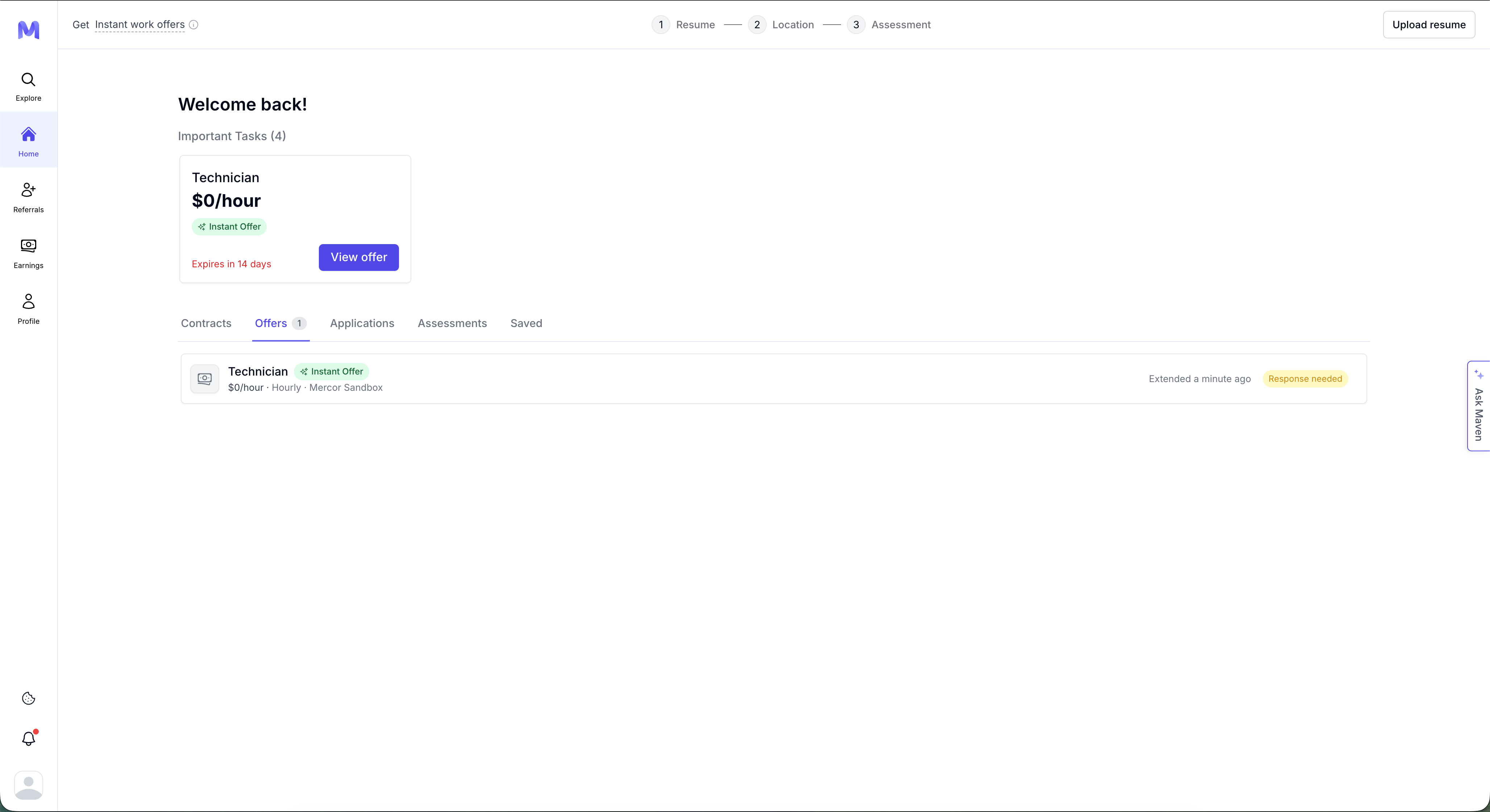
2. Offer Page Overview
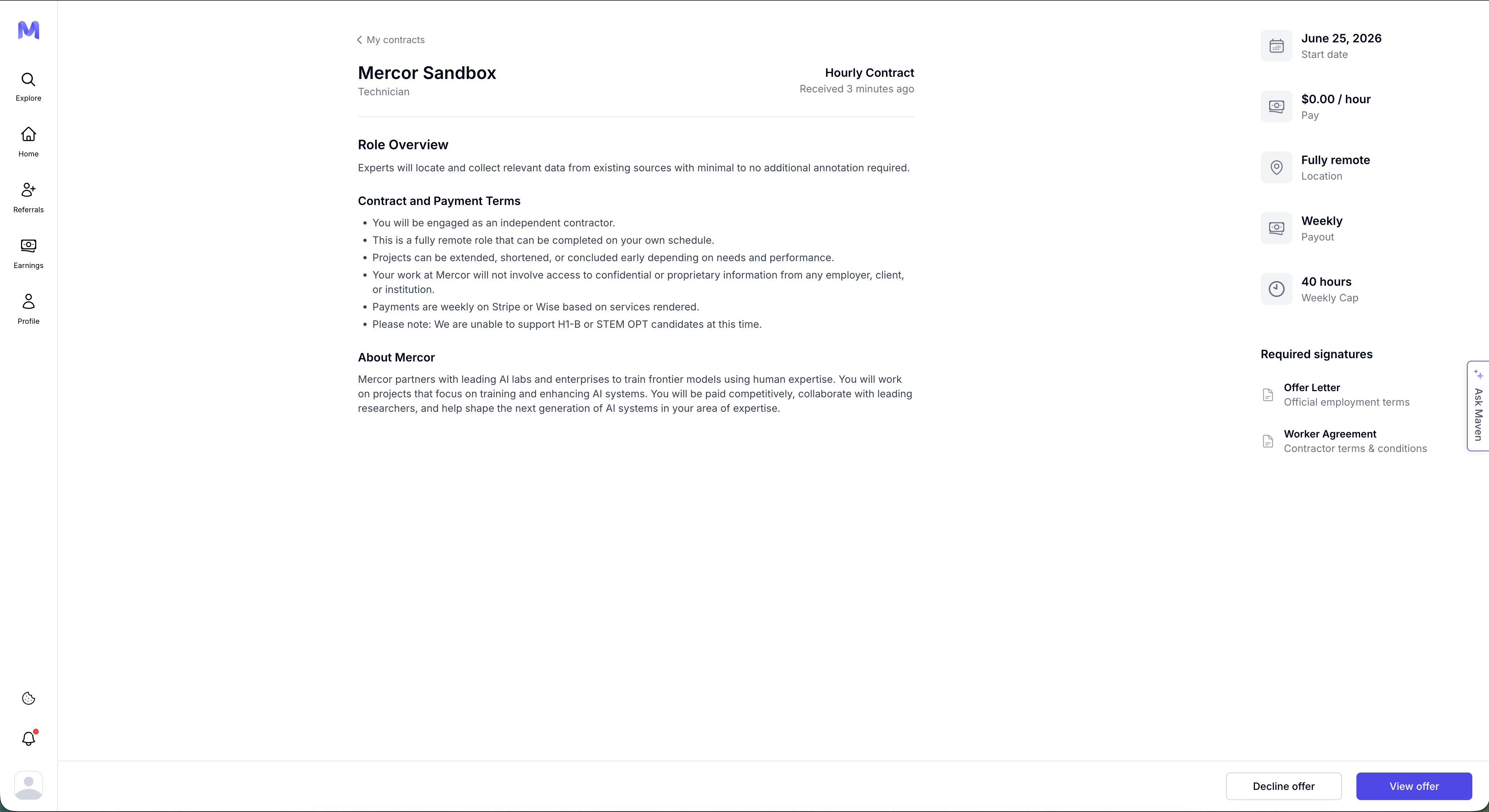
When you open an offer, review the full offer page before signing:- Header — the company and role (e.g., Mercor Sandbox · Technician), the contract type (e.g., Hourly Contract), and when the offer was received.
- Role Overview — a short summary of the work involved.
- Contract and Payment Terms — the key terms: independent-contractor status, remote/flexible schedule, payout method (Stripe or Wise), and any eligibility notes.
- About Mercor — background on Mercor and the kinds of projects you’ll work on.
- Summary (right side) — start date, hourly pay, location, payout cadence, and weekly cap at a glance.
- Required signatures (right side) — the documents you’ll sign: Offer Letter (official employment terms), Worker Agreement (contractor terms & conditions — this is your Terms of Work document), and CIIAA (confidentiality & inventions). You’ll only see the documents your project requires, and your offer letter is the gate that unlocks the rest.
- Decline offer / View offer — select View offer to open and sign your documents, starting with the offer letter.
3. Offer Acceptance Process
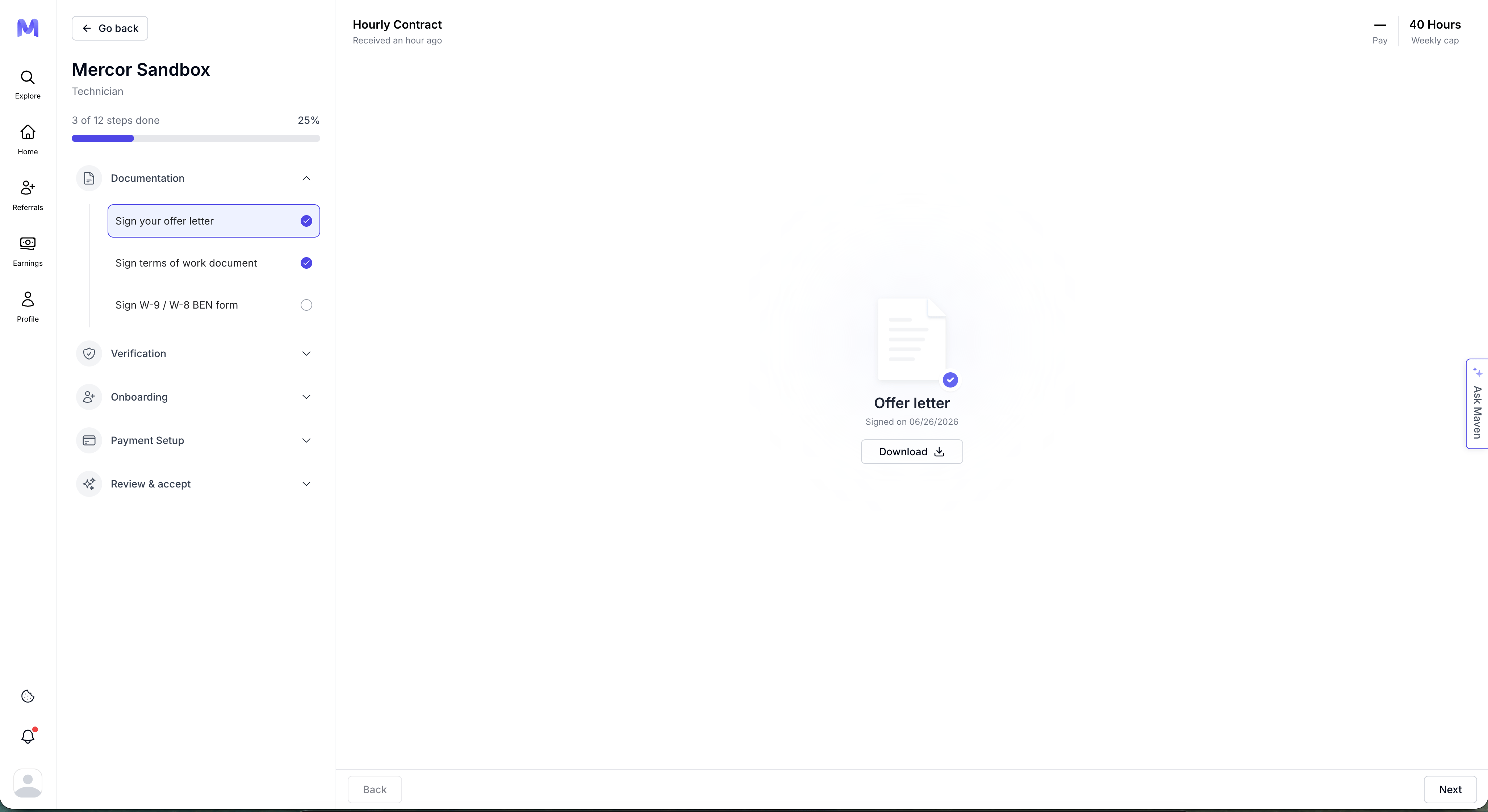
When you open an offer, your offer letter is the first thing you sign — and the only gate. Sign it from the offer page; once it’s signed, the rest of your onboarding unlocks: the remaining documents (Worker Agreement / Terms of Work, CIIAA, and your tax form) plus the other steps below, tracked with a progress bar (e.g., “3 of 12 steps done”). There are two ways to work through what’s left:- On the offer page, selecting View offer opens the next unsigned document, one at a time (for example the Worker Agreement, then the CIIAA).
- From your onboarding checklist — open it by adding
/onboardingto your offer page’s web address — you see every step at once and can move freely between your signed and unsigned documents and the other onboarding tasks, in any order. If you’d like to read the CIIAA and Worker Agreement together before signing either, this is the place to do it. It’s the view shown below.
Documentation
Documentation
Sign your agreements. Your offer letter comes first and is the gate that unlocks the rest. Once it’s signed, you can complete the remaining documents from your onboarding checklist in any order (the offer page presents them one at a time), and each is only binding once you personally sign it.
1
Sign your offer letter
The first document, and the gate for everything else. Open it from the offer page, review the full terms, then sign with your full legal name and the date.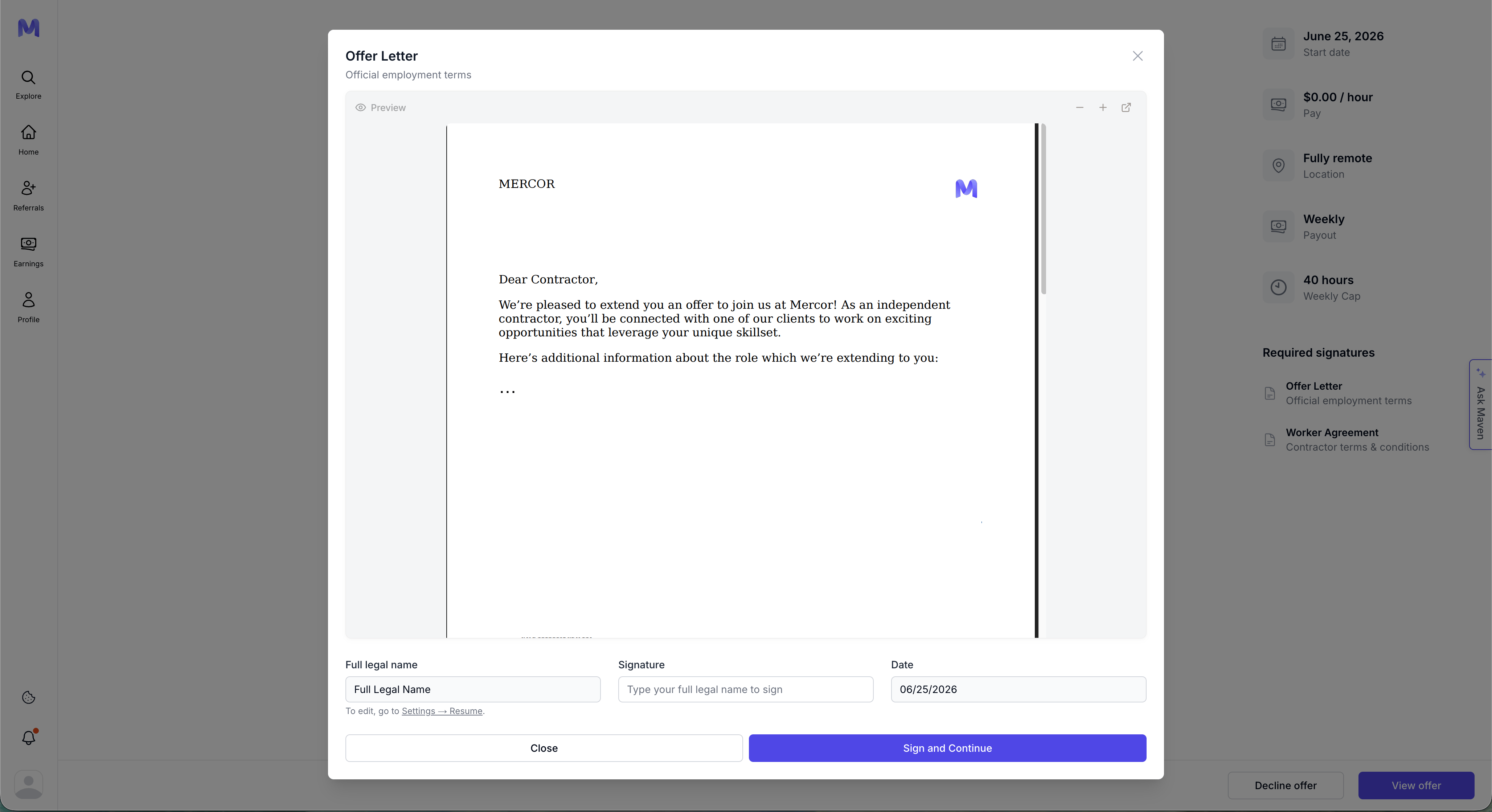
2
Sign CIIAA document
Sign the Confidential Information and Inventions Assignment Agreement (CIIAA). Contact support if a reset is required.
3
Sign terms of work document
Click “View Terms of Work”, then sign using your full name and the date. On your offer page this same document is shown as the Worker Agreement.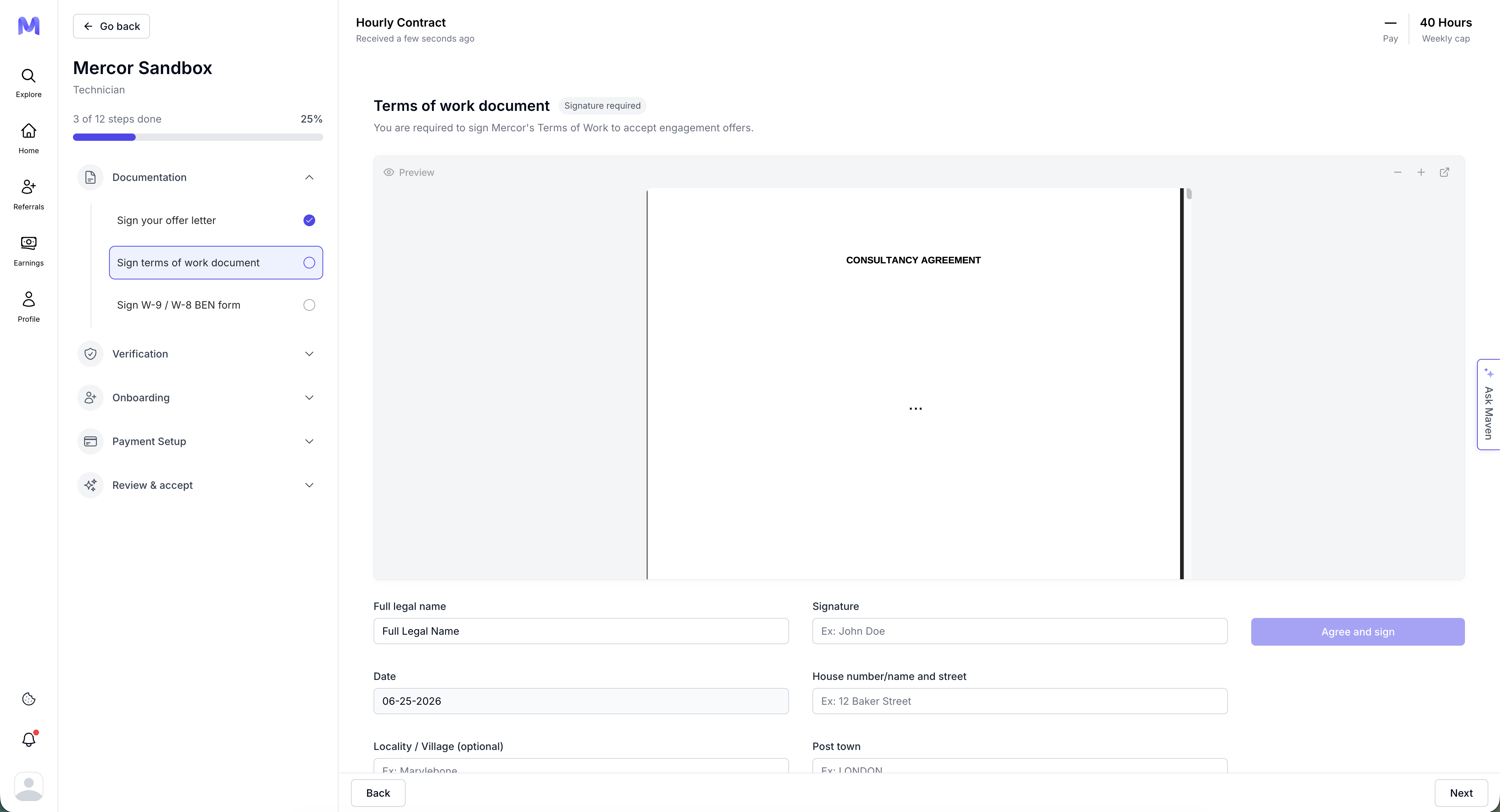
4
Sign W-9 / W-8 BEN form
Complete the tax form applicable to your residency — W-9 (U.S. persons) or W-8BEN (non-U.S.). Select your tax residency status to get started.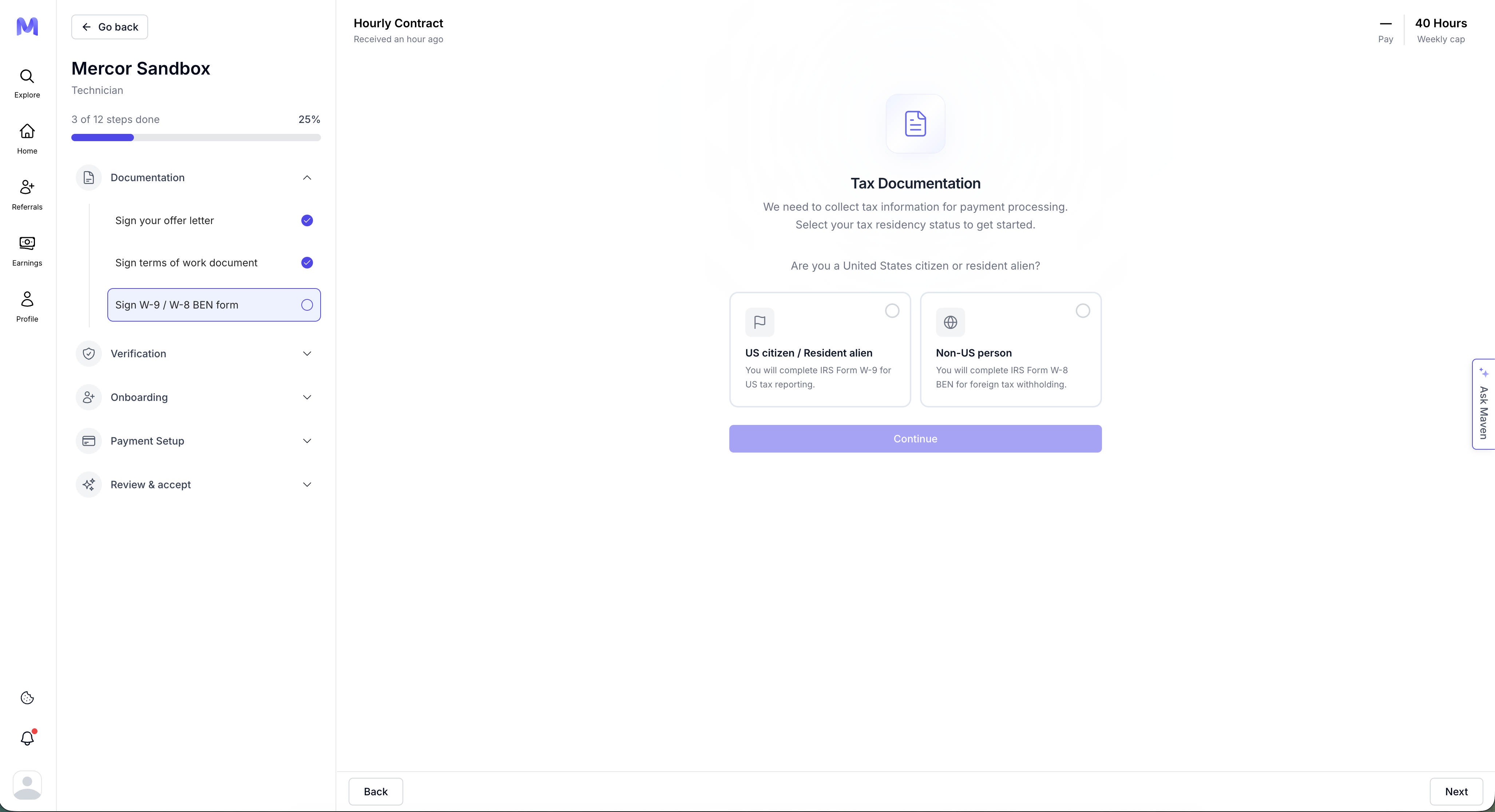
Depending on your project, you may also see additional items here, such as a safety waiver or a confidentiality & IP reminder.
Verification
Verification
Confirm your identity, clear your background check, and complete any required work-authorization and phone checks.
1
Complete the background check
Select your country of residence. Background checks typically take one to two weeks, and you must be cleared before commencing work or logging hours.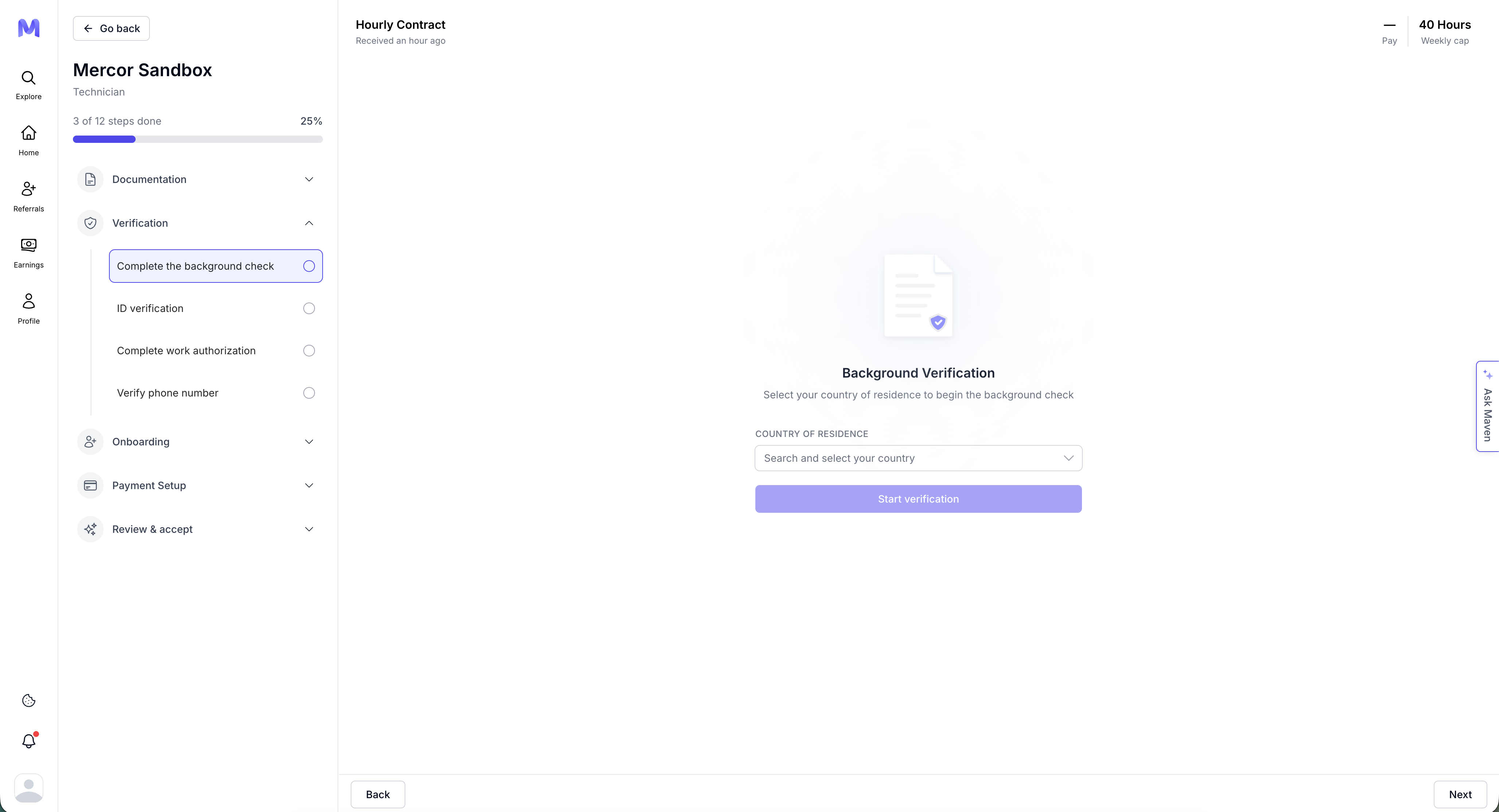
2
ID verification
Mercor uses Persona to securely verify your identity. This is mandatory and completed only once — you will upload a government-issued ID and take a selfie video for facial recognition.
1
Click 'Start Verification'
Found in the ID verification checklist item.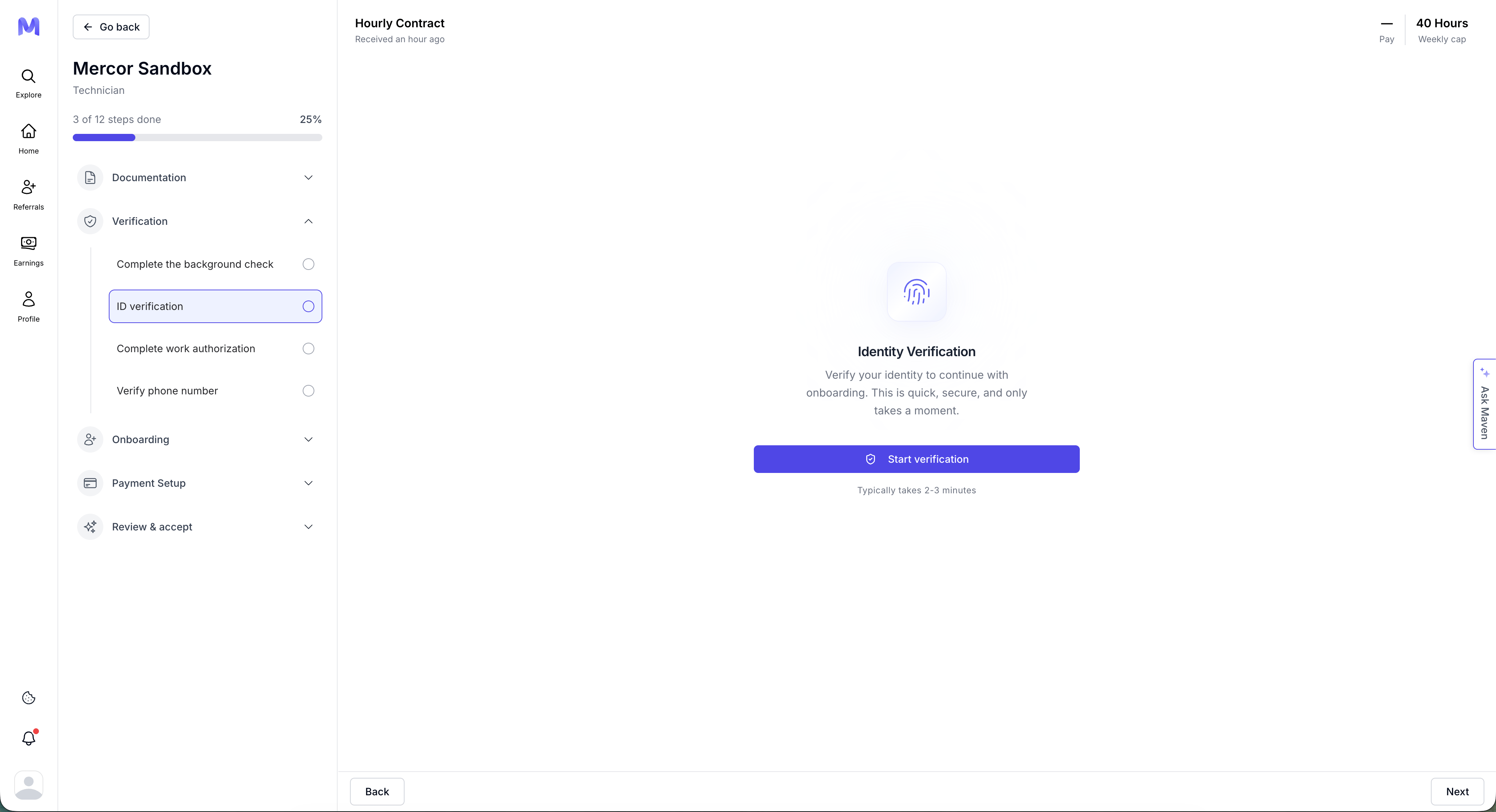
2
Begin Verifying
You will be redirected to Persona’s secure interface.
3
Upload Your Government ID
Please capture a clear photograph of the front, and the back if necessary. Ensure that the image is well-lit and free from glare. A valid government-issued identification must be presented to proceed.
4
Take a Selfie
Record a short video, turning your face left and right.
5
Continue on Another Device (Optional)
You can switch to your phone using a QR code or secure email link.
6
Submit and Finish
Persona will process the submission. Once verified, a green checkmark will appear and the step will be marked as complete.
Photo Tips
• Place ID on a dark flat surface
• Avoid glare or backlight
• Make sure all corners are visible
• Slowly move ID to focus if blurry
• Avoid glare or backlight
• Make sure all corners are visible
• Slowly move ID to focus if blurry
Selfie Tips
• Use a well-lit space
• Center your face
• Follow instructions to turn head left/right
• Center your face
• Follow instructions to turn head left/right
3
Complete work authorization
Where applicable, confirm your date of birth, location of residence, and that you’re legally authorized to work from that location.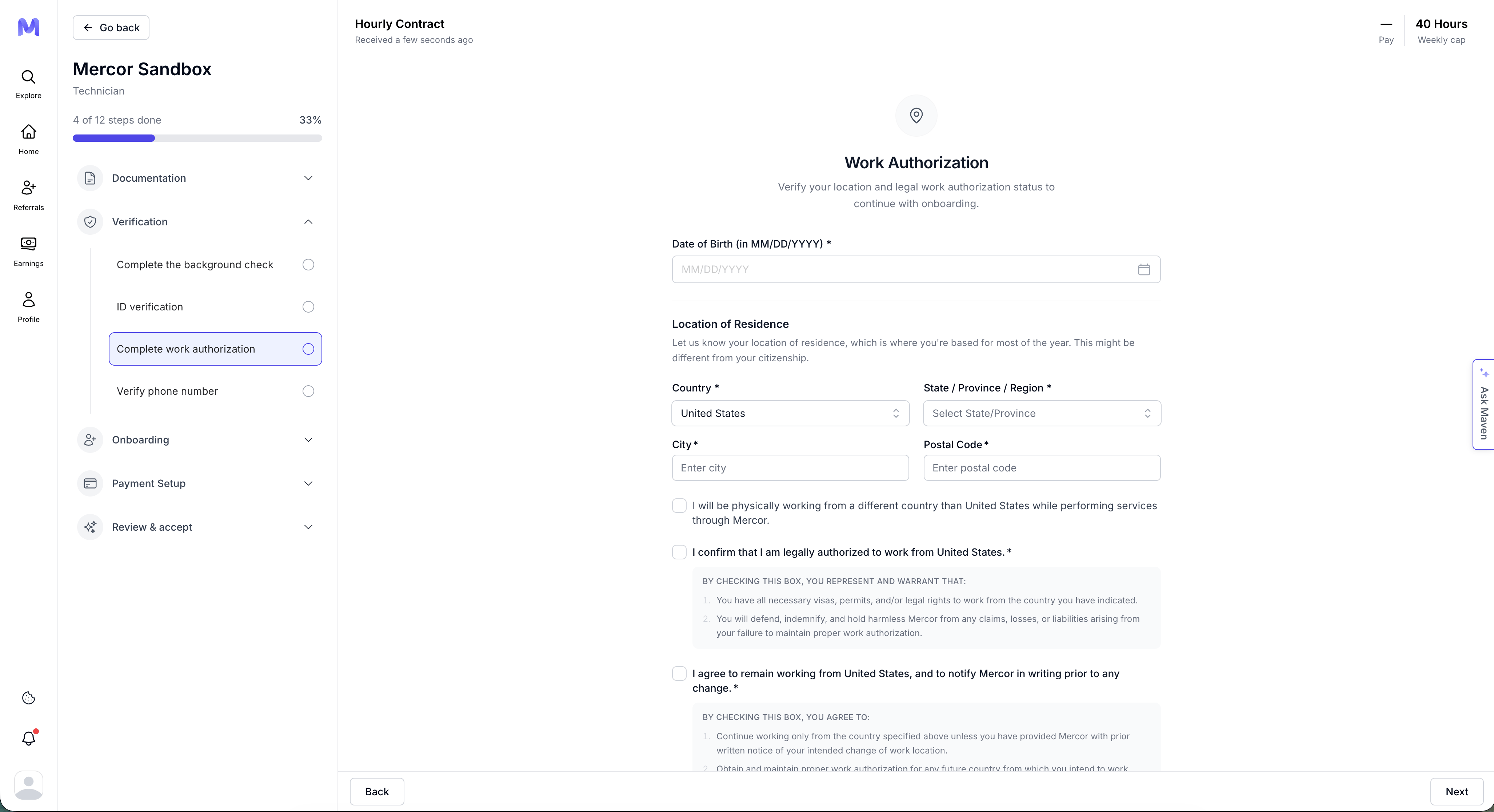
4
Verify phone number
Confirm your phone number to secure your account — enter your number and receive a verification code by SMS or WhatsApp.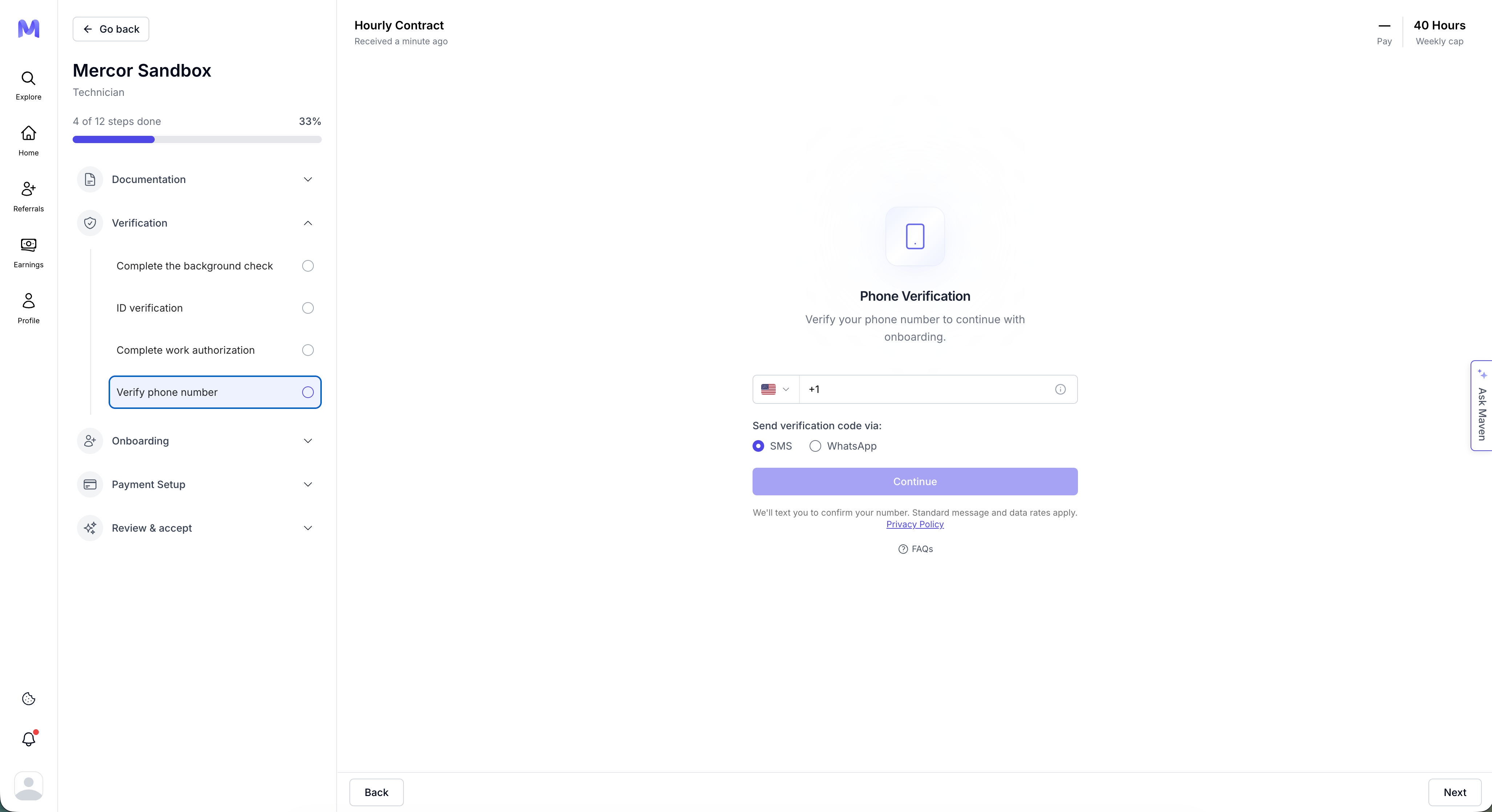
Onboarding
Onboarding
Set up the accounts and tools you’ll use on the project.
1
Okta setup
Some projects use Okta for secure single sign-on (SSO) to client repositories and tools like Slack, GitHub, and Jira. Open the Okta setup item and click Provision Access to connect your account; once provisioned, you can reach all project applications through your Okta dashboard.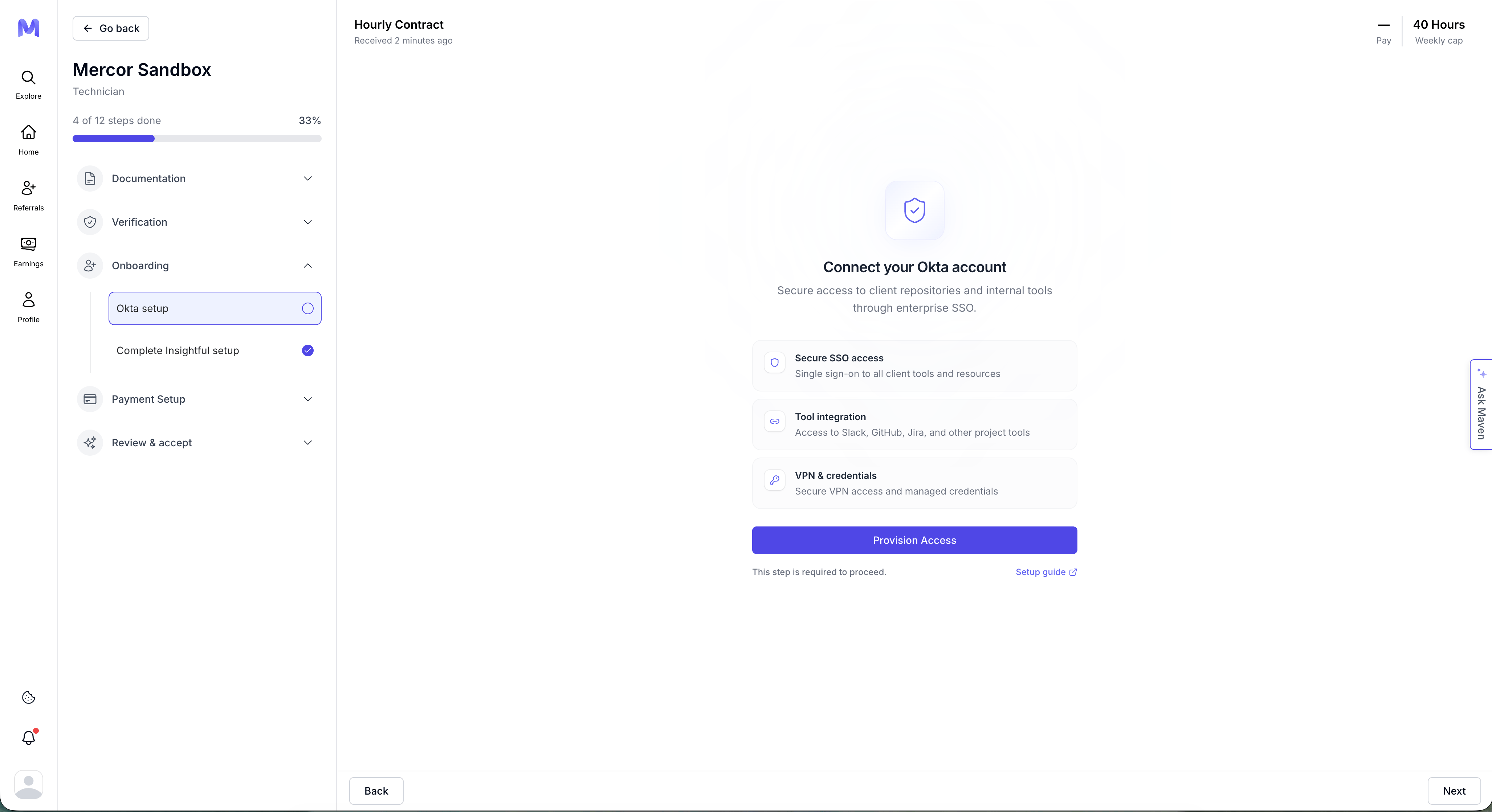
2
Complete Insightful setup
Insightful tracks your working hours for accurate weekly payouts. Watch for an invitation email from Insightful (support@insightful.io), install the desktop app (Workpuls), then start tracking. Supported on Windows 10+, macOS 11+, and Ubuntu/Fedora (mobile and Chromebooks are not supported).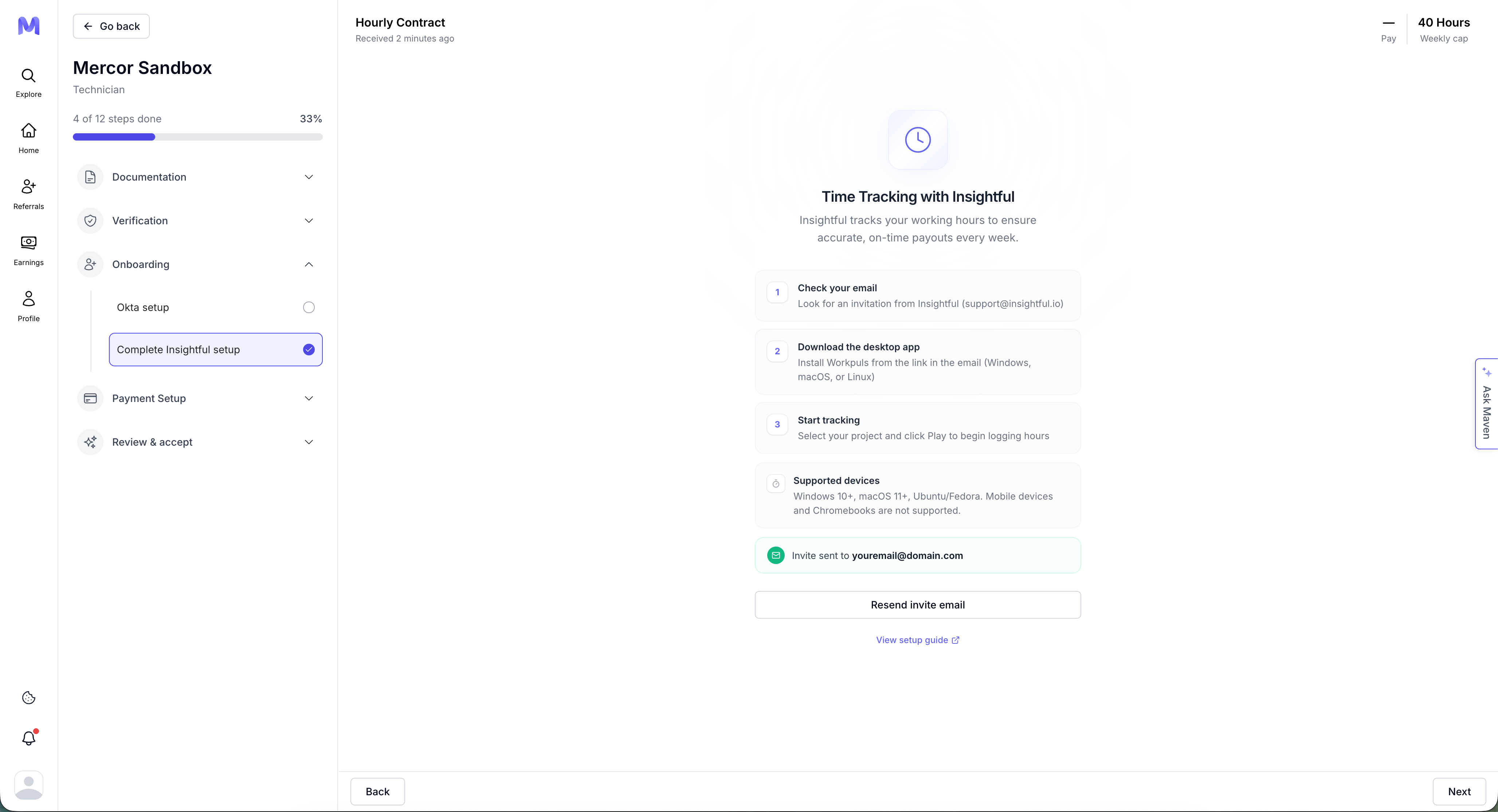
Payment Setup
Payment Setup
1
Acknowledge Mercor payout policies
Review your payout schedule, then acknowledge the terms. Payouts happen weekly on Wednesdays, and payroll cycles start and end each Friday at 10:30am PST. You can view your payout cycle, hours worked, cap, and expected earnings in the Contracts tab on your Home page.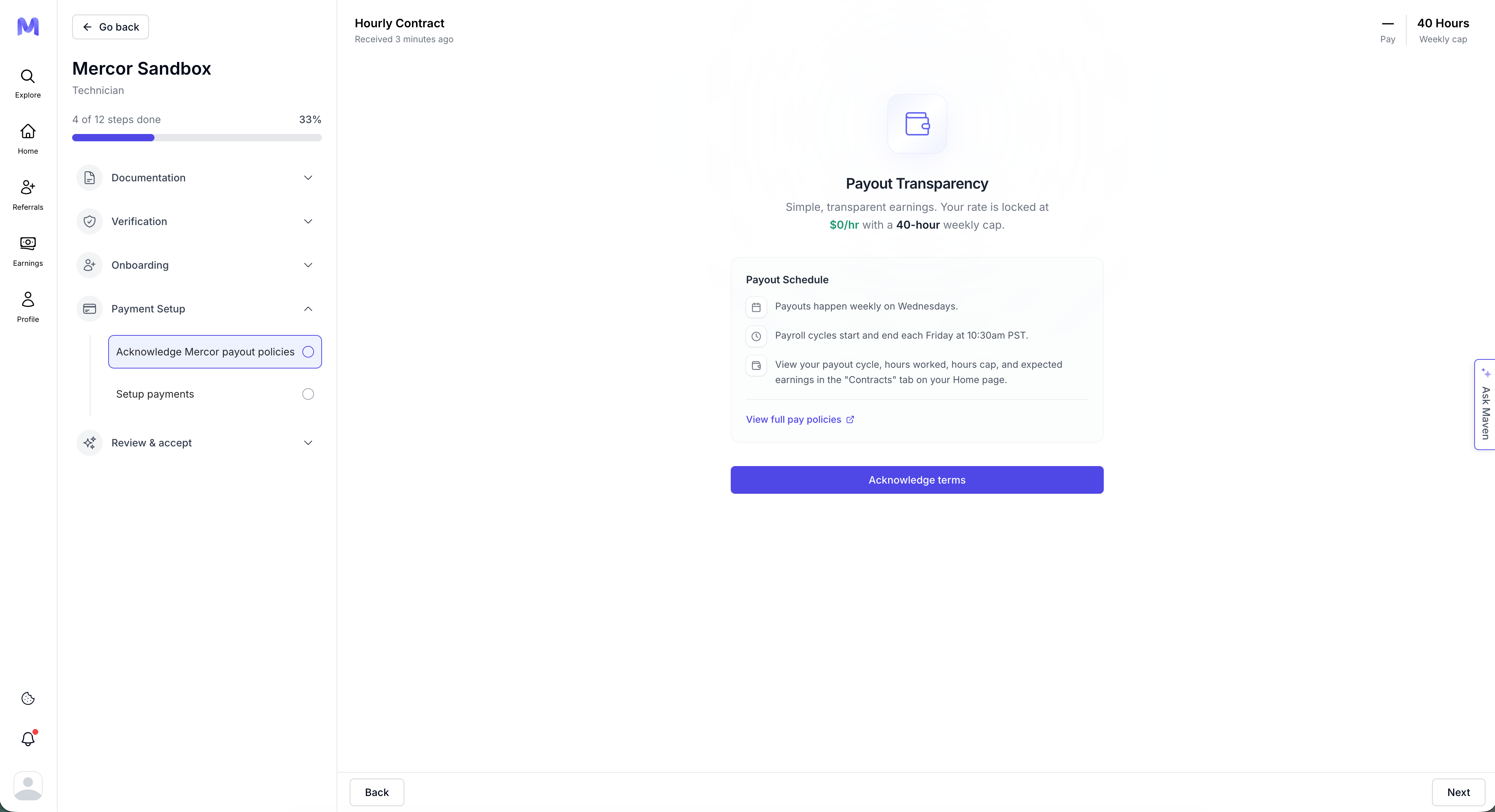
2
Setup payments
Select the country where you live and work, and Mercor matches you with the best payment provider — Stripe by default, or Wise in certain regions. If necessary, reset and repeat the setup.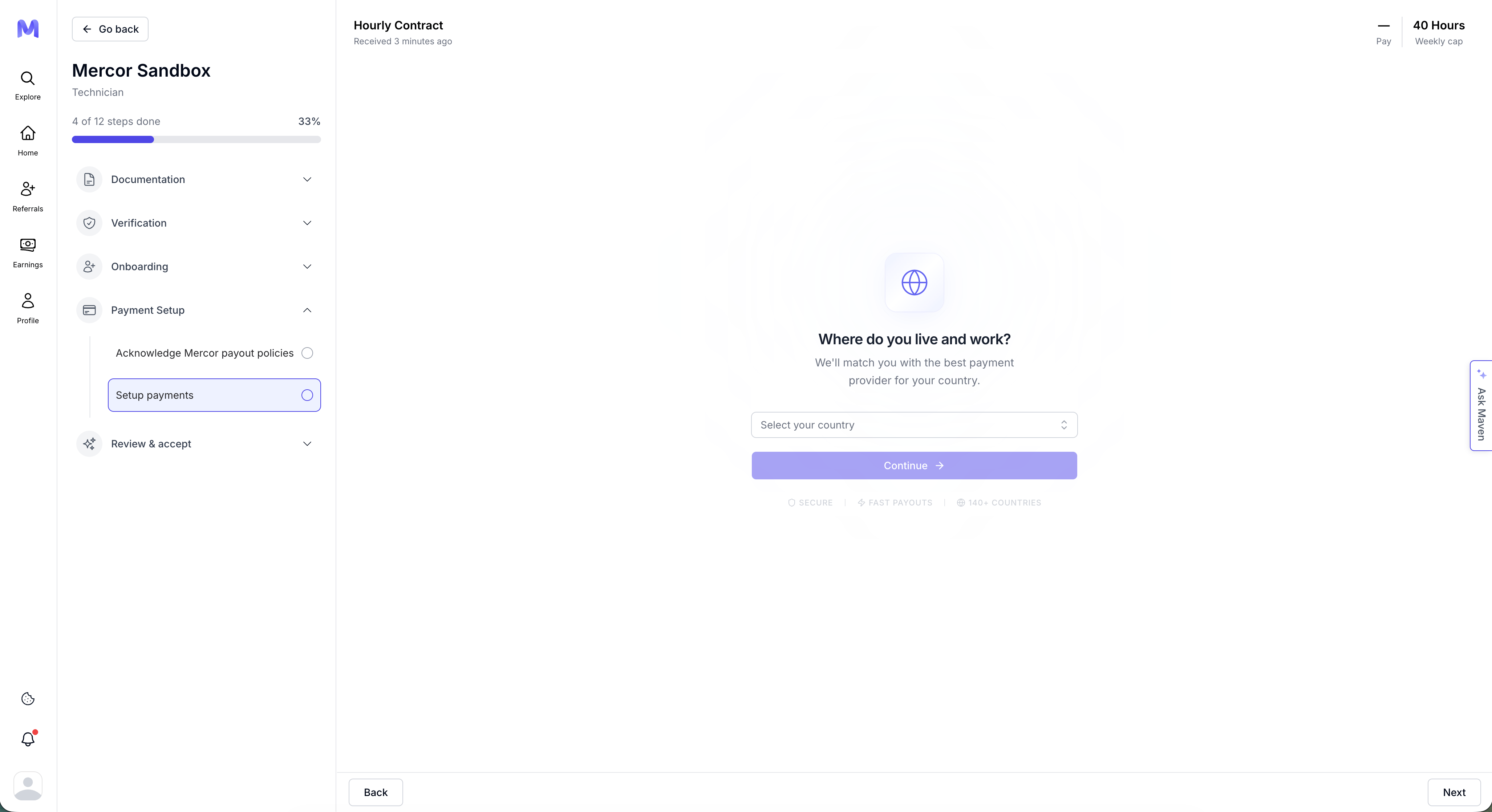
Review & accept
Review & accept
A final Complete onboarding step. Once your other sections are done, confirm here to accept the offer and finish onboarding. If your background check is still in progress, you may be able to complete onboarding while it finishes.
4. Setting Up Your Payment Method
1
Click Setup Payments
Initiate the payment setup process from the offer page.
2
Complete Stripe onboarding
Enter the legal name, country, and banking details.
3
Fallback to Wise (if needed)
If Stripe is unavailable in your country, Wise will be utilized.
4
Verify email
Please confirm your Stripe or Wise account via email if prompted.
5. Background Checks
1
Watch for invite
You will receive an email from the background check provider (e.g., Certn).
2
Complete the form within 48h
Please do not delay, as a background check is mandatory.
3
Typical turnaround
Results will be available within 5 to 7 business days, contingent upon the recipient’s country.
Please check your spam and “updates” folders in your personal email account. If your check is delayed beyond seven business days, kindly contact support@certn.co and support@mercor.com with your report ID.
Related Pages
Project/Onboarding FAQs & Support
Common questions and troubleshooting during onboarding and beyond.
Getting Started
First steps once your onboarding is complete and you’re ready to work.
Project Offboarding
Understand what happens when your project ends and how to transition smoothly.