> ## Documentation Index
> Fetch the complete documentation index at: https://talent.docs.mercor.com/llms.txt
> Use this file to discover all available pages before exploring further.
# Getting Started
> Everything you need for your first day on a Mercor project: onboarding, tooling, tracking, and access.
This guide helps you prepare for Day 1 of your Mercor project, covering onboarding documentation, time tracking, and access to necessary tools.
***
## 1. Onboarding Document
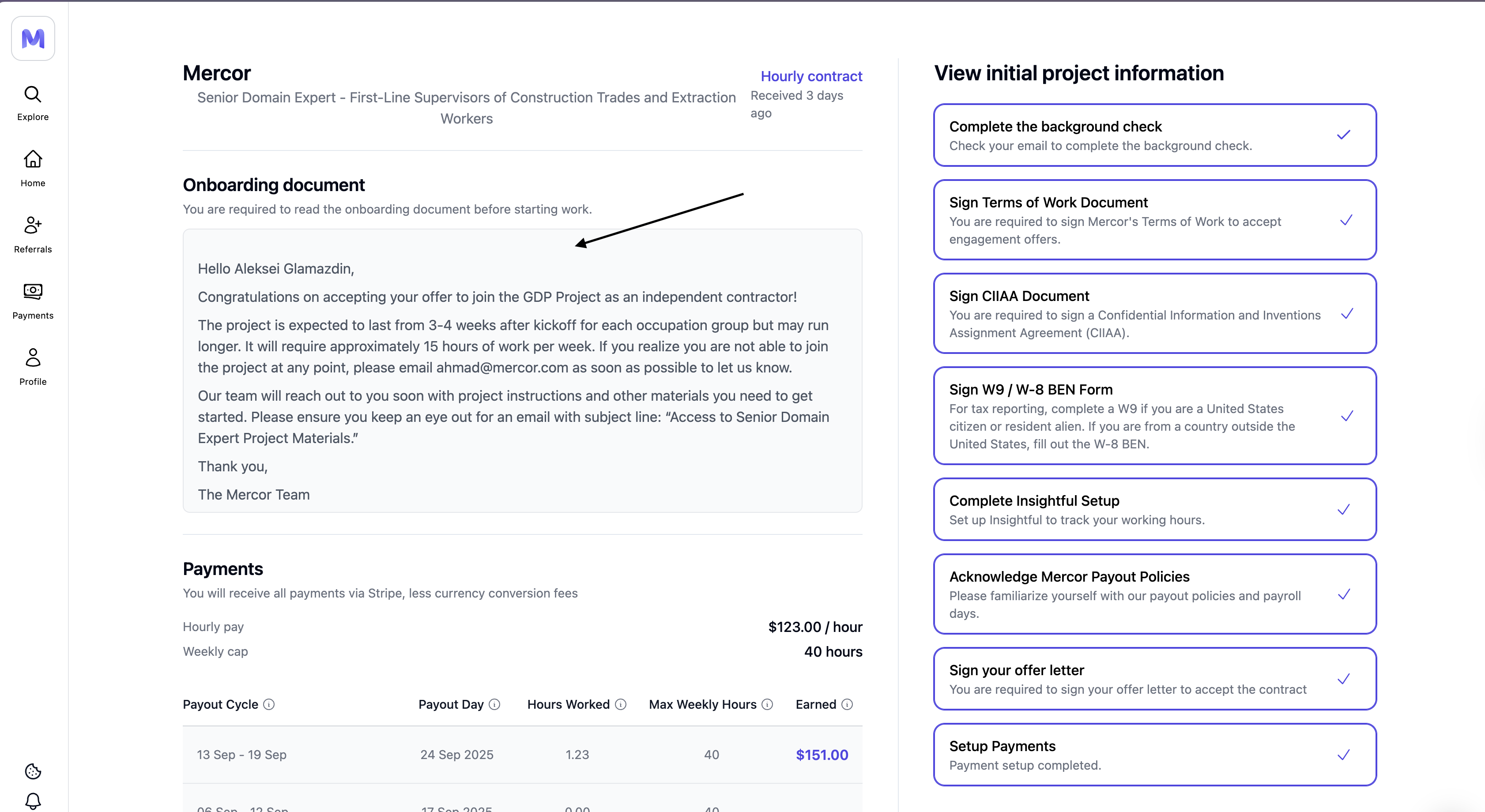
This document serves as your primary source of information at the commencement of the project. It includes Slack links, team contacts, and setup instructions.
**How to access your onboarding document:**
You can access your onboarding information directly from your [**Mercor Dashboard**](https://work.mercor.com/home?tab=contracts).
1. Go to the **Contracts** tab.
2. Click on your **active contract**.
3. The onboarding document will appear **below your contract details** once it’s ready.
If your onboarding document isn’t visible yet, it’s still being prepared by your project team.
In the meantime, please finish your Insightful setup, Stripe verification, and background check if pending.
You’ll receive the onboarding instructions within 7 days, and they’ll appear in your Contracts tab once ready.
**What the onboarding doc typically includes:**
* Project Instructions (Order of Operations)
* Details and Background
* Project Primary
* Point of Contact (POC) and Escalation Contacts
* Slack, Airtable, and Notion, along with Naming Conventions
* Guidance on the Use of Contractor Email Versus Personal Email
If your onboarding document is missing, email [support@mercor.com](mailto:support@mercor.com) so we can update it.\
Save your POC details for quick reference.
 ***
## 2. Setting Up Insightful (Time Tracking)
Sent to your personal Mercor email inbox. Please check your spam folder if it is missing.
Compatible with Windows 10 or later versions, or macOS 10.11 or higher.
Please select your project within the application, then press **'Play'** to commence work and **'Stop'** to pause.
Please access your Dashboard to review time blocks and rectify errors promptly.
Only log time while actively working. This includes tasks, client meetings, and mandatory trainings.
Manual time adjustments are infrequent and necessitate proper justification. Please contact support solely if you are experiencing a blockage and can furnish clear contextual information.
***
## 3. Accessing Project Tooling
Ensure the integration of all tools (such as Slack, Airtable, Notion, etc.) to prevent any potential project delays.
### Checklist
* The contractor's email (`@mercor.expert`) has been activated
* Slack workspace or channel has been accepted
* Airtable, Notion, or GDrive has been confirmed
* Any platform, API key, or product login details have been received.
If you have not received the invitations after 24 hours, kindly request your Point of Contact (POC) to resend and verify the email address used.
***
## How to Access Your Mercor Expert Email
Log in using your personal email address (the same used on work.mercor.com).
Select the Google Workspace icon to access Gmail, Drive, Docs, and Calendar.
If asked to verify an unfamiliar email address, accept it — this is your @mercor.expert account.
***
## 4. Project Paused
Occasionally, a project may be temporarily suspended. This indicates that work is halted; however, you may still be considered for future opportunities.
**What this means:**
* **You remain a member of the project pool.**
* The weekly cap is established at **0 hours.**
* No new work is assigned during the pause.
**What you should do:**
* Ensure that all hours are submitted prior to the commencement of the pause.
* Maintain up-to-date payment information for Stripe/Wise to ensure pending payouts are processed without delay.
* Please monitor your email and Slack channels for updates.
Paused does not equal removed. You will be notified if the project resumes or new opportunities become available.
***
***
## 2. Setting Up Insightful (Time Tracking)
Sent to your personal Mercor email inbox. Please check your spam folder if it is missing.
Compatible with Windows 10 or later versions, or macOS 10.11 or higher.
Please select your project within the application, then press **'Play'** to commence work and **'Stop'** to pause.
Please access your Dashboard to review time blocks and rectify errors promptly.
Only log time while actively working. This includes tasks, client meetings, and mandatory trainings.
Manual time adjustments are infrequent and necessitate proper justification. Please contact support solely if you are experiencing a blockage and can furnish clear contextual information.
***
## 3. Accessing Project Tooling
Ensure the integration of all tools (such as Slack, Airtable, Notion, etc.) to prevent any potential project delays.
### Checklist
* The contractor's email (`@mercor.expert`) has been activated
* Slack workspace or channel has been accepted
* Airtable, Notion, or GDrive has been confirmed
* Any platform, API key, or product login details have been received.
If you have not received the invitations after 24 hours, kindly request your Point of Contact (POC) to resend and verify the email address used.
***
## How to Access Your Mercor Expert Email
Log in using your personal email address (the same used on work.mercor.com).
Select the Google Workspace icon to access Gmail, Drive, Docs, and Calendar.
If asked to verify an unfamiliar email address, accept it — this is your @mercor.expert account.
***
## 4. Project Paused
Occasionally, a project may be temporarily suspended. This indicates that work is halted; however, you may still be considered for future opportunities.
**What this means:**
* **You remain a member of the project pool.**
* The weekly cap is established at **0 hours.**
* No new work is assigned during the pause.
**What you should do:**
* Ensure that all hours are submitted prior to the commencement of the pause.
* Maintain up-to-date payment information for Stripe/Wise to ensure pending payouts are processed without delay.
* Please monitor your email and Slack channels for updates.
Paused does not equal removed. You will be notified if the project resumes or new opportunities become available.
***