> ## Documentation Index
> Fetch the complete documentation index at: https://talent.docs.mercor.com/llms.txt
> Use this file to discover all available pages before exploring further.
# Managing Mercor Communications
> How to control when and how Mercor contacts you through email, SMS, and WhatsApp.
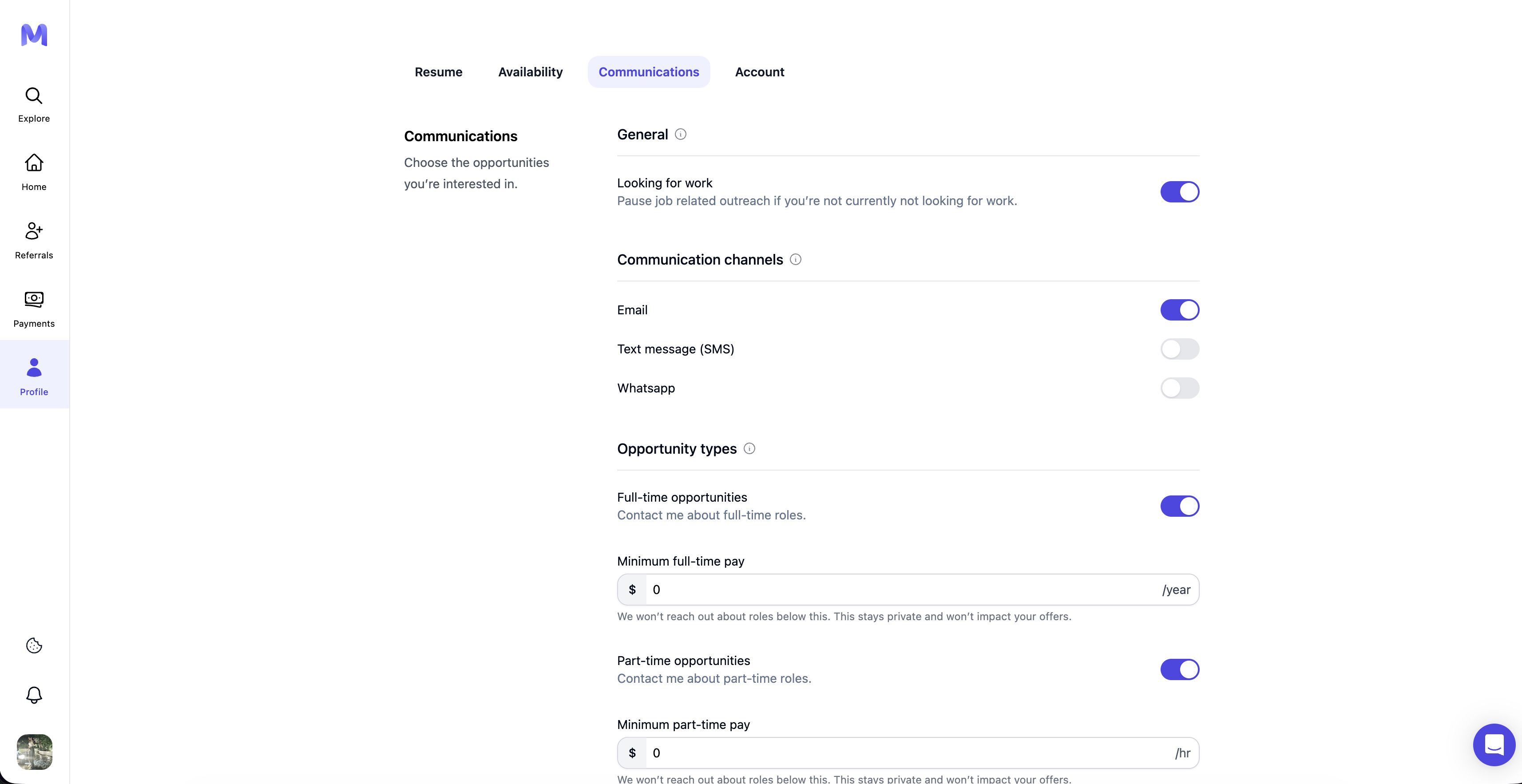
This page explains how to manage all communications from Mercor, including unsubscribing, pausing outreach, and customizing preferences. All options are found under **Settings → Preferences** after signing in.
## Where to Find It
Go to [work.mercor.com](http://work.mercor.com) and log in.
Navigate to Settings → Preferences.
You'll find all outreach-related options in this section.
 ## Quick Actions
Cease all outreach communications immediately.
Temporarily pause communication if you're not looking for roles.
Select preferred communication methods: Email, SMS, WhatsApp.
Filter outreach by salary, role type, and other job expectations.
***
## Detailed Options
### 1. Unsubscribe from All
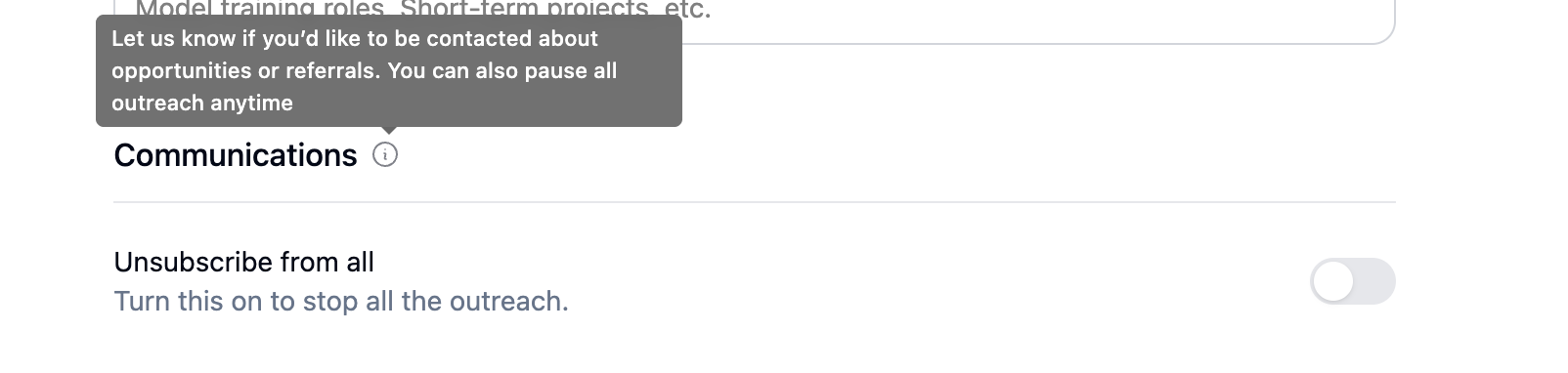
This option deactivates all outreach activities across all channels. Use it if you are not presently seeking new opportunities.
* How to use: Toggle Unsubscribe from all → Confirm.
You may re-enable it at any time. Disabling all communication could also prevent you from receiving application or contract updates.
## Quick Actions
Cease all outreach communications immediately.
Temporarily pause communication if you're not looking for roles.
Select preferred communication methods: Email, SMS, WhatsApp.
Filter outreach by salary, role type, and other job expectations.
***
## Detailed Options
### 1. Unsubscribe from All
This option deactivates all outreach activities across all channels. Use it if you are not presently seeking new opportunities.
* How to use: Toggle Unsubscribe from all → Confirm.
You may re-enable it at any time. Disabling all communication could also prevent you from receiving application or contract updates.
 Transactional messages, including received offers, login magic links, financial transactions on the platform, and other pertinent communications, will continue to be sent even if you have unsubscribed, as they constitute essential information relating to your account or contractual obligations.
***
### 2. Looking for Work (Pause/Resume)
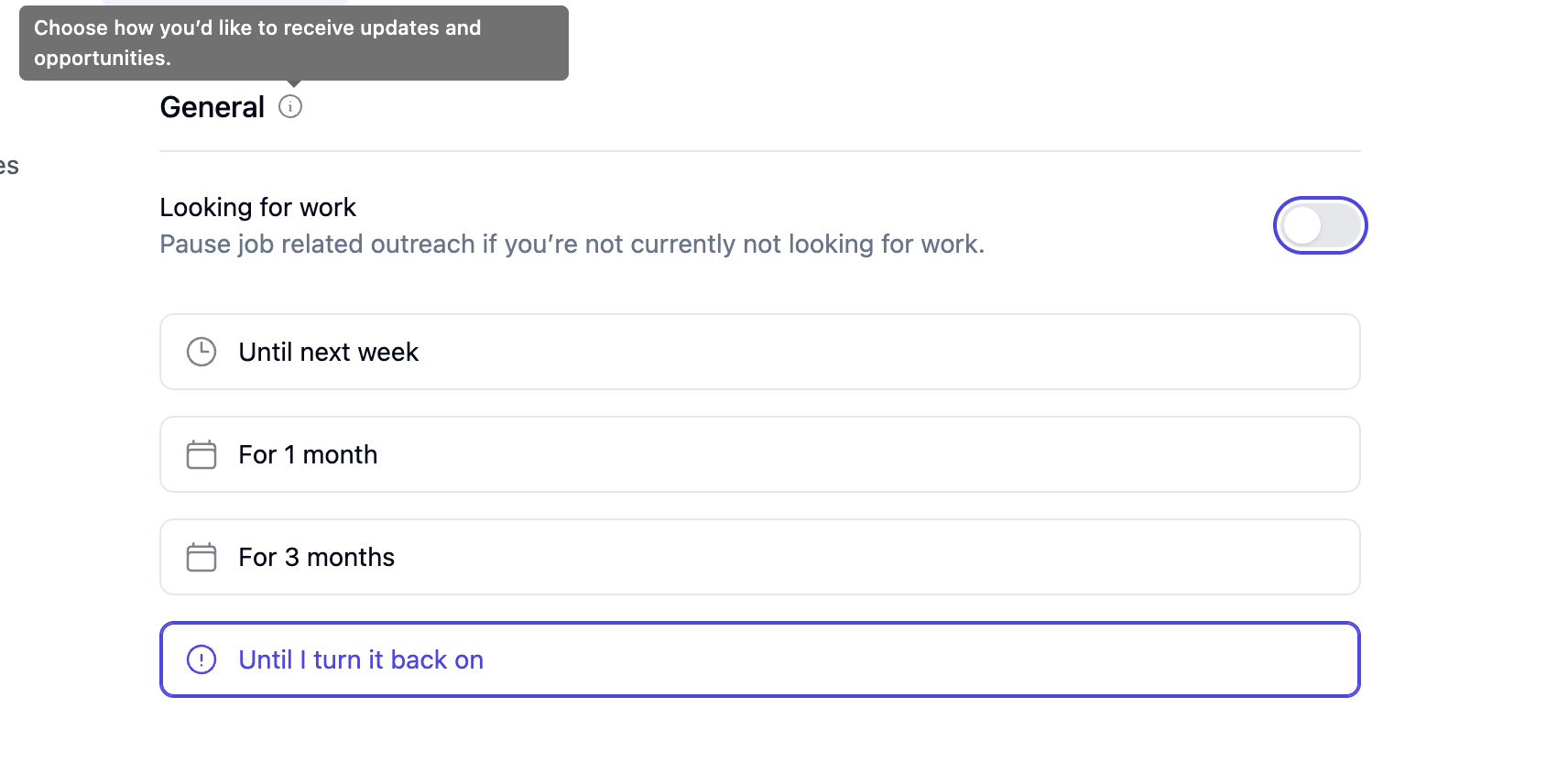
Suspend communications without modifying individual settings.
* Toggle 'Looking for Work':
* **On** → when job searching
* **Off** → when you want a break
* Ideal for travel, examinations, hectic periods, and similar circumstances.
Transactional messages, including received offers, login magic links, financial transactions on the platform, and other pertinent communications, will continue to be sent even if you have unsubscribed, as they constitute essential information relating to your account or contractual obligations.
***
### 2. Looking for Work (Pause/Resume)
Suspend communications without modifying individual settings.
* Toggle 'Looking for Work':
* **On** → when job searching
* **Off** → when you want a break
* Ideal for travel, examinations, hectic periods, and similar circumstances.
 ***
### 3. Communication Channels
Regulate the platforms through which Mercor communicates with you.
Receive updates and job offers via email.
Get updates directly to your phone.
* Instructions for use: Activate or deactivate each channel accordingly.
Keep at least one channel active for essential updates.
***
### 3. Communication Channels
Regulate the platforms through which Mercor communicates with you.
Receive updates and job offers via email.
Get updates directly to your phone.
* Instructions for use: Activate or deactivate each channel accordingly.
Keep at least one channel active for essential updates.
 ***
### 4. Opportunity Types (Targeted Outreach)
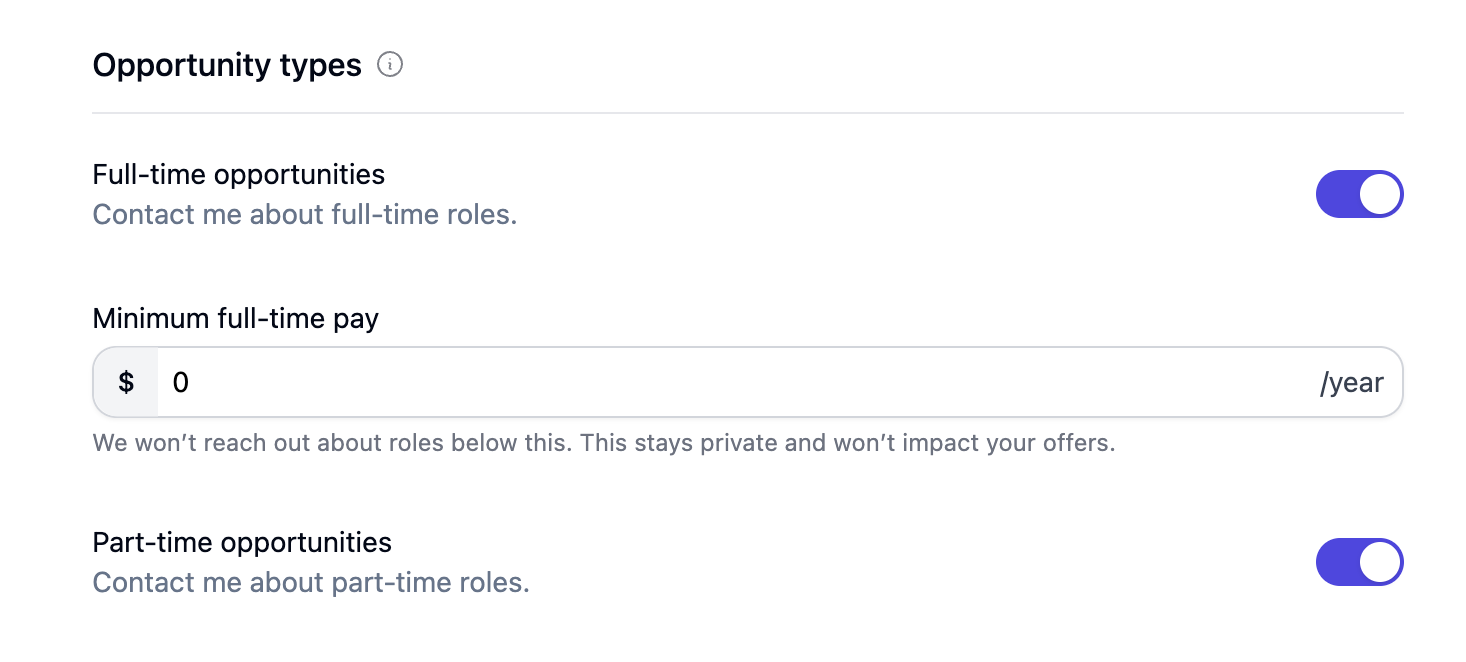
This filters roles based on your preferences so you only receive relevant listings.
* Common filters:
* Salary: Minimum expected pay
* Role type: Full-time, Part-time, Contractor, Internship
**Example:** If your expectation is ₹20 LPA+ and full-time, you won’t be contacted for contractor roles or lower offers.
* How to use: Open Opportunity Types
→ Set preferences → Save.
***
### 4. Opportunity Types (Targeted Outreach)
This filters roles based on your preferences so you only receive relevant listings.
* Common filters:
* Salary: Minimum expected pay
* Role type: Full-time, Part-time, Contractor, Internship
**Example:** If your expectation is ₹20 LPA+ and full-time, you won’t be contacted for contractor roles or lower offers.
* How to use: Open Opportunity Types
→ Set preferences → Save.
 ***
## FAQs
Please verify which setting you adjusted, whether it pertains to unsubscribe options, channel, or opportunity type. Additionally, confirm that the channel responsible for sending the message has been deactivated.
Transactional messages, including received offers, login magic links, financial transactions on the platform, and other pertinent communications, will continue to be sent even if you have unsubscribed, as they constitute essential information relating to your account or contractual obligations.
Enable Email notifications and deactivate SMS and WhatsApp within Communication Channels.
Review and refine your Opportunity Type filters, particularly those associated with salary and role type.
***
## Need Help?
If your communication settings are not functioning as anticipated, kindly reach out to [support@mercor.com](mailto:support@mercor.com) with a screenshot of your preferences and the message you received.
We will investigate the matter and update your account accordingly.
***
## FAQs
Please verify which setting you adjusted, whether it pertains to unsubscribe options, channel, or opportunity type. Additionally, confirm that the channel responsible for sending the message has been deactivated.
Transactional messages, including received offers, login magic links, financial transactions on the platform, and other pertinent communications, will continue to be sent even if you have unsubscribed, as they constitute essential information relating to your account or contractual obligations.
Enable Email notifications and deactivate SMS and WhatsApp within Communication Channels.
Review and refine your Opportunity Type filters, particularly those associated with salary and role type.
***
## Need Help?
If your communication settings are not functioning as anticipated, kindly reach out to [support@mercor.com](mailto:support@mercor.com) with a screenshot of your preferences and the message you received.
We will investigate the matter and update your account accordingly.