> ## Documentation Index
> Fetch the complete documentation index at: https://talent.docs.mercor.com/llms.txt
> Use this file to discover all available pages before exploring further.
# Bugs
> Quick browser fixes that resolve most issues and how to file a high‑quality bug report that engineering can act on.
Before escalating, try the quick browser fixes below. If the issue persists, follow the reporting steps so our team can reproduce and resolve it quickly.
## Try this first (quick fixes)
Mercor operates optimally on current Chromium-based browsers such as Google Chrome. If you are utilizing Firefox or an outdated browser and encounter difficulties, switching to Chrome or the latest version of Safari typically resolves the issue. It is essential to keep your browser updated to the latest version for optimal compatibility.
If pages aren’t loading properly or you’re seeing outdated information, your browser might be displaying cached data. Clearing your browser’s cache and cookies can remove stored data that may be causing the problem. After clearing, refresh the page to load the latest version. This simple step often fixes minor glitches.
Browser extensions or privacy tools may occasionally disrupt platform functionalities. To eliminate this possibility, access Mercor through an Incognito/Private browsing window, which typically disables extensions by default. Should the site operate correctly in this mode, it is advisable to temporarily disable any ad blockers, VPNs, or additional extensions that could be obstructing content. This process ensures that no local settings are impeding the proper functioning of the site.
If you encounter issues while using a mobile device, such as difficulties with uploads or AI interviews, it is recommended to switch to a laptop or desktop browser, or alternatively, enable desktop mode on your mobile device.
Certain actions, such as viewing an offer letter or initiating an interview, may open a new window or require access to your camera or microphone. If clicking a button results in no response, your browser might be blocking a pop-up. Please check for any pop-up blocker notifications in your address bar and permit pop-ups for [work.mercor.com.](http://work.mercor.com)
If an AI interview screen is blank or not responding, please ensure that you have granted the website permission to access your camera and microphone. Mercor’s interview feature operates through the web browser and may require these permissions, along with the use of a supported browser, to function correctly.
Please escalate the issue only after attempting the steps outlined above. If the problem persists, it is likely indicative of a required fix on our part or may be account-specific. Kindly report it along with the information provided below.
## How to report a bug (what to include)
The link to the precise page where the issue was encountered, such as [https://work.mercor.com/explore](https://work.mercor.com/explore) or the specific job/profile page displaying the error.
The email address associated with your Mercor account facilitates support in identifying your account and reproducing the issue under similar conditions.
Please describe the device and browser you were utilizing. For instance: “Windows 10 using Google Chrome 1.16” or “iPhone 12 on iOS 16 Safari.” Include the browser version if feasible. This information enables us to understand the environment in which the issue occurred, as certain problems may be specific to specific devices or browsers.
A detailed, step-by-step account of the actions undertaken prior to the occurrence of the issue should be provided. Present these steps as a concise, ordered list. For example: “1. Logged into the system and accessed the Opportunities page. 2. Selected a job listing titled 'Software Engineer.' 3. The page became unresponsive and failed to load the job details.” Clear and precise reproduction steps are essential for enabling our engineers to efficiently replicate the bug.
Please specify the date and time (including the time zone if possible, e.g., September 5, 2025, at 6:30 PM IST) when the bug was encountered. This information will assist us in examining the logs within that timeframe for any errors.
Please attach screenshots or videos, or paste the exact error message. Ensure that the error codes and the relevant user interface are visible.
## Copy‑paste bug report template
```text theme={null}
Hello Mercor Support Team,
I'm experiencing an issue on the Mercor platform that I need help with.
URL:
Mercor Email:
Device/Browser:
Issue Description:
Time of Issue:
Screenshots/Error Messages:
```
Utilizing the aforementioned format will ensure the comprehensive inclusion of all relevant information. Upon receipt of your report, our team will replicate the procedures, identify the cause, and respond with an appropriate resolution or additional inquiries if necessary.
We are available to assist you; therefore, please do not hesitate to report any issues. A thoroughly documented bug report not only accelerates our ability to resolve the problem but also enhances the platform for all users
***
## Troubleshooting
### Can't Sign In: 403 Access Forbidden (VPN / Proxy Blocked)
As of July 17, 2026, Mercor blocks sign-ins that come through VPNs, proxy services, or other anonymizing networks. If one of these tools is active, the sign-in page does not load and shows a **403 Access Forbidden** error ("You don't have permission to access this page."). The same block applies when opening Slack, Google Workspace, or other Mercor tools that sign in through Okta, so those pages may also appear broken. See the [Account Security and Conduct policy](/policies/account-security-conduct#vpns-proxies-and-anonymizing-networks).
This is the error you will see if a VPN, proxy, or anonymizing tool is active when you sign in:
 #### How to fix it
Fully disconnect any VPN client, system-wide app, or browser extension that reroutes your connection.
Even if you never installed a VPN, check for: **iCloud Private Relay** (Settings → \[your name] → iCloud → Private Relay), VPN apps set to launch at startup, and "secure browsing" or "VPN" features inside antivirus and browser software.
Quit and reopen your browser, then sign in again from your home or mobile network.
If sign-in fails on a regular connection and you see "Unable to sign in" instead of a 403 error, the cause is usually an expired or unrecognized 2FA. Reset your password and MFA from your contract page: [reset guide](/how-to/okta-access#resetting-password-and-mfa). Individual exceptions to the VPN policy are not granted.
### Résumé Upload
Only the PDF format will be accepted.
PDF image-based files (such as scanned documents) will not be parsed by our system.
From the left-hand menu in your Mercor dashboard, select “Profile.”
Click the “Résumé” tab or open it directly at [https://work.mercor.com/profile?tab=resume](https://work.mercor.com/profile?tab=resume).
Please upload your résumé in PDF format by either dragging the file into the designated area or by selecting it directly. Note that other formats are not supported.
The system will review your résumé and make the requisite updates to your profile. You are not required to resubmit any information manually.
### Login with a C-Mercor Email: ERROR FETCHING DATA
Never modify your access email to the C-Mercor, as this email was designated solely for use in the production environment.
If at any point you changed your access email on our platform [work.mercor.com](http://work.mercor.com) to the email ending in @[c-mercor.com](http://c-mercor.com), you will no longer be able to access the platform and will receive the error: `ERROR FETCHING DATA`.
#### How to fix it
Fully disconnect any VPN client, system-wide app, or browser extension that reroutes your connection.
Even if you never installed a VPN, check for: **iCloud Private Relay** (Settings → \[your name] → iCloud → Private Relay), VPN apps set to launch at startup, and "secure browsing" or "VPN" features inside antivirus and browser software.
Quit and reopen your browser, then sign in again from your home or mobile network.
If sign-in fails on a regular connection and you see "Unable to sign in" instead of a 403 error, the cause is usually an expired or unrecognized 2FA. Reset your password and MFA from your contract page: [reset guide](/how-to/okta-access#resetting-password-and-mfa). Individual exceptions to the VPN policy are not granted.
### Résumé Upload
Only the PDF format will be accepted.
PDF image-based files (such as scanned documents) will not be parsed by our system.
From the left-hand menu in your Mercor dashboard, select “Profile.”
Click the “Résumé” tab or open it directly at [https://work.mercor.com/profile?tab=resume](https://work.mercor.com/profile?tab=resume).
Please upload your résumé in PDF format by either dragging the file into the designated area or by selecting it directly. Note that other formats are not supported.
The system will review your résumé and make the requisite updates to your profile. You are not required to resubmit any information manually.
### Login with a C-Mercor Email: ERROR FETCHING DATA
Never modify your access email to the C-Mercor, as this email was designated solely for use in the production environment.
If at any point you changed your access email on our platform [work.mercor.com](http://work.mercor.com) to the email ending in @[c-mercor.com](http://c-mercor.com), you will no longer be able to access the platform and will receive the error: `ERROR FETCHING DATA`.
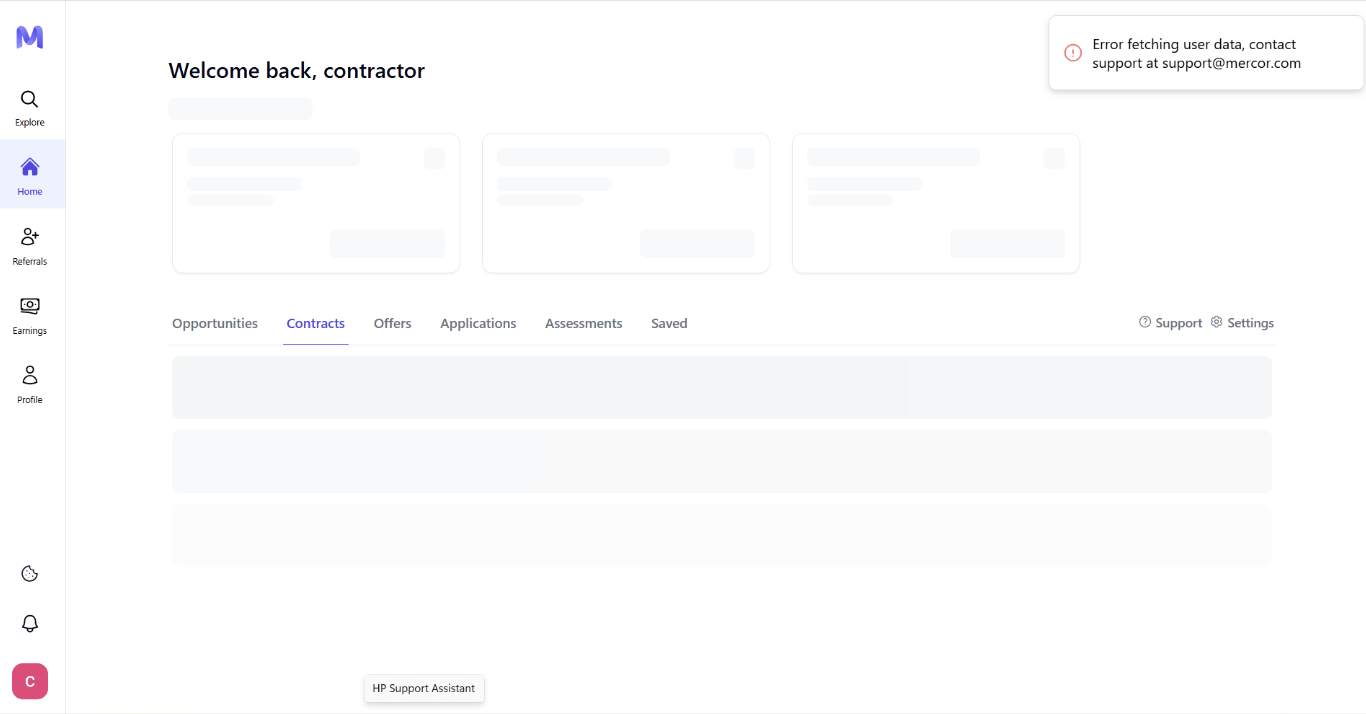 Your account has been reverted to your prior registration email address before the recent change; all associated contracts, applications, and information have been automatically migrated to that email.
* Request the magic link to access your previous email.
* You will continue to work and receive messages normally through this account.
### Unable to Load Form / Network Connection Lost
If you are situated in any of the countries enumerated below and experience the errors “Unable to Load Form” or “Network Connection Lost, please check your internet and try again,” kindly be advised that Mercor does not offer services within these regions.
Mercor services are not available in the following countries:
* Afghanistan (AF)
* Belarus (BY)
* Central African Republic (CF)
* Republic of the Congo (CG)
* Democratic Republic of the Congo (CD)
* Cuba (CU)
* Ethiopia (ET)
* Iran (IR)
* Iraq (IQ)
* North Korea (KP)
* Nicaragua (NI)
* Lebanon (LB)
* Libya (LY)
* Mali (ML)
* Myanmar / Burma (MM)
* Russia (RU)
* Somalia (SO)
* South Sudan (SS)
* Sudan (SD)
* Syria (SY)
* Ukraine (UA)
* Venezuela (VE)
* Yemen (YE)
If you are presently located in one of these nations or are attempting to connect via an IP address situated therein, you will be unable to register or access our platform or services.
Please ensure that you are not accessing the site from a restricted region or via a VPN routing your connection through any of the listed countries.
If you are utilizing a VPN, please attempt to disable it and reconnect to Mercor. Employing a local or unrestricted connection may serve to resolve the issue.
Once you have verified your connection, reload the page or restart your browser to confirm that the issue no longer occurs.
If you are located outside the regions specified above and continue to encounter this error, please contact Mercor Support via the Help button on your dashboard or by submitting a comprehensive bug report following the aforementioned instructions. Kindly include your current country, device, and browser details to enable our team to assist you promptly.
### Address Form Won't Accept Your Postal Code (VPN / iCloud Private Relay)
During Identity Verification, Persona detects your country from your IP address and pre-fills the address form with that country's format. If you are connected through a **VPN, iCloud Private Relay, or a similar privacy tool** that routes your traffic through the United States, the form will only accept a **US ZIP code** — even if you live elsewhere. A Canadian, Brazilian, Indian, or other non-US postal code will be rejected.
Also note that as of July 17, 2026, these tools block Mercor sign-in entirely and cannot be used while working on the platform. See the [Account Security and Conduct policy](/policies/account-security-conduct#vpns-proxies-and-anonymizing-networks).
#### How to fix it
Disable any service that masks or reroutes your IP address. On iPhone or Mac, check **Settings → Apple ID → iCloud → Private Relay** and switch it off. On a desktop, fully disconnect any VPN client. Keep these tools off while you sign in and while you work on Mercor.
Persona reads your location at the start of each session. Clearing cache forces a fresh check next time you open the verification link.
Retry on the same browser, or open the link on another device that does not have those tools active (for example, a phone on a cellular connection).
The form will now load with the correct country selected and accept your local postal code.
You **do not** need a new ID Verification session or a new link from Support. Persona re-checks your location at the start of every new session, so reopening the existing verification link after disabling the VPN is enough.
Do not submit a US ZIP code that is not yours just to bypass the form. Mismatched addresses will fail verification and may require a manual review.
Your account has been reverted to your prior registration email address before the recent change; all associated contracts, applications, and information have been automatically migrated to that email.
* Request the magic link to access your previous email.
* You will continue to work and receive messages normally through this account.
### Unable to Load Form / Network Connection Lost
If you are situated in any of the countries enumerated below and experience the errors “Unable to Load Form” or “Network Connection Lost, please check your internet and try again,” kindly be advised that Mercor does not offer services within these regions.
Mercor services are not available in the following countries:
* Afghanistan (AF)
* Belarus (BY)
* Central African Republic (CF)
* Republic of the Congo (CG)
* Democratic Republic of the Congo (CD)
* Cuba (CU)
* Ethiopia (ET)
* Iran (IR)
* Iraq (IQ)
* North Korea (KP)
* Nicaragua (NI)
* Lebanon (LB)
* Libya (LY)
* Mali (ML)
* Myanmar / Burma (MM)
* Russia (RU)
* Somalia (SO)
* South Sudan (SS)
* Sudan (SD)
* Syria (SY)
* Ukraine (UA)
* Venezuela (VE)
* Yemen (YE)
If you are presently located in one of these nations or are attempting to connect via an IP address situated therein, you will be unable to register or access our platform or services.
Please ensure that you are not accessing the site from a restricted region or via a VPN routing your connection through any of the listed countries.
If you are utilizing a VPN, please attempt to disable it and reconnect to Mercor. Employing a local or unrestricted connection may serve to resolve the issue.
Once you have verified your connection, reload the page or restart your browser to confirm that the issue no longer occurs.
If you are located outside the regions specified above and continue to encounter this error, please contact Mercor Support via the Help button on your dashboard or by submitting a comprehensive bug report following the aforementioned instructions. Kindly include your current country, device, and browser details to enable our team to assist you promptly.
### Address Form Won't Accept Your Postal Code (VPN / iCloud Private Relay)
During Identity Verification, Persona detects your country from your IP address and pre-fills the address form with that country's format. If you are connected through a **VPN, iCloud Private Relay, or a similar privacy tool** that routes your traffic through the United States, the form will only accept a **US ZIP code** — even if you live elsewhere. A Canadian, Brazilian, Indian, or other non-US postal code will be rejected.
Also note that as of July 17, 2026, these tools block Mercor sign-in entirely and cannot be used while working on the platform. See the [Account Security and Conduct policy](/policies/account-security-conduct#vpns-proxies-and-anonymizing-networks).
#### How to fix it
Disable any service that masks or reroutes your IP address. On iPhone or Mac, check **Settings → Apple ID → iCloud → Private Relay** and switch it off. On a desktop, fully disconnect any VPN client. Keep these tools off while you sign in and while you work on Mercor.
Persona reads your location at the start of each session. Clearing cache forces a fresh check next time you open the verification link.
Retry on the same browser, or open the link on another device that does not have those tools active (for example, a phone on a cellular connection).
The form will now load with the correct country selected and accept your local postal code.
You **do not** need a new ID Verification session or a new link from Support. Persona re-checks your location at the start of every new session, so reopening the existing verification link after disabling the VPN is enough.
Do not submit a US ZIP code that is not yours just to bypass the form. Mismatched addresses will fail verification and may require a manual review.