> ## Documentation Index
> Fetch the complete documentation index at: https://talent.docs.mercor.com/llms.txt
> Use this file to discover all available pages before exploring further.
# Work Trials
> Gain an understanding of how to accept, complete, and receive payment for a Mercor work trial.
Work trials are single, remunerated assessments designed to evaluate candidates before issuing a Job Offer. This guide delineates the procedure for accepting your work trial and completing the process systematically.
## Key Points to Know
Each talent is eligible for only one work trial, regardless of the number of offers received.
Talents are remunerated for only a single work trial. Kindly select the one you wish to accept if multiple options have been received.
Acceptance of a single trial automatically invalidates all other trials.
Worktrials has a limited number of available spots. The offer may be withdrawn if all the slots for the project are filled. It is advisable to submit your application promptly.
***
## 1. Accessing Your Work Trial
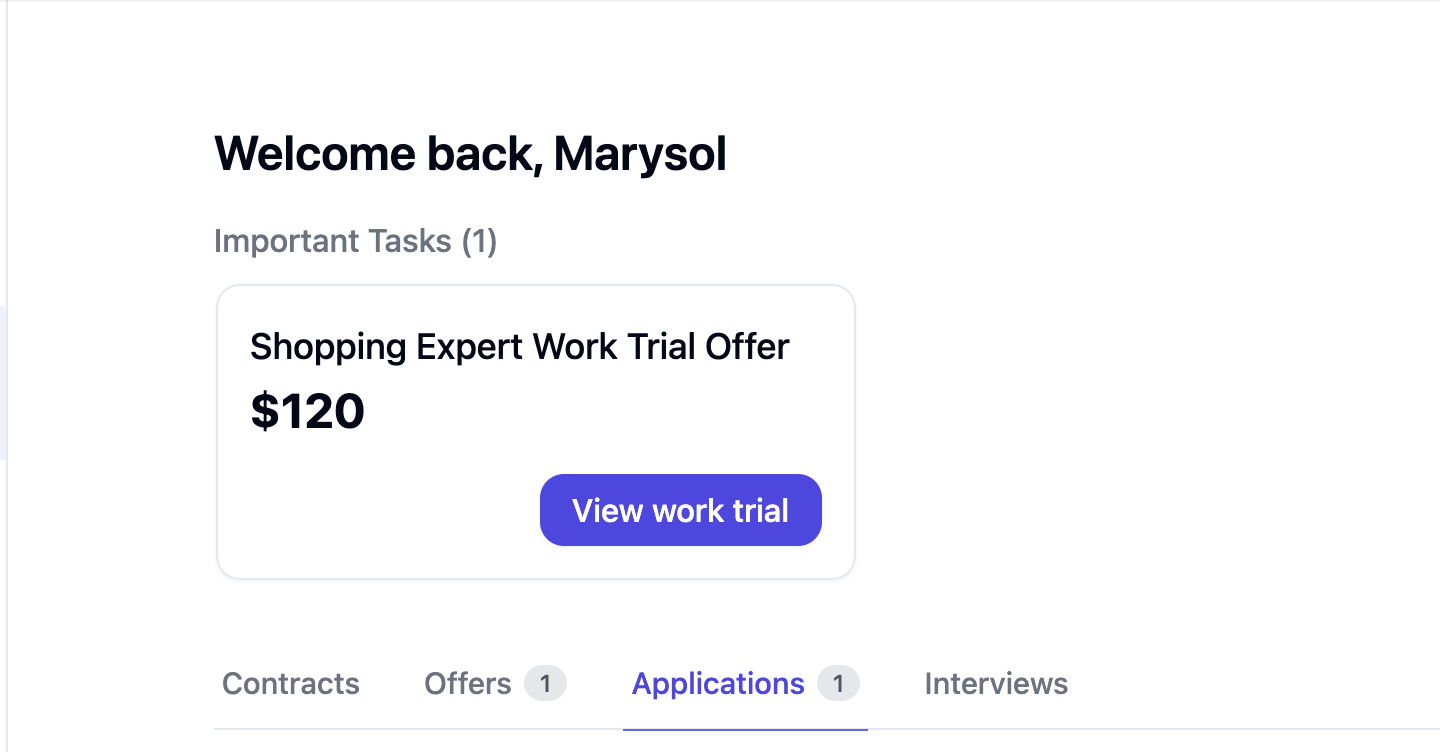
Offers will appear in the [Offers](https://work.mercor.com/home?tab=offers) tab or under the Important Tasks section.
 Please attempt a hard refresh (⇧+Cmd/Ctrl+R), log out and log back in, or try using a different browser. If the issue persists, kindly contact [support@mercor.com](mailto:support@mercor.com) with the link to the job listing, your email address, and a screenshot.
***
## 2. The Work Trial Page
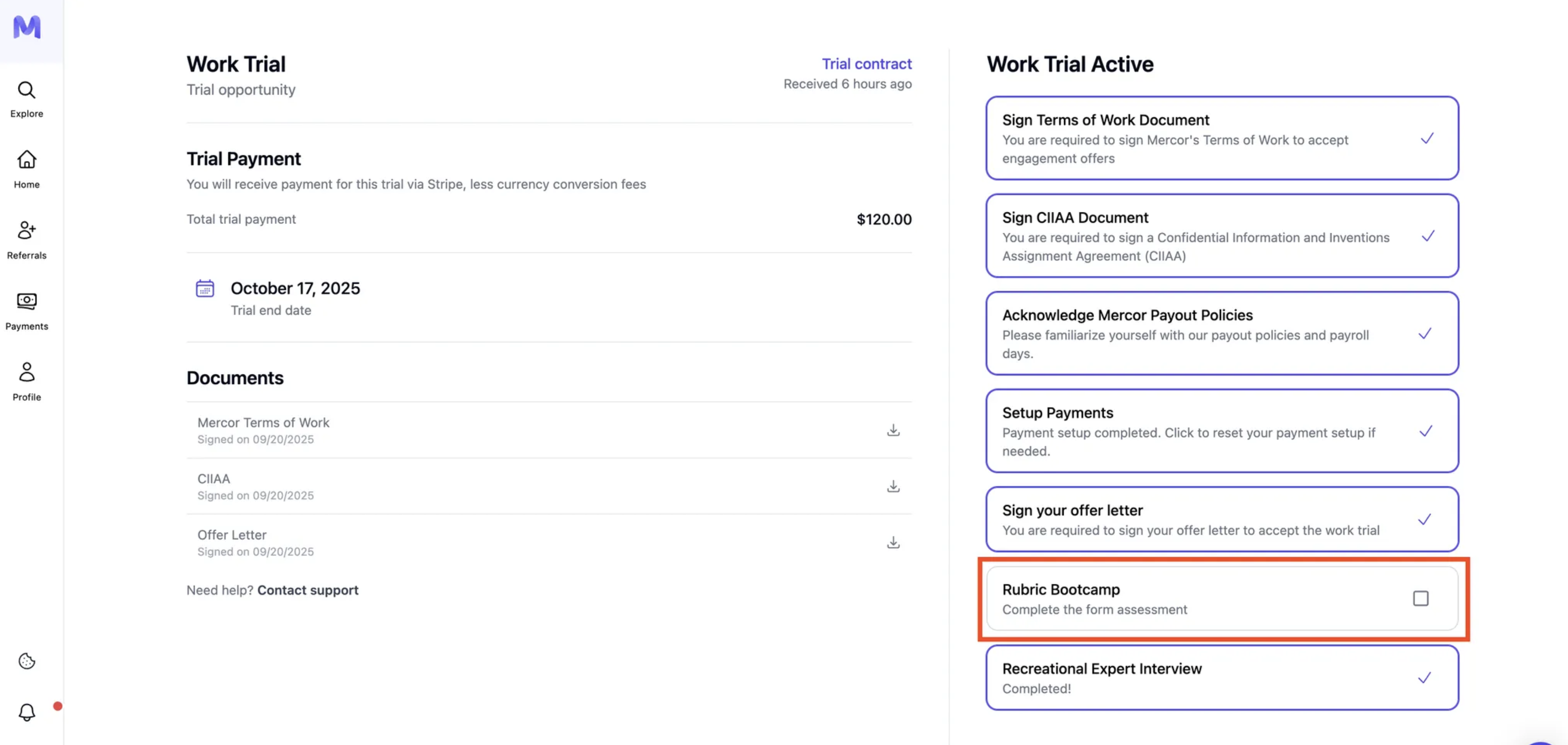
Prior to fulfilling any items on the checklist, please review the panel on the left-hand side.
* Title and Contract Type (e.g., "Work Trial")
* Payment details (fixed payout amount for completing the trial)
* Commencement date of the trial and schedule of disbursements.
* A checklist is located on the right side to facilitate unlocking "Accept Work Trial."
Please attempt a hard refresh (⇧+Cmd/Ctrl+R), log out and log back in, or try using a different browser. If the issue persists, kindly contact [support@mercor.com](mailto:support@mercor.com) with the link to the job listing, your email address, and a screenshot.
***
## 2. The Work Trial Page
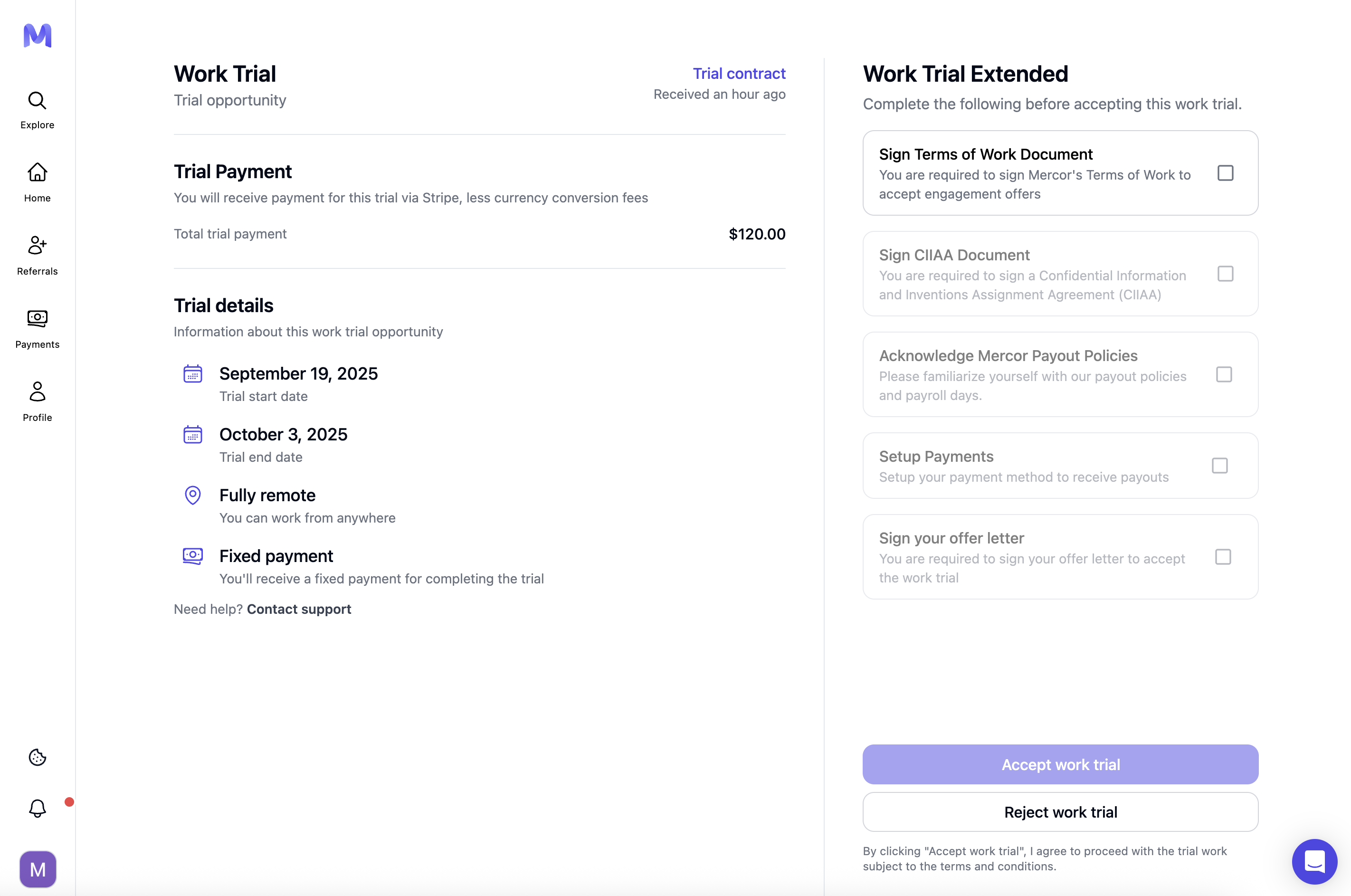
Prior to fulfilling any items on the checklist, please review the panel on the left-hand side.
* Title and Contract Type (e.g., "Work Trial")
* Payment details (fixed payout amount for completing the trial)
* Commencement date of the trial and schedule of disbursements.
* A checklist is located on the right side to facilitate unlocking "Accept Work Trial."
 ***
## 3. Work Trial Acceptance Process
Follow the checklist step-by-step:
Open the ToW → Fill in the name, signature, and date → Agree and sign.
Obliged to accept any engagement or work-trial offer.
***
## 3. Work Trial Acceptance Process
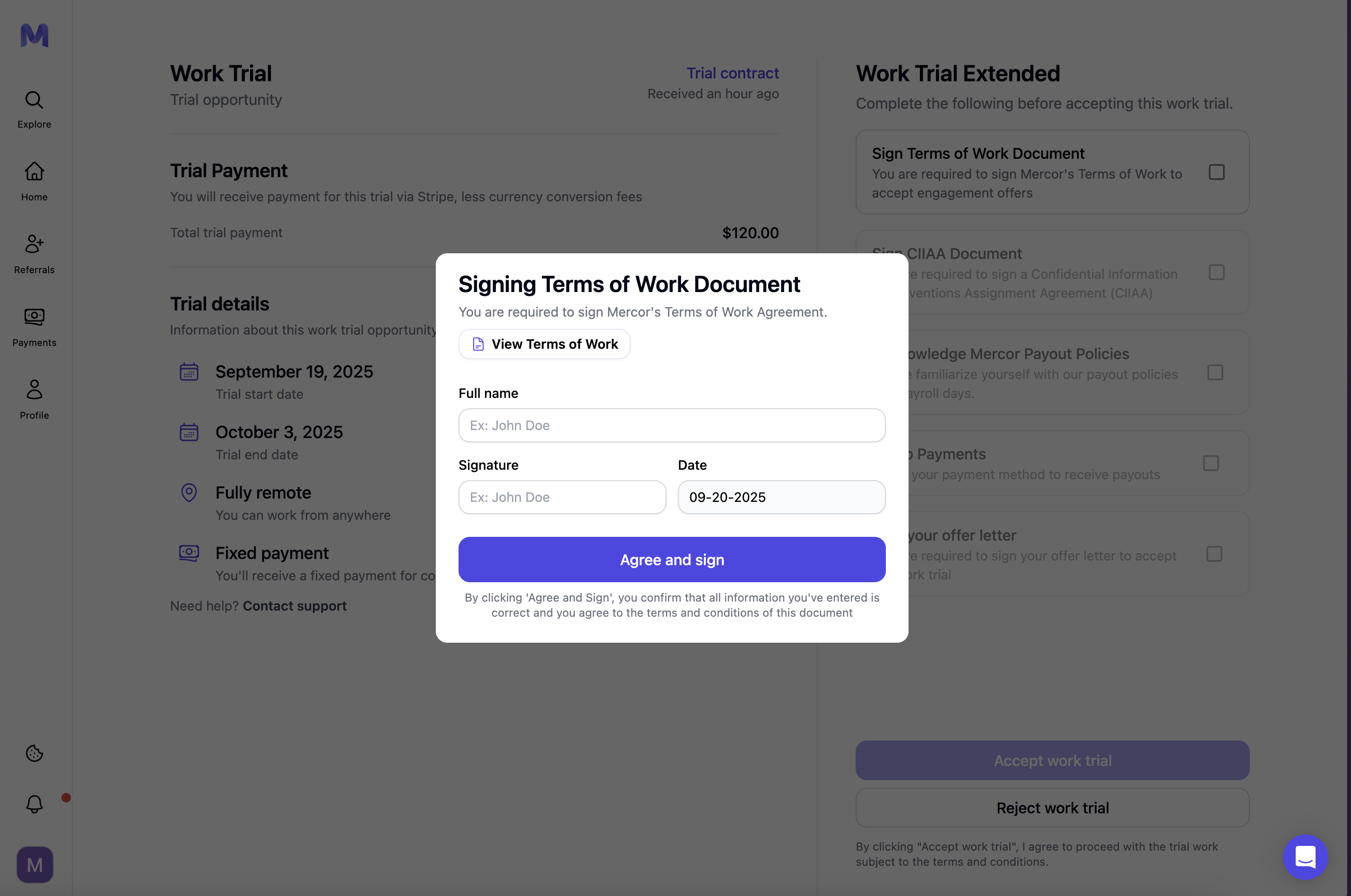
Follow the checklist step-by-step:
Open the ToW → Fill in the name, signature, and date → Agree and sign.
Obliged to accept any engagement or work-trial offer.
 Please complete the Confidential Information and Inventions Assignment Agreement.
Please review the policies, including payment schedule, logging requirements, Stripe/Wise timelines, and dispute procedures.
* Click **'Set up payments'** and then complete your identity verification (KYC) along with providing your bank details.
* Ensure that the **beneficiary name corresponds precisely to** your identification documents to prevent any payout failures.
* Have you selected the incorrect country? Please **utilize the Reset Payment Setup** feature and recommence the onboarding process.
* Open the **offer**, review the terms, and **then accept and sign** to confirm the work trial.
* A signed copy will be saved under the **Documents** section.
* Please note that this step may **only be accessible after** completing the Terms of Work (ToW), CIIAA, and Payments.
***
## 4. Completing the Work Trial Assessment
Once you accept the offer, your trial task will become available. Please complete it as soon as possible, as the spots are limited and may be filled according to the requests and needs of each project. In case of expiration, the matter should be addressed directly by the project lead who assigned the trial work, based on the available slots at that time.
Take a screenshot of the Offer Page (rate and payout terms) before accepting.
Support cannot reinstate missing or expired trials. Work trials have strict deadlines, and only the project lead who issued the offer has the authority to reassign a new one if necessary.
Please complete the Confidential Information and Inventions Assignment Agreement.
Please review the policies, including payment schedule, logging requirements, Stripe/Wise timelines, and dispute procedures.
* Click **'Set up payments'** and then complete your identity verification (KYC) along with providing your bank details.
* Ensure that the **beneficiary name corresponds precisely to** your identification documents to prevent any payout failures.
* Have you selected the incorrect country? Please **utilize the Reset Payment Setup** feature and recommence the onboarding process.
* Open the **offer**, review the terms, and **then accept and sign** to confirm the work trial.
* A signed copy will be saved under the **Documents** section.
* Please note that this step may **only be accessible after** completing the Terms of Work (ToW), CIIAA, and Payments.
***
## 4. Completing the Work Trial Assessment
Once you accept the offer, your trial task will become available. Please complete it as soon as possible, as the spots are limited and may be filled according to the requests and needs of each project. In case of expiration, the matter should be addressed directly by the project lead who assigned the trial work, based on the available slots at that time.
Take a screenshot of the Offer Page (rate and payout terms) before accepting.
Support cannot reinstate missing or expired trials. Work trials have strict deadlines, and only the project lead who issued the offer has the authority to reassign a new one if necessary.
 ***
## 5. Payment Setup & Timeline
Utilize Setup Payments to input relevant country, legal name, and banking information. Wise is employed solely in cases where Stripe is not supported.
Please verify your accounts by opening the verification emails from Stripe or Wise when prompted.
### Payout Timeline
* Payments for work trials are disbursed **within a period of 7 to 14 days** following the review of the submission, irrespective of whether it is accepted or rejected.
* After the payout displays as "Paid," the funds typically are received within **3 to 7 business days.**
Your initial Stripe payout is subject to a seven-day hold in accordance with Stripe's policy.
***
## 6. What Happens After the Trial
* **Active Status:** Upon commencement of work on the assessment, your status shall be updated to **'Active'** on the platform.
* **Decision and next Steps:** Upon submission, the project lead will review your work. Unfortunately, we are unable to provide individualized feedback on your performance.
**Possible Outcomes:**
You will receive a final offer to join the project.
You will continue to receive payment regardless of whether you are selected for the role.
***
## FAQs
A one-time, paid assessment designed to evaluate your performance on a project-like task prior to the extension of a full contract.
No. Please complete the task independently. Add comments or context in the submission form if needed.
Please clear your browser cache and refresh the page.
Please allow up to 24 hours for the status update. If the status remains unchanged after this period, kindly contact support and provide your submission details.
Mercor permits only a single paid trial per candidate.
The funds are usually received within 3 to 7 business days following payment, which is typically processed within 7 to 14 days after submission. The exact timing may vary depending on your banking institution.
Work trials follow strict expiration deadlines. Once a trial expires, it **cannot be reopened or extended** under any circumstances.
The submission window is fixed and automatically closes at the listed expiration time.
Regrettably, we are unable to provide personalized feedback due to high volume. You will still receive payment if the trial was valid and properly submitted.
The work trial serves as an assessment instrument employed to evaluate candidates prior to extending an offer, whereas a contract offer constitutes the definitive job proposal that formalizes the employment relationship between you and Mercor's clients.
No, a work trial does not guarantee a contract offer. Following submission, a work trial may be either rejected or accepted based on the quality of your responses. If accepted, an offer will be extended.
A typical work trial requires approximately four to six hours for completion.
Yes, you may perform your work trial across multiple shifts. The assessment can be saved incrementally and submitted at a later time, provided that the final deadline is met.
No. Rubric Academy / Bootcamp is only paid when it is part of a **work trial or an active contract**. Participation during the **application stage** is **unpaid**.
***
## 5. Payment Setup & Timeline
Utilize Setup Payments to input relevant country, legal name, and banking information. Wise is employed solely in cases where Stripe is not supported.
Please verify your accounts by opening the verification emails from Stripe or Wise when prompted.
### Payout Timeline
* Payments for work trials are disbursed **within a period of 7 to 14 days** following the review of the submission, irrespective of whether it is accepted or rejected.
* After the payout displays as "Paid," the funds typically are received within **3 to 7 business days.**
Your initial Stripe payout is subject to a seven-day hold in accordance with Stripe's policy.
***
## 6. What Happens After the Trial
* **Active Status:** Upon commencement of work on the assessment, your status shall be updated to **'Active'** on the platform.
* **Decision and next Steps:** Upon submission, the project lead will review your work. Unfortunately, we are unable to provide individualized feedback on your performance.
**Possible Outcomes:**
You will receive a final offer to join the project.
You will continue to receive payment regardless of whether you are selected for the role.
***
## FAQs
A one-time, paid assessment designed to evaluate your performance on a project-like task prior to the extension of a full contract.
No. Please complete the task independently. Add comments or context in the submission form if needed.
Please clear your browser cache and refresh the page.
Please allow up to 24 hours for the status update. If the status remains unchanged after this period, kindly contact support and provide your submission details.
Mercor permits only a single paid trial per candidate.
The funds are usually received within 3 to 7 business days following payment, which is typically processed within 7 to 14 days after submission. The exact timing may vary depending on your banking institution.
Work trials follow strict expiration deadlines. Once a trial expires, it **cannot be reopened or extended** under any circumstances.
The submission window is fixed and automatically closes at the listed expiration time.
Regrettably, we are unable to provide personalized feedback due to high volume. You will still receive payment if the trial was valid and properly submitted.
The work trial serves as an assessment instrument employed to evaluate candidates prior to extending an offer, whereas a contract offer constitutes the definitive job proposal that formalizes the employment relationship between you and Mercor's clients.
No, a work trial does not guarantee a contract offer. Following submission, a work trial may be either rejected or accepted based on the quality of your responses. If accepted, an offer will be extended.
A typical work trial requires approximately four to six hours for completion.
Yes, you may perform your work trial across multiple shifts. The assessment can be saved incrementally and submitted at a later time, provided that the final deadline is met.
No. Rubric Academy / Bootcamp is only paid when it is part of a **work trial or an active contract**. Participation during the **application stage** is **unpaid**.