> ## Documentation Index
> Fetch the complete documentation index at: https://talent.docs.mercor.com/llms.txt
> Use this file to discover all available pages before exploring further.
# Use Insightful for Time Tracking
> We utilize Insightful for time management. Please follow this step-by-step guide to configure it appropriately and accurately record your time.
## Setting up Insightful
Once you are added to a project, an invitation email will be sent to the email address associated with your Mercor profile.
Please accept the invite within **48 hours**, as Insightful links expire after that. If your link has expired, download Insightful directly here: [https://app.insightful.io/#/token/download](https://app.insightful.io/#/token/download) and sign in using your **primary Mercor-registered email address**.
 Please click the link provided in the email to visit Insightful's official website. Subsequently, download the version compatible with your operating system.
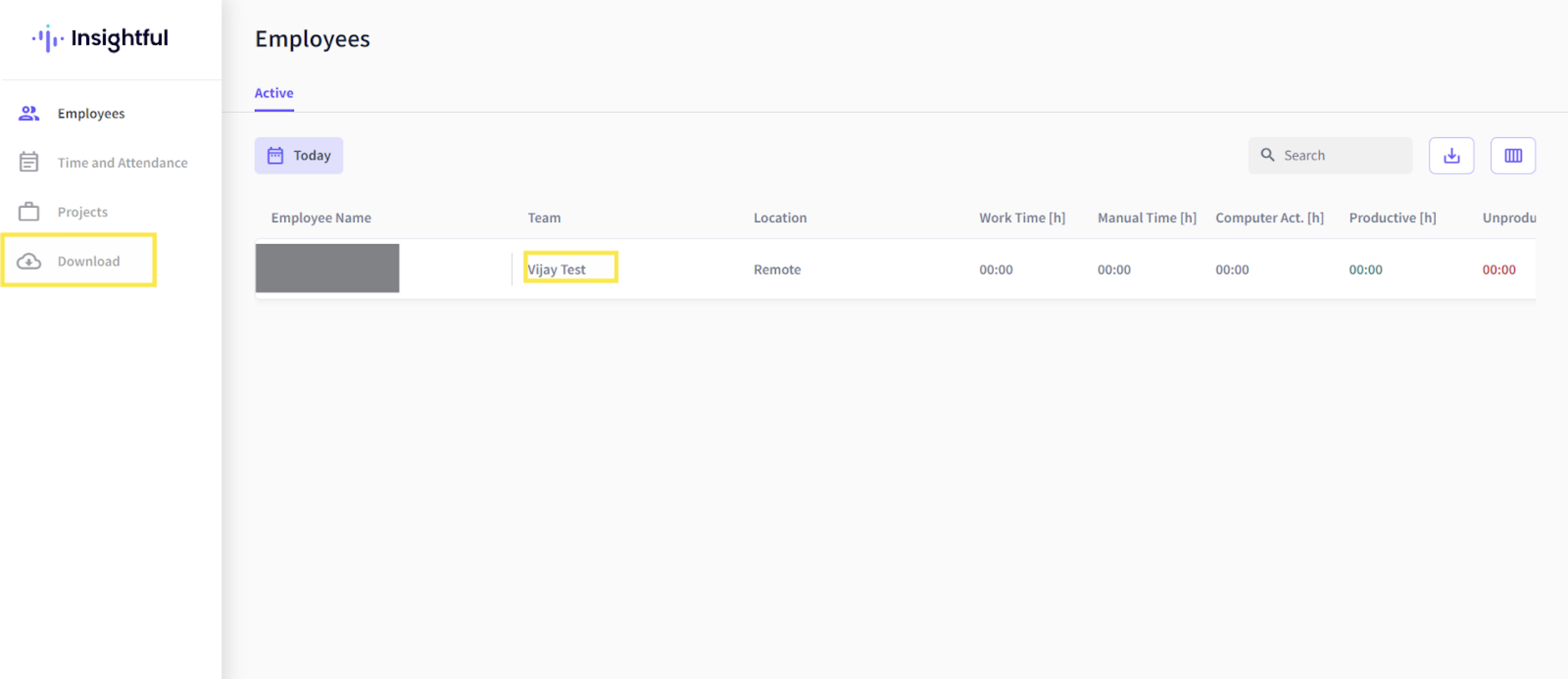 The application that has been downloaded is named **Workpuls**.
Following installation, open the Workpuls application and sign in using your **primary Mercor-registered email address**.
Assigned projects will appear in the app. You can start the timer and begin working only after a project has been assigned to you. After assignment, it may take up to **12 to 24 hours** for the project to appear in Insightful.
The application that has been downloaded is named **Workpuls**.
Following installation, open the Workpuls application and sign in using your **primary Mercor-registered email address**.
Assigned projects will appear in the app. You can start the timer and begin working only after a project has been assigned to you. After assignment, it may take up to **12 to 24 hours** for the project to appear in Insightful.
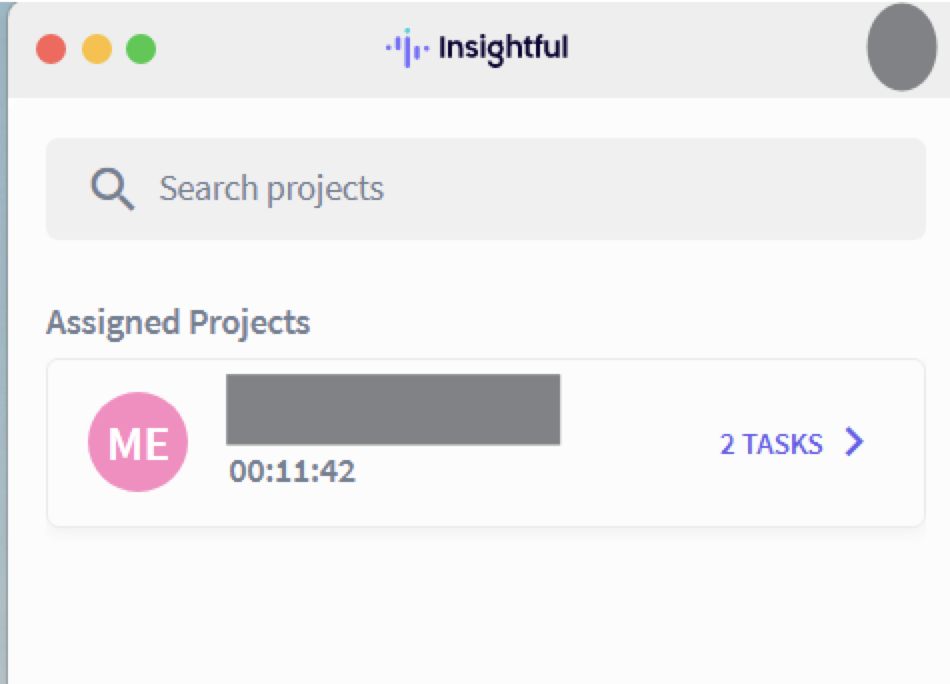 Please select your assigned project and task. Click the "Play" button to commence tracking, and halt when you pause or complete your work.
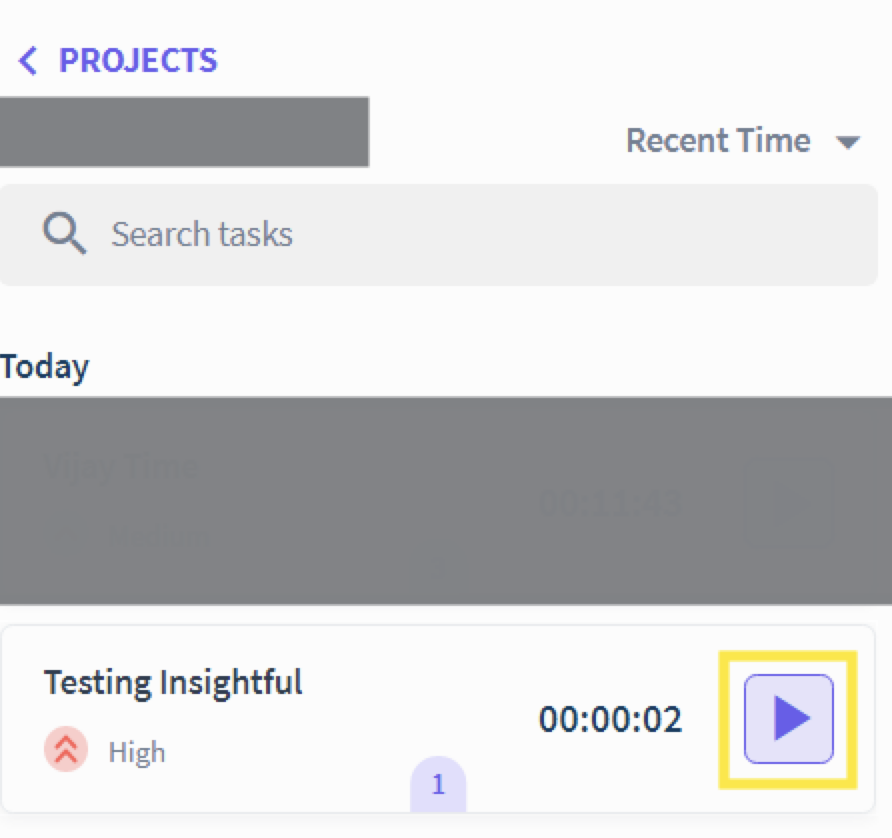 The desktop instance displays the total duration of the task over several days.
***
## FAQ
### Invitations & Login
First, check your spam folder for an email from [support@insightful.io](mailto:support@insightful.io). If you don't see it, your account may already be active. Download the desktop application at [https://app.insightful.io/#/token/download](https://app.insightful.io/#/token/download) and log in using your email address. If the issue persists, please contact our support team.
Always use the **personal email address** associated with your Mercor profile—the same email address used to sign your contract. Altering your email after signing may disrupt your Insightful integration.
If you have previously completed projects and are unable to log in again, please contact [support@mercor.com](mailto:support@mercor.com), and we will assist you in regaining access.
***
### Setup Issues
If you encounter a `400 error` this indicates that your account is still being created within our system. Kindly wait a few hours before attempting to access again.
Insightful links expire after **48 hours**. If your link has expired, download Insightful directly here: [https://app.insightful.io/#/token/download](https://app.insightful.io/#/token/download) and sign in using your **primary Mercor-registered email address**.
This message generally appears when you have modified your login email on [work.mercor.com](https://work.mercor.com). 'Insightful' is associated with the **initial email** used on the platform and, regrettably, cannot be updated as it is a third-party service.
Please **do not create a new organization** when prompted; there is no need to manually register anything.
No — if you are seeing this screen, it indicates that Insightful did not recognize your email. This situation typically occurs when your login email was changed on Mercor's platform. Please disregard the request to create a new organization.
Instead, verify your contract page and use the original email address you used to create your account when logging into Insightful.
No concerns — your contract will continue to **synchronize accurately** even if there are discrepancies in email addresses.
"Insightful" associates with your contract via internal identifiers, not solely through email.
Provided that you record time accurately with the correct contract and project, you will receive the appropriate compensation as anticipated.
***
### Device & OS Compatibility
### **Windows**
* **Supported**: **Windows 10** or later (requires .NET Framework 4.8 or later package installed)
### **MacOS**
* **Recommended**: macOS 12 (Monterey) or later
* **Supported**: **macOS 11 Big Sur** or later
### **Linux (Beta - Not Recommended)**
Not recommended to use if you have a Mac/Windows option available, Insightful's compatibility for Linux is in Beta, For help, contact [support@insightful.io](mailto:support@insightful.io).
* **Ubuntu/Mint 20.04** or later
* **Fedora 32** or later
Chromebooks, iPads, or mobile devices are not supported by Mercor. This means you won't be able to track time or work on Mercor projects using one.
***
### Project Access & Tracking
You can start the timer and begin working only after a project has been assigned to you.
After assignment, it may take up to **12 to 24 hours** for the project to appear in Insightful.
You will be automatically added to a project once you have completed the onboarding process on the Mercor platform. Synchronization may take several hours. If you are still not assigned, please contact [support@mercor.com](mailto:support@mercor.com)
Only your Project Lead or the Mercor internal team possesses the authority to modify your Insightful hour limits. Kindly reach out to them should you notice any discrepancies.
Click the 'Open Dashboard' button within the Workpuls application. This action redirects you to the Insightful web portal, where you are able to review time allocations by day and project.
The desktop instance displays the total duration of the task over several days.
***
## FAQ
### Invitations & Login
First, check your spam folder for an email from [support@insightful.io](mailto:support@insightful.io). If you don't see it, your account may already be active. Download the desktop application at [https://app.insightful.io/#/token/download](https://app.insightful.io/#/token/download) and log in using your email address. If the issue persists, please contact our support team.
Always use the **personal email address** associated with your Mercor profile—the same email address used to sign your contract. Altering your email after signing may disrupt your Insightful integration.
If you have previously completed projects and are unable to log in again, please contact [support@mercor.com](mailto:support@mercor.com), and we will assist you in regaining access.
***
### Setup Issues
If you encounter a `400 error` this indicates that your account is still being created within our system. Kindly wait a few hours before attempting to access again.
Insightful links expire after **48 hours**. If your link has expired, download Insightful directly here: [https://app.insightful.io/#/token/download](https://app.insightful.io/#/token/download) and sign in using your **primary Mercor-registered email address**.
This message generally appears when you have modified your login email on [work.mercor.com](https://work.mercor.com). 'Insightful' is associated with the **initial email** used on the platform and, regrettably, cannot be updated as it is a third-party service.
Please **do not create a new organization** when prompted; there is no need to manually register anything.
No — if you are seeing this screen, it indicates that Insightful did not recognize your email. This situation typically occurs when your login email was changed on Mercor's platform. Please disregard the request to create a new organization.
Instead, verify your contract page and use the original email address you used to create your account when logging into Insightful.
No concerns — your contract will continue to **synchronize accurately** even if there are discrepancies in email addresses.
"Insightful" associates with your contract via internal identifiers, not solely through email.
Provided that you record time accurately with the correct contract and project, you will receive the appropriate compensation as anticipated.
***
### Device & OS Compatibility
### **Windows**
* **Supported**: **Windows 10** or later (requires .NET Framework 4.8 or later package installed)
### **MacOS**
* **Recommended**: macOS 12 (Monterey) or later
* **Supported**: **macOS 11 Big Sur** or later
### **Linux (Beta - Not Recommended)**
Not recommended to use if you have a Mac/Windows option available, Insightful's compatibility for Linux is in Beta, For help, contact [support@insightful.io](mailto:support@insightful.io).
* **Ubuntu/Mint 20.04** or later
* **Fedora 32** or later
Chromebooks, iPads, or mobile devices are not supported by Mercor. This means you won't be able to track time or work on Mercor projects using one.
***
### Project Access & Tracking
You can start the timer and begin working only after a project has been assigned to you.
After assignment, it may take up to **12 to 24 hours** for the project to appear in Insightful.
You will be automatically added to a project once you have completed the onboarding process on the Mercor platform. Synchronization may take several hours. If you are still not assigned, please contact [support@mercor.com](mailto:support@mercor.com)
Only your Project Lead or the Mercor internal team possesses the authority to modify your Insightful hour limits. Kindly reach out to them should you notice any discrepancies.
Click the 'Open Dashboard' button within the Workpuls application. This action redirects you to the Insightful web portal, where you are able to review time allocations by day and project.
 Yes — you may install and use Insightful on multiple personal devices (such as a laptop and a desktop). However, you can only be **actively clocked in on one device at a time**.
Never stay logged in or track time simultaneously on more than one device. This is not supported and can cause data errors.
Before starting work on a different device:
* Fully log out of Insightful on the previous device
* Make sure the app is completely closed
* Then clock in on the new device as usual
If you skip these steps, your hours **may not be recorded correctly**, and you run the risk of **not being paid** for that time.
This helps ensure that your hours are accurately tracked and your data remains valid.
An active and stable internet connection is required for Insightful to track and log time accurately. Logged hours will not be synced if your device is offline or in airplane mode.
Recommneded to:
* Stay connected to a stable internet connection while working
* Avoid tracking / logging hours in offline/airplane mode.
Yes — you may install and use Insightful on multiple personal devices (such as a laptop and a desktop). However, you can only be **actively clocked in on one device at a time**.
Never stay logged in or track time simultaneously on more than one device. This is not supported and can cause data errors.
Before starting work on a different device:
* Fully log out of Insightful on the previous device
* Make sure the app is completely closed
* Then clock in on the new device as usual
If you skip these steps, your hours **may not be recorded correctly**, and you run the risk of **not being paid** for that time.
This helps ensure that your hours are accurately tracked and your data remains valid.
An active and stable internet connection is required for Insightful to track and log time accurately. Logged hours will not be synced if your device is offline or in airplane mode.
Recommneded to:
* Stay connected to a stable internet connection while working
* Avoid tracking / logging hours in offline/airplane mode.