> ## Documentation Index
> Fetch the complete documentation index at: https://talent.docs.mercor.com/llms.txt
> Use this file to discover all available pages before exploring further.
# Okta Access
> Instructions for Accessing Mercor Work Tools through Okta Post-Offer Acceptance
Okta is the system Mercor uses to manage access to internal work tools. Upon acceptance of your contract, Okta provides you with access to project tools such as Slack and guarantees that all systems are secure and centrally managed.
Your Okta email is consistently the personal email associated with your work.mercor.com account.
Okta provides SSO access to Slack, RL Studio, and Google Workspace (your @mercor.expert email, Drive, and Calendar). Other tools used on your project (such as Insightful, Feather, or SuperAnnotate) have their own access methods, documented in your project's onboarding document.
You will not receive a separate email invitation. Access is granted through your contract.
If you lose access, return to the Okta step inside your contract and select “Forgot Password.” This resets both your password and your MFA.
## Overview
* Your **Okta account** is created automatically upon initiating the contract acceptance process.
* Okta provides single sign-on (SSO) access to your core Mercor work applications: **Slack**, **RL Studio** (for contractor annotators, via the *Studio* tile), and **Google Workspace** (your `@mercor.expert` email, Drive, and Calendar, via the *Google Workspace* tile).
* Other tools used on your project, such as **Insightful**, **Feather**, or **SuperAnnotate**, have their own access methods and are not accessed through Okta. Always refer to your project's onboarding document for tool-specific instructions.
* Your **Okta email** corresponds to your **personal email address** — the same one associated with your Mercor profile.
* If your platform email is updated later, your **Okta email will be updated as well**, and your **previous Okta password will remain valid**.
If you have recently accepted a contract and have not yet been granted Slack access, or if you encounter the message "No available workspaces," please wait up to 24 hours for Slack to complete synchronization.
***
## How It Works
Okta accounts are automatically generated upon acceptance of the offer during the Okta Access step. It is required to access the site using a computer or laptop in order to establish your account.
To access your Okta dashboard, click on the Okta Access step again, then select 'Okta Dashboard.' Your username corresponds to your personal Gmail account.
Okta access is revoked solely upon the conclusion of all Mercor contracts associated with your account. Should one project complete while another remains active, your Okta access will remain in effect.
Migration to Okta will deactivate the previous Slack credentials. Please utilize your Okta login for access. Kindly note that workspace access may require several hours to become active.
***
## What is MFA?
Multi-Factor Authentication necessitates an additional verification method beyond your password. This safeguards that only you have access to your account and Mercor-related tools.
## What is FIDO2 / WebAuthn?
FIDO2 (WebAuthn) constitutes a robust authentication protocol endorsed by Okta. Unlike SMS codes or authenticator applications, FIDO2 employs a secure digital key stored locally on the user's device. This cryptographic key is called a **passkey**.
## What is a Passkey?
A passkey represents a cryptographic credential securely stored within a vault or password manager on your device. Authentication is achieved using methods such as fingerprint recognition, device PIN, facial recognition, or the device’s unlocking mechanism.
## What is Okta Verify?
Okta Verify is a free mobile authenticator app from Okta. After you enroll it, you approve each sign-in with a push notification, or by entering the 6-digit code the app displays. You can enroll Okta Verify in addition to a passkey — both can be active on your account.
## Supported Passkey Managers
Passkeys must be stored in a manager that supports WebAuthn. Before configuring Okta, ensure that your preferred passkey manager is installed, active, and signed in.
The simplest method. Works on Windows, macOS, Android, and ChromeOS. Requires being logged into Chrome with your personal Gmail and having sync enabled.
Works across Safari, iPhone, iPad and macOS. Requires iCloud Keychain enabled and an Apple device screen lock / device password protection.
Works on Windows PCs with facial recognition, fingerprint, or PIN configured.
Stores passkeys directly in your Android device’s secure environment. Requires Google account login.
Fully supports FIDO2/WebAuthn. Requires 1Password installed and signed in, with passkey storage enabled.
Any system that supports WebAuthn and platform authentication (YubiKey, device TPM, etc.).
You must already have your passkey manager configured on the device before starting the Okta step. Otherwise, FIDO2 enrollment will fail.
***
## Important Requirements Before Setup
### Use Google Chrome(Browser) for the setup
Chrome is the most stable and universal option for completing the Okta setup.
To ensure that Chrome can generate your passkey:
* Use Google Chrome (note that Firefox is not supported).
* Log in to Chrome using your Gmail account; otherwise, the Google Password Manager will not be activated.
* Complete the Okta setup on a computer, whether desktop or laptop.
* Avoid using incognito windows or private browsing modes.
If Chrome is not logged in or sync is disabled, the FIDO2 pop-up will not be displayed.
### Do not use a VPN
Sign-ins to Okta through a VPN, proxy, or other anonymizing network are blocked and show a **403 Access Forbidden** error before the sign-in page loads. Turn off any VPN (system-wide app or browser extension) before starting the Okta setup and whenever you sign in to Okta. See the [Account Security and Conduct policy](/policies/account-security-conduct#vpns-proxies-and-anonymizing-networks).
***
## Configuring Password and FIDO2 Passkey
### Using Chrome Browser (Recommended)
1. Open Google Chrome on your computer.
2. Confirm that you are logged into Chrome using your personal Gmail account.
3. Ensure sync is enabled.
4. Visit work.mercor.com.
5. Go to your contract, under your Contracts tab.
6. Click on the step: "Okta Account".
7. Select "Reset Password"
8. When prompted, click “Set up” under Security Key or Biometric Authenticator.
9. In the Chrome pop-up, select “Create Passkey.”
10. Chrome will save your passkey in Google Password Manager.
You are now ready to authenticate into your Okta Dashboard and access Slack.
### Using Safari Browser (Alternative)
***
## Setting Up Okta Verify
To add **Okta Verify** to your account, you will need the free Okta Verify app on your phone.
1. Install **Okta Verify** from the App Store (iOS) or Google Play (Android).
2. On your computer, go to work.mercor.com, open your contract, and click the **Okta Account** step, then "Reset Password".
3. When prompted to set up a security method, select **Okta Verify** from the available options.
4. A QR code will appear on your computer screen.
5. Open the Okta Verify app on your phone, tap **Add account**, and scan the QR code.
6. Approve the prompt to finish enrollment.
After enrollment, you approve future sign-ins with a push notification from the Okta Verify app, or by entering the 6-digit code it displays.
The Google Chrome requirement above applies specifically to creating a passkey. Okta Verify enrollment uses a QR code, so you can complete it from any supported browser.
***
## Resetting Password and MFA
If you lose access to your device, get a new phone, or cannot authenticate using your passkey:
### Return to your contract → Okta Account step → Click “Forgot Password.”
This action:
* Resets your Okta password
* Resets your MFA enrollment
* Allows you to complete the full setup again
Passkeys cannot be transferred automatically between devices unless synced through a manager like Google Password Manager, iCloud Keychain, or 1Password.
***
# FAQs
## Common Issues & Troubleshooting
On the Okta **Sign In** page, you may encounter one of these two error banners:
* **"Security method can't be set up at this time. Contact support for assistance."**
* **"Unable to sign in. Contact support for assistance."**
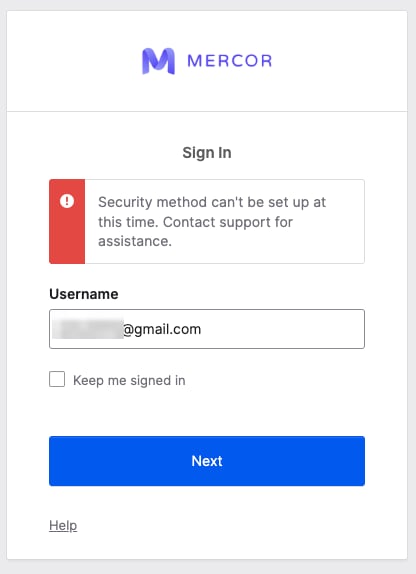
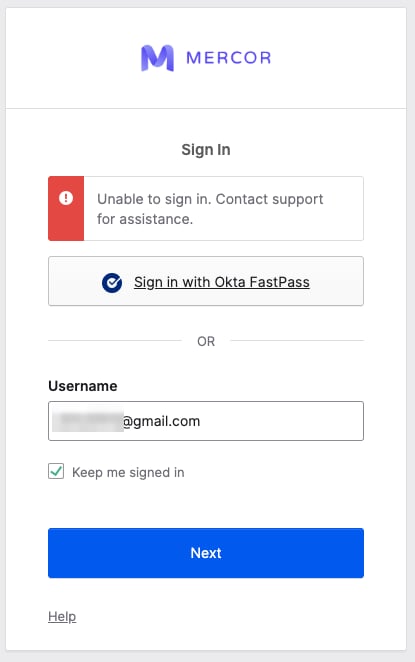 Despite what the message says, you do not need to contact support. Both errors are easily fixed by resetting your password directly from your contract:
1. Go to [work.mercor.com](https://work.mercor.com) and open your contract under the **Contracts** tab.
2. Click the **Okta Account** step.
3. Select **Reset Password**.
4. Complete the setup again. This resets both your password and your MFA enrollment.
Also make sure any **VPN is turned off** before signing in. Sign-ins through a VPN or proxy are blocked and show a 403 Access Forbidden error.
No. Sign-ins through VPNs, proxies, and other anonymizing networks are blocked and show a **403 Access Forbidden** error before the sign-in page loads. Turn off any VPN (system-wide app or browser extension) before starting the Okta setup and whenever you sign in to Okta. This also includes iCloud Private Relay and "secure browsing" features inside antivirus software. See the [Account Security and Conduct policy](/policies/account-security-conduct#vpns-proxies-and-anonymizing-networks).
You are encountering this error because you are attempting to reset your password via the Okta portal. The appropriate procedure to reset your password is through the Okta Access step specified in your contract, located under the 'Contracts' tab on work.mercor.com.
This usually happens when Chrome is not prepared to create a passkey.\
Please check the following:\
• You are logged into Chrome with your Gmail\
• Sync is enabled\
• Your device has an active screen lock / device password protection\
• You are not using incognito mode\
• A passkey manager is configured\
After checking, restart Chrome and try again.
This occurs when your device’s passkey manager is inactive or improperly configured.\
To resolve this:\
• Enable a screen lock / password protection on your device\
• Confirm that your device supports passkeys\
• Ensure you are logged into your passkey manager (Google, iCloud, 1Password, etc.)\
• Try again using Chrome
This occurs when using Firefox or in private browsing mode. Use Google Chrome, as Firefox does not support the Okta WebAuthn configuration used by Mercor.
This happens when too much time passes or when switching devices during setup. Return to the Okta step inside your contract and restart the process.
Go to your contract → Okta step → Reset Password. This resets both your password and your FIDO2 passkey so you can complete the setup again.
This occurs when a project transitions to Okta-managed access. Your previous Slack credentials no longer work. Please log in using your Okta credentials.
Slack may take up to 24 hours to synchronize after completing the Okta setup. Please wait and try again later.
This error appears when editing your Personal Information at [https://c-mercor.okta.com/enduser/settings](https://c-mercor.okta.com/enduser/settings) while the **Last Name Privacy** field is left empty.
Despite what the message says, you do not need to contact support. Both errors are easily fixed by resetting your password directly from your contract:
1. Go to [work.mercor.com](https://work.mercor.com) and open your contract under the **Contracts** tab.
2. Click the **Okta Account** step.
3. Select **Reset Password**.
4. Complete the setup again. This resets both your password and your MFA enrollment.
Also make sure any **VPN is turned off** before signing in. Sign-ins through a VPN or proxy are blocked and show a 403 Access Forbidden error.
No. Sign-ins through VPNs, proxies, and other anonymizing networks are blocked and show a **403 Access Forbidden** error before the sign-in page loads. Turn off any VPN (system-wide app or browser extension) before starting the Okta setup and whenever you sign in to Okta. This also includes iCloud Private Relay and "secure browsing" features inside antivirus software. See the [Account Security and Conduct policy](/policies/account-security-conduct#vpns-proxies-and-anonymizing-networks).
You are encountering this error because you are attempting to reset your password via the Okta portal. The appropriate procedure to reset your password is through the Okta Access step specified in your contract, located under the 'Contracts' tab on work.mercor.com.
This usually happens when Chrome is not prepared to create a passkey.\
Please check the following:\
• You are logged into Chrome with your Gmail\
• Sync is enabled\
• Your device has an active screen lock / device password protection\
• You are not using incognito mode\
• A passkey manager is configured\
After checking, restart Chrome and try again.
This occurs when your device’s passkey manager is inactive or improperly configured.\
To resolve this:\
• Enable a screen lock / password protection on your device\
• Confirm that your device supports passkeys\
• Ensure you are logged into your passkey manager (Google, iCloud, 1Password, etc.)\
• Try again using Chrome
This occurs when using Firefox or in private browsing mode. Use Google Chrome, as Firefox does not support the Okta WebAuthn configuration used by Mercor.
This happens when too much time passes or when switching devices during setup. Return to the Okta step inside your contract and restart the process.
Go to your contract → Okta step → Reset Password. This resets both your password and your FIDO2 passkey so you can complete the setup again.
This occurs when a project transitions to Okta-managed access. Your previous Slack credentials no longer work. Please log in using your Okta credentials.
Slack may take up to 24 hours to synchronize after completing the Okta setup. Please wait and try again later.
This error appears when editing your Personal Information at [https://c-mercor.okta.com/enduser/settings](https://c-mercor.okta.com/enduser/settings) while the **Last Name Privacy** field is left empty.
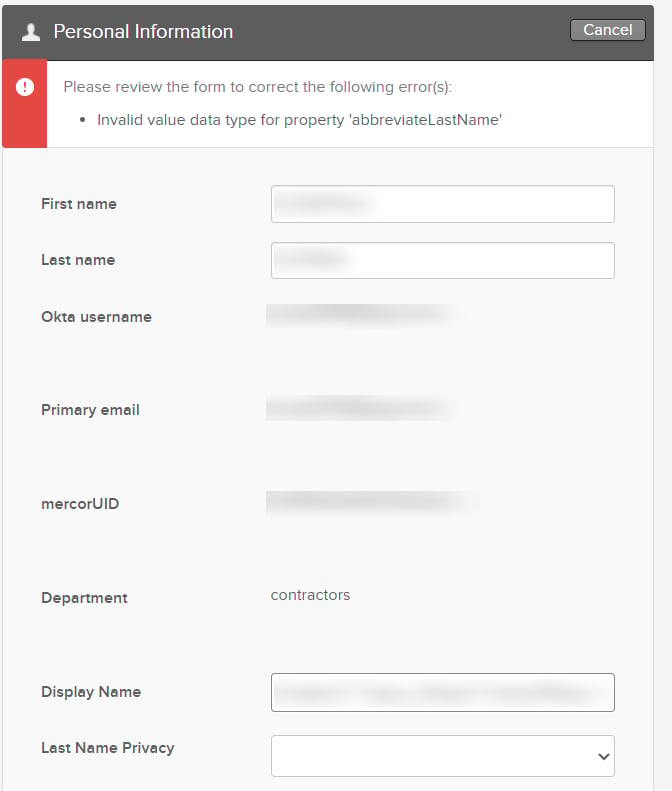 To resolve this:
1. Scroll down to the **Last Name Privacy** dropdown.
2. Select one of the available options — this setting controls whether your full last name or only its initial is displayed in connected tools such as Slack.
3. Click **Save** again.
Once a value is selected, your profile changes will be saved normally.
If your first name, last name, or display name isn't syncing correctly from Okta to Slack, try editing the field in your Okta settings to ensure it contains **no special characters** — including emojis, ampersands (&), em dashes (—), or similar symbols.
You can update your name at: [https://c-mercor.okta.com/enduser/settings](https://c-mercor.okta.com/enduser/settings)
Once updated, changes should reflect in Slack shortly.
## General Questions
1. On your phone, open the same browser you used on your computer during your initial Okta setup.
2. Go to work.mercor.com.
3. Open the Contracts tab and select the contract associated with the Slack workspace you want to access.
4. Tap the Okta tile.
5. Log in using the Okta credentials you previously created on your computer.
6. Once you are logged into Okta, tap the Slack tile.
7. You will be prompted to open or download the Slack mobile application. Open it, and your Mercor workspace will load automatically.
Yes. Any FIDO2-certified passkey manager is supported, but it must be configured on your device before you begin the Okta setup. Chrome Password Manager is recommended because it is the simplest and most compatible option.
Yes. If your device is not prepared for passkey creation, Okta cannot complete the FIDO2 setup, and enrollment will fail.
Okta access is created directly during your contract acceptance step. You will not receive an email invitation.
No. Okta always uses the personal Gmail associated with your Mercor profile.
Yes. Your Okta login email address is updated automatically, while your current password remains valid.
When you accept a new contract, your Okta access is automatically reactivated.
Yes. Okta Verify is now available. Install the Okta Verify app on your phone, then choose **Okta Verify** when setting up your security method during the Okta Account step. You can have both a passkey and Okta Verify enrolled on your account. See the **Setting Up Okta Verify** section above for step-by-step instructions.
To modify your **display name** as displayed in Slack, please visit your Okta profile settings at:
* [https://c-mercor.okta.com/enduser/settings](https://c-mercor.okta.com/enduser/settings)
When saving your changes, make sure the **Last Name Privacy** dropdown has a value selected. Leaving it empty will cause an "Invalid value data type for property 'abbreviateLastName'" error.
Any modifications made in this location will automatically synchronize with Slack. Kindly allow sufficient time for the updates to be reflected across all related tools.
Expert Slack usernames are now **`automatically prefixed with [EXP]`** to help differentiate contractors from internal Mercor team members. This is part of our identity and workspace management policy — it cannot be manually removed or changed.
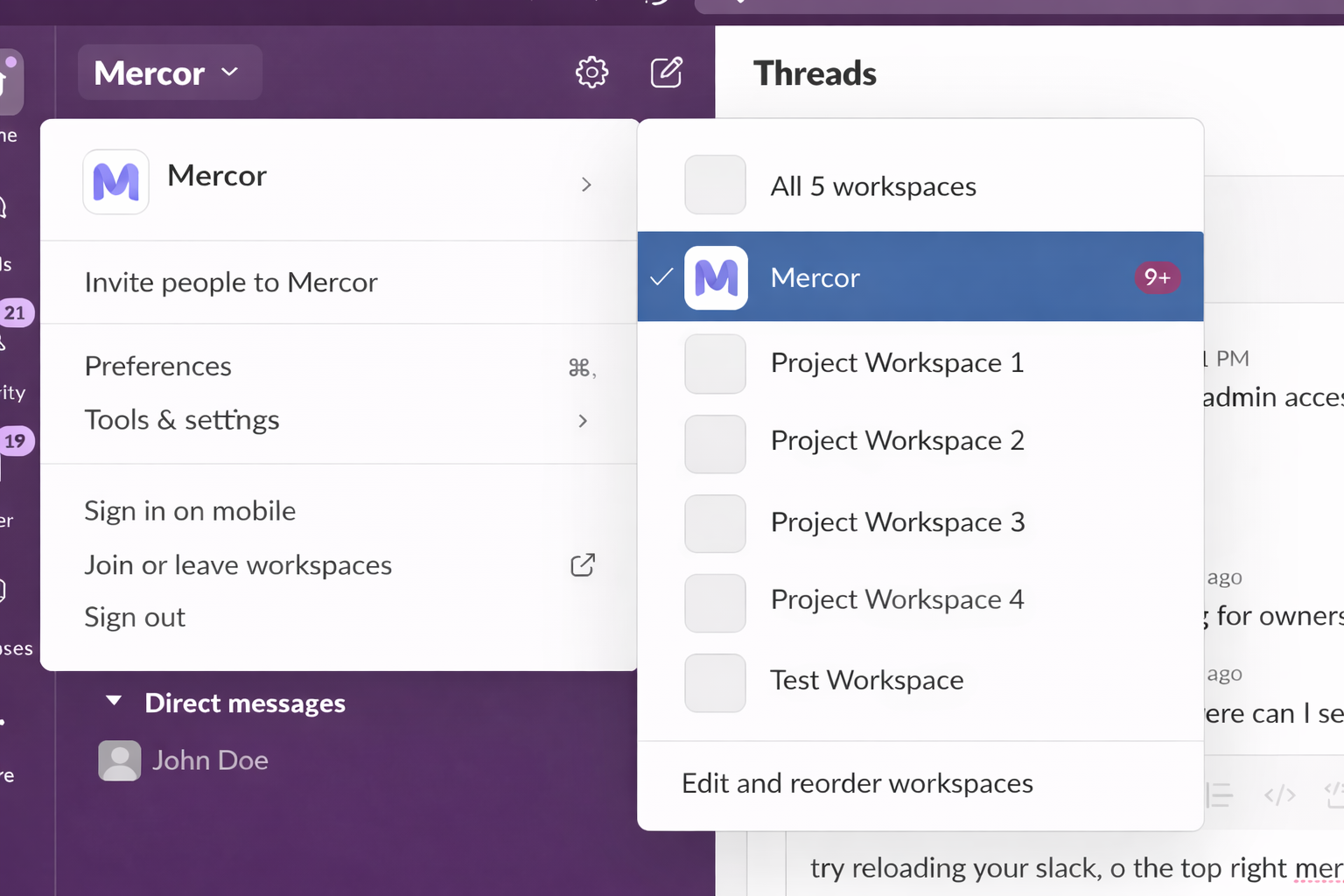
If you have more than one active contract, you will appear in multiple Slack workspaces. To switch:
1. Open Slack.
2. Click the workspace switcher in the top-left corner.
3. Select the workspace for the project you want to access.
Use this menu anytime you need to move between project-specific channels and messages.
To resolve this:
1. Scroll down to the **Last Name Privacy** dropdown.
2. Select one of the available options — this setting controls whether your full last name or only its initial is displayed in connected tools such as Slack.
3. Click **Save** again.
Once a value is selected, your profile changes will be saved normally.
If your first name, last name, or display name isn't syncing correctly from Okta to Slack, try editing the field in your Okta settings to ensure it contains **no special characters** — including emojis, ampersands (&), em dashes (—), or similar symbols.
You can update your name at: [https://c-mercor.okta.com/enduser/settings](https://c-mercor.okta.com/enduser/settings)
Once updated, changes should reflect in Slack shortly.
## General Questions
1. On your phone, open the same browser you used on your computer during your initial Okta setup.
2. Go to work.mercor.com.
3. Open the Contracts tab and select the contract associated with the Slack workspace you want to access.
4. Tap the Okta tile.
5. Log in using the Okta credentials you previously created on your computer.
6. Once you are logged into Okta, tap the Slack tile.
7. You will be prompted to open or download the Slack mobile application. Open it, and your Mercor workspace will load automatically.
Yes. Any FIDO2-certified passkey manager is supported, but it must be configured on your device before you begin the Okta setup. Chrome Password Manager is recommended because it is the simplest and most compatible option.
Yes. If your device is not prepared for passkey creation, Okta cannot complete the FIDO2 setup, and enrollment will fail.
Okta access is created directly during your contract acceptance step. You will not receive an email invitation.
No. Okta always uses the personal Gmail associated with your Mercor profile.
Yes. Your Okta login email address is updated automatically, while your current password remains valid.
When you accept a new contract, your Okta access is automatically reactivated.
Yes. Okta Verify is now available. Install the Okta Verify app on your phone, then choose **Okta Verify** when setting up your security method during the Okta Account step. You can have both a passkey and Okta Verify enrolled on your account. See the **Setting Up Okta Verify** section above for step-by-step instructions.
To modify your **display name** as displayed in Slack, please visit your Okta profile settings at:
* [https://c-mercor.okta.com/enduser/settings](https://c-mercor.okta.com/enduser/settings)
When saving your changes, make sure the **Last Name Privacy** dropdown has a value selected. Leaving it empty will cause an "Invalid value data type for property 'abbreviateLastName'" error.
Any modifications made in this location will automatically synchronize with Slack. Kindly allow sufficient time for the updates to be reflected across all related tools.
Expert Slack usernames are now **`automatically prefixed with [EXP]`** to help differentiate contractors from internal Mercor team members. This is part of our identity and workspace management policy — it cannot be manually removed or changed.
If you have more than one active contract, you will appear in multiple Slack workspaces. To switch:
1. Open Slack.
2. Click the workspace switcher in the top-left corner.
3. Select the workspace for the project you want to access.
Use this menu anytime you need to move between project-specific channels and messages.
 No. Okta authentication always uses your personal email address associated with your Mercor work platform account.
The @mercor.expert contractor email cannot be used to access Okta.
Okta provides single sign-on (SSO) access to the following tools:
* **Slack** — log in via the *Slack* tile in your Okta dashboard.
* **RL Studio** (for contractor annotators) — log in via the *Studio* tile in your Okta dashboard. Studio admins log in separately at studio.mercor.com with Google authentication.
* **Google Workspace** — your `@mercor.expert` email, Drive, and Calendar, accessed via the *Google Workspace* tile in your Okta dashboard.
Other tools used on your project, such as **Insightful** (Workpuls), **Feather**, **SuperAnnotate**, and similar platforms, are **not** accessed through Okta. Each of these has its own access method, typically documented in your project's onboarding document.
If you are unsure how to access a specific tool, please open your project's onboarding document, or ask Maven in your project's support channel.
These tools are not provisioned through Okta. Please check your project's onboarding document for the correct access link and login instructions. The onboarding document is shared with you at the start of the project and is typically available in your project's Slack channel or on your contract page at work.mercor.com.
If you cannot find the access instructions, please ask in your project's support channel or contact [support@mercor.com](mailto:support@mercor.com).
Your `@mercor.expert` Google Workspace account (email, Drive, Calendar) is accessed through Okta:
1. Go to work.mercor.com and open your contract.
2. Click the Okta tile, then log in using your personal email.
3. Once inside the Okta dashboard, click the *Google Workspace* tile.
You can then access Gmail, Drive, and Calendar with your `@mercor.expert` identity. For more details, see the [Expert Email](/working/expert-email) page.
RL Studio access depends on your role:
* **Contractor annotators**: log in via Okta. Go to c-mercor.okta.com, sign in with your personal email, then click the *Studio* tile. You will be automatically signed in to RL Studio — no separate password is required.
* **Admins**: log in directly at studio.mercor.com using Google authentication.
If the *Studio* tile is missing from your Okta dashboard, or if you click it and are not automatically signed in, please contact [support@mercor.com](mailto:support@mercor.com) with a short screen recording of the issue.
No. Okta authentication always uses your personal email address associated with your Mercor work platform account.
The @mercor.expert contractor email cannot be used to access Okta.
Okta provides single sign-on (SSO) access to the following tools:
* **Slack** — log in via the *Slack* tile in your Okta dashboard.
* **RL Studio** (for contractor annotators) — log in via the *Studio* tile in your Okta dashboard. Studio admins log in separately at studio.mercor.com with Google authentication.
* **Google Workspace** — your `@mercor.expert` email, Drive, and Calendar, accessed via the *Google Workspace* tile in your Okta dashboard.
Other tools used on your project, such as **Insightful** (Workpuls), **Feather**, **SuperAnnotate**, and similar platforms, are **not** accessed through Okta. Each of these has its own access method, typically documented in your project's onboarding document.
If you are unsure how to access a specific tool, please open your project's onboarding document, or ask Maven in your project's support channel.
These tools are not provisioned through Okta. Please check your project's onboarding document for the correct access link and login instructions. The onboarding document is shared with you at the start of the project and is typically available in your project's Slack channel or on your contract page at work.mercor.com.
If you cannot find the access instructions, please ask in your project's support channel or contact [support@mercor.com](mailto:support@mercor.com).
Your `@mercor.expert` Google Workspace account (email, Drive, Calendar) is accessed through Okta:
1. Go to work.mercor.com and open your contract.
2. Click the Okta tile, then log in using your personal email.
3. Once inside the Okta dashboard, click the *Google Workspace* tile.
You can then access Gmail, Drive, and Calendar with your `@mercor.expert` identity. For more details, see the [Expert Email](/working/expert-email) page.
RL Studio access depends on your role:
* **Contractor annotators**: log in via Okta. Go to c-mercor.okta.com, sign in with your personal email, then click the *Studio* tile. You will be automatically signed in to RL Studio — no separate password is required.
* **Admins**: log in directly at studio.mercor.com using Google authentication.
If the *Studio* tile is missing from your Okta dashboard, or if you click it and are not automatically signed in, please contact [support@mercor.com](mailto:support@mercor.com) with a short screen recording of the issue.