> ## Documentation Index
> Fetch the complete documentation index at: https://talent.docs.mercor.com/llms.txt
> Use this file to discover all available pages before exploring further.
# Complete ID Verification
> Mercor verifies your identity once, through Persona. This guide covers what you need, both ways to verify, and what to do if something goes wrong.
Mercor uses **Persona**, a third-party identity verification service, to confirm that you are who you say you are. You will upload a government-issued ID and record a short selfie video.
This is **mandatory** and, in most cases, completed **only once**.
**This is not the same as your background check, and not the same as Stripe.**
* **ID Verification (this page)** — Persona. Confirms your identity. Required before you can be onboarded to a project, and before referral payouts can be issued.
* **Background check** — a separate process covering employment and education history. See [Background Checks](/policies/background-check).
* **Stripe identity verification (KYC)** — part of setting up payments, run by Stripe, not Persona. See [Payments](/how-to/payments).
## Before you start
• A valid government-issued ID — passport, national ID card, or driver's licence\
• A phone or computer with a working camera\
• A few minutes in a well-lit space
Persona accepts most government-issued identification, including passports and national ID cards. The on-screen instructions adapt to your country.
Turn off any **VPN, iCloud Private Relay, or similar privacy tool** before you begin. Persona detects your country from your IP address and pre-fills the address form to match. If your traffic is routed through the United States, the form will only accept a US ZIP code. See [Address form won't accept your postal code](/support/bugs#address-form-wont-accept-your-postal-code-vpn-icloud-private-relay).
## The "Continue on Persona Wallet" screen
Partway through verification you will reach a screen titled **Continue on Persona Wallet**. It asks you to install and launch the Persona Wallet app, and it lists a device requirement.
This screen offers you three routes. **All of them complete the same verification** — pick whichever suits you.
Use this if you already have Persona Wallet installed. It opens the app straight into your verification.
Installs Persona Wallet, then returns you to your verification.
At the bottom of the screen there is a **QR code**. Scan it with another phone to finish there — no install needed on the device you started from.
The screen is written to steer you toward the app, but the QR code at the bottom is a **fully supported route**, not a workaround. If you would rather not install anything, scan it and carry on.
 **Device requirement.** On Android, the screen states that your device must be **Android 9 or later**. Your screen may show a different requirement depending on your device.
Whatever it says, you are not stuck: if your phone does not meet the requirement, **scan the QR code** and finish on another mobile device that does.
If you already have the Persona Wallet app installed, make sure it is **up to date** before you begin. An out-of-date app is a common cause of session errors.
## Step-by-step
Found in the **ID verification** item on your onboarding checklist, or in the "Complete ID Verification" notifier on your Home page or Referral dashboard.
**Device requirement.** On Android, the screen states that your device must be **Android 9 or later**. Your screen may show a different requirement depending on your device.
Whatever it says, you are not stuck: if your phone does not meet the requirement, **scan the QR code** and finish on another mobile device that does.
If you already have the Persona Wallet app installed, make sure it is **up to date** before you begin. An out-of-date app is a common cause of session errors.
## Step-by-step
Found in the **ID verification** item on your onboarding checklist, or in the "Complete ID Verification" notifier on your Home page or Referral dashboard.
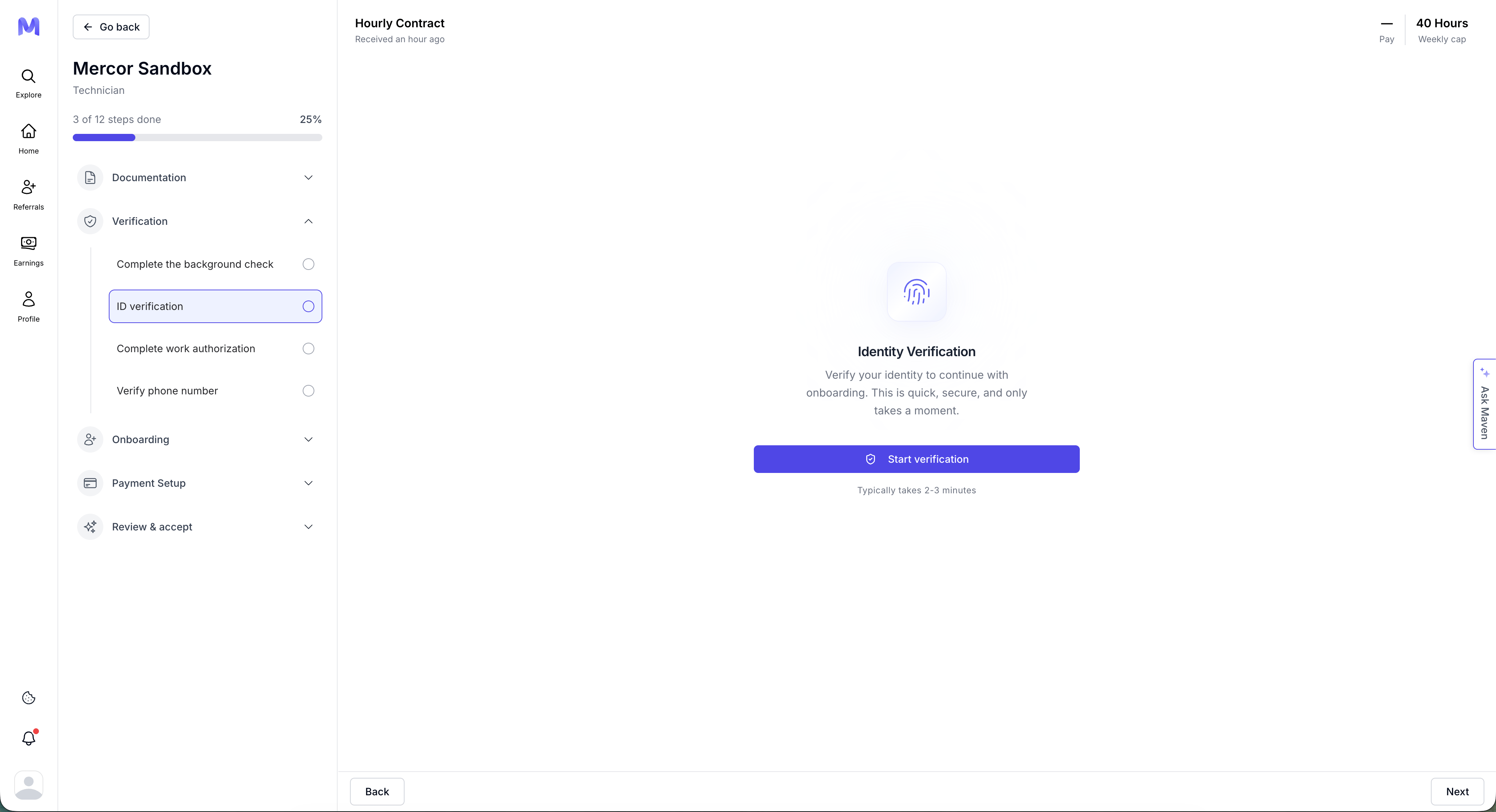 You will be redirected to Persona's secure interface. This is where you choose the app or the QR code.
 Capture a clear photograph of the front, and the back if requested. Make sure the image is well-lit and free from glare.
 • Place the ID on a dark, flat surface\
• Avoid glare and backlight\
• Make sure all four corners are visible\
• Move the ID slowly to focus if blurry
• Use a well-lit space\
• Centre your face in the frame\
• Follow the instructions to turn your head left and right
Record a short video, turning your face left and right when prompted.
• Place the ID on a dark, flat surface\
• Avoid glare and backlight\
• Make sure all four corners are visible\
• Move the ID slowly to focus if blurry
• Use a well-lit space\
• Centre your face in the frame\
• Follow the instructions to turn your head left and right
Record a short video, turning your face left and right when prompted.
 You can move to another mobile device at any point by scanning the QR code — useful if the device you started on has no camera, does not meet the Android requirement, or if you would rather not install the app on it.

 Persona processes your submission. Once verified, a green checkmark appears and the step is marked complete.

 ## After you submit
Most verifications complete within a few moments. Some need additional review, which can take up to **1 business day**.
You do not need to do anything while a verification is under review, and there is nothing to report.
## Troubleshooting
A **VPN, iCloud Private Relay, or similar privacy tool** is routing your traffic through the United States, so Persona locks the form to US ZIP format. Turn the tool off, clear your browser cache, and reopen the verification link.
Persona re-checks your location at the start of every session, so you do **not** need a new link from Support. Full steps: [Address form won't accept your postal code](/support/bugs#address-form-wont-accept-your-postal-code-vpn-icloud-private-relay).
First, confirm the **Persona Wallet app is up to date** — an outdated version is the most common cause. Close the app, update it, and reopen your verification link.
If it is up to date and processing still does not finish, contact [support@mercor.com](mailto:support@mercor.com) with your Mercor account email so the team can look at your session.
You don't have to. On the **Continue on Persona Wallet** screen, scroll to the bottom — under "Or continue on another mobile device" there is a **QR code**. Scan it with another phone and finish the verification there. It is the same verification, and nothing is installed on the device you started from.
Use the **QR code** at the bottom of the Continue on Persona Wallet screen to switch to another mobile device that does. On Android the requirement is version 9 or later; on other devices, follow whatever the screen states.
If you have no other device available, contact [support@mercor.com](mailto:support@mercor.com).
Reopen the verification link from your Mercor checklist or the "Complete ID Verification" notifier to start a fresh session. Your previous attempts do not count against you.
You have several attempts. If you exhaust them, or your verification fails, contact [support@mercor.com](mailto:support@mercor.com) and the team will advise on next steps.
No. Persona needs to capture the physical document through your camera. A photograph of a screen showing your ID will be rejected.
Yes, in almost all cases. A new verification request may be issued later if circumstances require it.
## Privacy
Persona is a third-party identity verification provider. Your ID and selfie are submitted to Persona and processed on their infrastructure.
For details on what Persona collects and how it is handled, see the [Persona Privacy Policy](https://withpersona.com/legal/privacy-notices).
## After you submit
Most verifications complete within a few moments. Some need additional review, which can take up to **1 business day**.
You do not need to do anything while a verification is under review, and there is nothing to report.
## Troubleshooting
A **VPN, iCloud Private Relay, or similar privacy tool** is routing your traffic through the United States, so Persona locks the form to US ZIP format. Turn the tool off, clear your browser cache, and reopen the verification link.
Persona re-checks your location at the start of every session, so you do **not** need a new link from Support. Full steps: [Address form won't accept your postal code](/support/bugs#address-form-wont-accept-your-postal-code-vpn-icloud-private-relay).
First, confirm the **Persona Wallet app is up to date** — an outdated version is the most common cause. Close the app, update it, and reopen your verification link.
If it is up to date and processing still does not finish, contact [support@mercor.com](mailto:support@mercor.com) with your Mercor account email so the team can look at your session.
You don't have to. On the **Continue on Persona Wallet** screen, scroll to the bottom — under "Or continue on another mobile device" there is a **QR code**. Scan it with another phone and finish the verification there. It is the same verification, and nothing is installed on the device you started from.
Use the **QR code** at the bottom of the Continue on Persona Wallet screen to switch to another mobile device that does. On Android the requirement is version 9 or later; on other devices, follow whatever the screen states.
If you have no other device available, contact [support@mercor.com](mailto:support@mercor.com).
Reopen the verification link from your Mercor checklist or the "Complete ID Verification" notifier to start a fresh session. Your previous attempts do not count against you.
You have several attempts. If you exhaust them, or your verification fails, contact [support@mercor.com](mailto:support@mercor.com) and the team will advise on next steps.
No. Persona needs to capture the physical document through your camera. A photograph of a screen showing your ID will be rejected.
Yes, in almost all cases. A new verification request may be issued later if circumstances require it.
## Privacy
Persona is a third-party identity verification provider. Your ID and selfie are submitted to Persona and processed on their infrastructure.
For details on what Persona collects and how it is handled, see the [Persona Privacy Policy](https://withpersona.com/legal/privacy-notices).