> ## Documentation Index
> Fetch the complete documentation index at: https://talent.docs.mercor.com/llms.txt
> Use this file to discover all available pages before exploring further.
# Apply for a Job
> A comprehensive guide to identifying roles, managing the application procedure, and submitting your initial application on Mercor.
This guide delineates the comprehensive process of applying for employment through the Mercor platform. Upon establishing your account, the next step involves identifying opportunities that align with your skills and submitting a compelling application.
## 1. Explore Opportunities
Upon signing in, please navigate to your dashboard. Click on the 'Explore' icon located in the left sidebar to view all available job listings.
Utilize the search bar to locate roles by title or keyword. Apply the following filters:
• Job fit: Prioritizes listings that match your profile.
• Trending: Highlights popular opportunities.
• Newest: Displays recently posted roles.
• Most pay: Ranks roles according to descending salary levels.
Click the “Refer & Earn” button to share listings with your network.
 ***
## 2. Understand Key Terms
A specific employment opportunity that has been advertised by a client.
Your formal submission to a listing.
Evaluation tasks that encompass forms or AI interviews.
If you successfully pass an assessment on one occasion, it is not necessary to retake it for comparable roles.
***
## 3. The Application Process
Select a listing and then click “Apply Now” to initiate the process. A checklist of steps will be displayed for your reference.
Please upload your resume, complete the required assessments, and verify your work authorization. The procedures may differ depending on the role.
***
## 2. Understand Key Terms
A specific employment opportunity that has been advertised by a client.
Your formal submission to a listing.
Evaluation tasks that encompass forms or AI interviews.
If you successfully pass an assessment on one occasion, it is not necessary to retake it for comparable roles.
***
## 3. The Application Process
Select a listing and then click “Apply Now” to initiate the process. A checklist of steps will be displayed for your reference.
Please upload your resume, complete the required assessments, and verify your work authorization. The procedures may differ depending on the role.
 ***
## 4. Completing Application Steps
Your resume shall be stored within your profile for future application use.
Written or multiple-choice questions. Follow all applicable guidelines and standards instructions.
***
## 4. Completing Application Steps
Your resume shall be stored within your profile for future application use.
Written or multiple-choice questions. Follow all applicable guidelines and standards instructions.
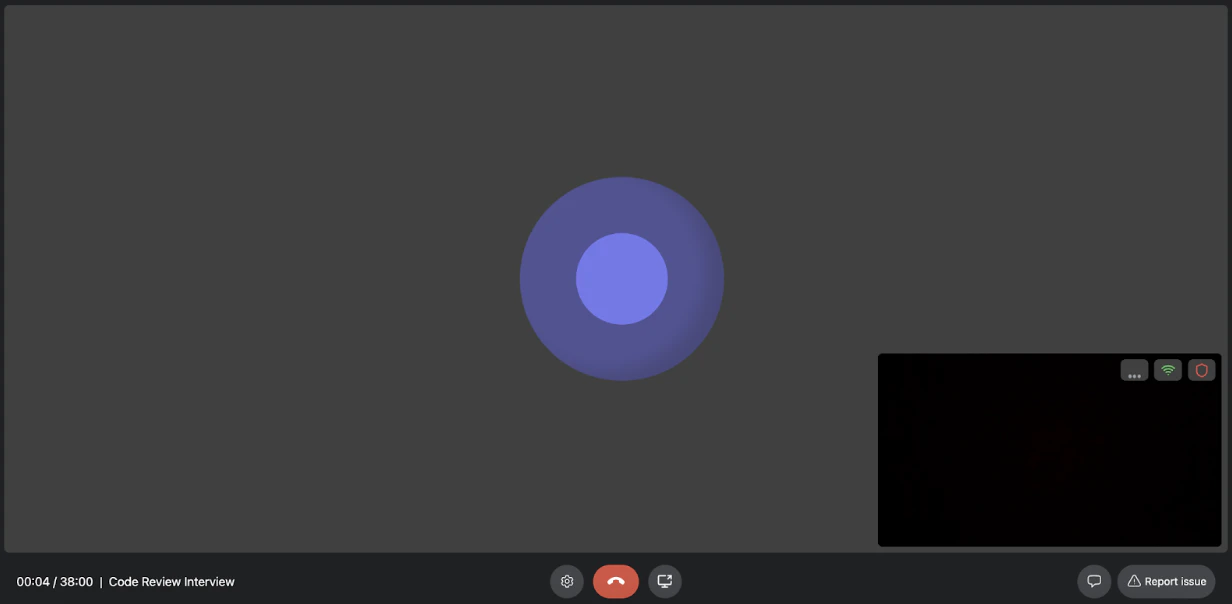
 Use Google Chrome on a desktop and ensure that camera and microphone permissions are granted.
Conduct a test of the microphone, speakers, and screen sharing functionalities prior to commencing.
Use Google Chrome on a desktop and ensure that camera and microphone permissions are granted.
Conduct a test of the microphone, speakers, and screen sharing functionalities prior to commencing.

 Certain assessments are interconnected. Review all checklist steps to comprehend their interrelations.
Previously completed assessments will automatically populate when reused in subsequent applications.
***
## 5. Submit and Confirm
Once all steps are complete, please click Submit.
A confirmation screen will display your submission along with the anticipated timeline.
You may review your current submission or navigate back to Explore.
Certain assessments are interconnected. Review all checklist steps to comprehend their interrelations.
Previously completed assessments will automatically populate when reused in subsequent applications.
***
## 5. Submit and Confirm
Once all steps are complete, please click Submit.
A confirmation screen will display your submission along with the anticipated timeline.
You may review your current submission or navigate back to Explore.
 ***
## Quick Tips
It is recommended to utilize Google Chrome on desktop computers to ensure optimal compatibility.
Utilize a quiet environment with a reliable internet connection for interviews.
You may pause and resume at a later time. Progress is saved automatically.
If a page becomes unresponsive, attempt the keyboard shortcuts Shift + Cmd + R (Mac) or Shift + Ctrl + R (Windows).
If you wish to retake your AI interview, please reset it directly from your Mercor dashboard—there is no need to contact support.
## LinkedIn Easy Apply
You can also apply to select Mercor roles directly on LinkedIn using **Easy Apply**. Your LinkedIn profile and any attached résumé are used for an initial screening. If your background aligns with the role, you’ll receive an email from Mercor with a secure link to continue and complete your application on our website.
Open a Mercor job listing on LinkedIn that shows the **Easy Apply** button.
Click **Easy Apply** and follow LinkedIn’s prompts. If available, attach your most up-to-date résumé (PDF recommended).
Your LinkedIn profile and attached résumé are evaluated against the role requirements.
If you are a strong match, you’ll receive an email from **Mercor** with a secure link to the listing on **work.mercor.com** to complete the remaining steps.
Sign in or create your Mercor account, confirm your résumé, and finish any required assessments and checks. Submit your application.
For the smoothest experience, use the same email on LinkedIn and Mercor, and ensure your résumé is current and text‑based (PDF).
## Steps to Reset Your Interview
Please log in to your Mercor account at [work.mercor.com/home.](https://work.mercor.com/home)
Please click on the 'Assessments' tab located in the tabs menu on Mercor Homepage, positioned between 'Applications' and 'Saved' tab. You may also access the section directly at [work.mercor.com/home?tab=assessments](https://work.mercor.com/home?tab=assessments)
***
## Quick Tips
It is recommended to utilize Google Chrome on desktop computers to ensure optimal compatibility.
Utilize a quiet environment with a reliable internet connection for interviews.
You may pause and resume at a later time. Progress is saved automatically.
If a page becomes unresponsive, attempt the keyboard shortcuts Shift + Cmd + R (Mac) or Shift + Ctrl + R (Windows).
If you wish to retake your AI interview, please reset it directly from your Mercor dashboard—there is no need to contact support.
## LinkedIn Easy Apply
You can also apply to select Mercor roles directly on LinkedIn using **Easy Apply**. Your LinkedIn profile and any attached résumé are used for an initial screening. If your background aligns with the role, you’ll receive an email from Mercor with a secure link to continue and complete your application on our website.
Open a Mercor job listing on LinkedIn that shows the **Easy Apply** button.
Click **Easy Apply** and follow LinkedIn’s prompts. If available, attach your most up-to-date résumé (PDF recommended).
Your LinkedIn profile and attached résumé are evaluated against the role requirements.
If you are a strong match, you’ll receive an email from **Mercor** with a secure link to the listing on **work.mercor.com** to complete the remaining steps.
Sign in or create your Mercor account, confirm your résumé, and finish any required assessments and checks. Submit your application.
For the smoothest experience, use the same email on LinkedIn and Mercor, and ensure your résumé is current and text‑based (PDF).
## Steps to Reset Your Interview
Please log in to your Mercor account at [work.mercor.com/home.](https://work.mercor.com/home)
Please click on the 'Assessments' tab located in the tabs menu on Mercor Homepage, positioned between 'Applications' and 'Saved' tab. You may also access the section directly at [work.mercor.com/home?tab=assessments](https://work.mercor.com/home?tab=assessments)
 Identify the interview you wish to retake. Its status will be displayed as "Submitted".
Hover on the interview, Adjacent to the interview name, click on the ⋯ icon to access additional options.
Please select 'Retake Interview' from the dropdown menu. You will then be able to restart and complete the interview once again.
Identify the interview you wish to retake. Its status will be displayed as "Submitted".
Hover on the interview, Adjacent to the interview name, click on the ⋯ icon to access additional options.
Please select 'Retake Interview' from the dropdown menu. You will then be able to restart and complete the interview once again.
 ***
That concludes the preparations; you are now fully prepared to reattempt your interview. 🎯
***
## FAQ
A listing constitutes a job opportunity. An application is your formal submission, including a resume and assessments.
Your progress is saved automatically; you may leave and return at your convenience. However, please be advised that listings may close at any time; therefore, prompt action is essential to your prospects.
Upon successful completion, the result is reutilized for compatible roles.
Ensure that you have granted permissions to [work.mercor.com](https://work.mercor.com) in Chrome. Please refer to our [AI Interview Guide](/support/ai-interview).
You may browse listings; however, we strongly advise utilizing a desktop computer for complete compatibility. Listings that necessitate screen sharing can only be performed on a computer.
Monitor your submissions via the [Home dashboard](https://work.mercor.com/home?tab=applications).
This means the listing is no longer accepting applications (it’s closed for everyone). If you see this label on an application, you may still see it in your dashboard, but you won’t be able to continue or submit additional steps for that role.
* **If you already submitted before the listing closed:** your application remains under consideration for review.
* **If your application was still in progress when it closed:** you may not be able to finish it.
In that case, there’s nothing else you need to do — we recommend applying to other open opportunities on the [Explore ](https://work.mercor.com/explore)page.
At this time, it’s not possible to manually withdraw or cancel an application once it’s been submitted. All applications remain under review until the hiring team completes its process, and you’ll be notified by email once a final decision is made.
That said, there’s no need to worry — these applications will naturally disappear from your dashboard over time, typically within a few weeks. In the meantime, the best thing to do is simply ignore any roles you’re no longer interested in.
I completely understand how this might not be ideal, and I’m really sorry for any frustration this may cause. Please rest assured that no action is needed from your side — we’ll make sure to keep you informed every step of the way.
You can upload or update your résumé directly from your [Mercor profile](https://work.mercor.com/profile?tab=resume).
1. Go to **Profile → Résumé** on your dashboard.
2. Click **Upload résumé** and select your PDF file.
To ensure your résumé uploads and parses correctly:
* **Format:** PDF only — must be OCR-friendly and text-based (not scanned images).
* **Length:** 1–2 pages, file size under **2 MB**.
* **Structure:** Use a simple, standardized layout — avoid images, tables, or complex designs.
* **Content:** Include clear section headings like *Education*, *Experience*, *Skills*, and *Certifications*.
Following these guidelines ensures the system can read your résumé accurately and match you to relevant projects faster.\
\
If your upload fails:
* Try re-exporting your résumé as a **text-based PDF** from Word or Google Docs.
* Avoid uploading screenshots or image-based résumés.
That happens when the application process is paused or ended: you'll see that reflected on the left side of the screen when applying — the button that normally says “Apply” will be disabled and replaced with "no longer accepting applications". In that case, there’s nothing else you need to do.
We know this can be disappointing, especially if it was a role you were excited about. The good news is that new opportunities are added regularly, so keep an eye on your dashboard for fresh listings.
Sometimes, a project’s application requirements are updated after you’ve already submitted your application.
This simply means that your previous submission is no longer valid for the latest version of the application.
When this happens, you’ll see the affected step (such as an interview or assessment) appear as **Incomplete** again in your application.\
To stay under consideration for the role, please return to your application and complete the **new required step**.
No — applications are only accepted through the Mercor platform.\
This ensures your information is processed correctly, your assessments are linked to your profile, and your application is visible to the hiring team.\
\
Please visit the [Work Explore](https://work.mercor.com/jobs) page to apply formally.
Our **AI interview** is the standard and only method for screening candidates.\
It allows for consistent, fair, and scalable evaluations across all applicants.
We’re unable to share specific feedback at this time due to the high volume of applications being processed.
Please know this isn’t a reflection of your potential — we truly appreciate the time and effort you put into your interview.
We encourage you to stay active on your [Explore Page](https://work.mercor.com/explore) and apply for new opportunities as they open.
Not initially. If invited to continue, you’ll sign in or create a Mercor account to complete your application.
Not every Easy Apply submission proceeds. You’re welcome to apply directly on the Mercor platform via the Explore page to be considered for current openings.
Your LinkedIn profile details and any résumé you attach during Easy Apply are used for the initial screen. You can update documents when you continue on Mercor.
Applying once is sufficient. If you already applied via LinkedIn, wait for an invitation email. If you prefer not to wait, you may apply directly on Mercor for the same role.
You’ll receive an email from Mercor with a secure link to continue your application on work.mercor.com. Check your spam/junk folder and ensure you can receive messages from Mercor.
Yes. When you continue on Mercor, you can upload an updated résumé and complete any additional steps required for the role.
Mercor evaluates candidates based on multiple factors that best align with client needs, project scope, and compliance requirements. Every talent undergoes the same assessment process for a given role/application, designed to objectively evaluate skills, problem-solving ability, and alignment with the specific requirements of each role. No candidate is ever evaluated based on personal considerations.
This consistent and structured approach ensures fairness and eliminates bias — personal characteristics such as age, gender, and ethnicity are never part of the evaluation.
Some roles may require proven domain expertise, which can include years of relevant experience or advanced technical knowledge. In such cases, the role description will specifically state that requirement, and the role’s evaluation criteria will be adjusted accordingly. Nonetheless, each candidate goes through the same evaluation process for the given role, and Mercor does not make any personal adjustments or exceptions for individual candidates. This ensures fairness, consistency, and equal opportunity for all applicants.
Only your **most recent attempt** will be considered for evaluation.
If you retake an AI interview or assessment, the previous submission is automatically replaced by the latest version. Only the most recent completed attempt associated with your application is reviewed.
***
## What’s Next?
Review best practices and technical setup prior to conducting the interview.
Please review the status of current submissions.
***
That concludes the preparations; you are now fully prepared to reattempt your interview. 🎯
***
## FAQ
A listing constitutes a job opportunity. An application is your formal submission, including a resume and assessments.
Your progress is saved automatically; you may leave and return at your convenience. However, please be advised that listings may close at any time; therefore, prompt action is essential to your prospects.
Upon successful completion, the result is reutilized for compatible roles.
Ensure that you have granted permissions to [work.mercor.com](https://work.mercor.com) in Chrome. Please refer to our [AI Interview Guide](/support/ai-interview).
You may browse listings; however, we strongly advise utilizing a desktop computer for complete compatibility. Listings that necessitate screen sharing can only be performed on a computer.
Monitor your submissions via the [Home dashboard](https://work.mercor.com/home?tab=applications).
This means the listing is no longer accepting applications (it’s closed for everyone). If you see this label on an application, you may still see it in your dashboard, but you won’t be able to continue or submit additional steps for that role.
* **If you already submitted before the listing closed:** your application remains under consideration for review.
* **If your application was still in progress when it closed:** you may not be able to finish it.
In that case, there’s nothing else you need to do — we recommend applying to other open opportunities on the [Explore ](https://work.mercor.com/explore)page.
At this time, it’s not possible to manually withdraw or cancel an application once it’s been submitted. All applications remain under review until the hiring team completes its process, and you’ll be notified by email once a final decision is made.
That said, there’s no need to worry — these applications will naturally disappear from your dashboard over time, typically within a few weeks. In the meantime, the best thing to do is simply ignore any roles you’re no longer interested in.
I completely understand how this might not be ideal, and I’m really sorry for any frustration this may cause. Please rest assured that no action is needed from your side — we’ll make sure to keep you informed every step of the way.
You can upload or update your résumé directly from your [Mercor profile](https://work.mercor.com/profile?tab=resume).
1. Go to **Profile → Résumé** on your dashboard.
2. Click **Upload résumé** and select your PDF file.
To ensure your résumé uploads and parses correctly:
* **Format:** PDF only — must be OCR-friendly and text-based (not scanned images).
* **Length:** 1–2 pages, file size under **2 MB**.
* **Structure:** Use a simple, standardized layout — avoid images, tables, or complex designs.
* **Content:** Include clear section headings like *Education*, *Experience*, *Skills*, and *Certifications*.
Following these guidelines ensures the system can read your résumé accurately and match you to relevant projects faster.\
\
If your upload fails:
* Try re-exporting your résumé as a **text-based PDF** from Word or Google Docs.
* Avoid uploading screenshots or image-based résumés.
That happens when the application process is paused or ended: you'll see that reflected on the left side of the screen when applying — the button that normally says “Apply” will be disabled and replaced with "no longer accepting applications". In that case, there’s nothing else you need to do.
We know this can be disappointing, especially if it was a role you were excited about. The good news is that new opportunities are added regularly, so keep an eye on your dashboard for fresh listings.
Sometimes, a project’s application requirements are updated after you’ve already submitted your application.
This simply means that your previous submission is no longer valid for the latest version of the application.
When this happens, you’ll see the affected step (such as an interview or assessment) appear as **Incomplete** again in your application.\
To stay under consideration for the role, please return to your application and complete the **new required step**.
No — applications are only accepted through the Mercor platform.\
This ensures your information is processed correctly, your assessments are linked to your profile, and your application is visible to the hiring team.\
\
Please visit the [Work Explore](https://work.mercor.com/jobs) page to apply formally.
Our **AI interview** is the standard and only method for screening candidates.\
It allows for consistent, fair, and scalable evaluations across all applicants.
We’re unable to share specific feedback at this time due to the high volume of applications being processed.
Please know this isn’t a reflection of your potential — we truly appreciate the time and effort you put into your interview.
We encourage you to stay active on your [Explore Page](https://work.mercor.com/explore) and apply for new opportunities as they open.
Not initially. If invited to continue, you’ll sign in or create a Mercor account to complete your application.
Not every Easy Apply submission proceeds. You’re welcome to apply directly on the Mercor platform via the Explore page to be considered for current openings.
Your LinkedIn profile details and any résumé you attach during Easy Apply are used for the initial screen. You can update documents when you continue on Mercor.
Applying once is sufficient. If you already applied via LinkedIn, wait for an invitation email. If you prefer not to wait, you may apply directly on Mercor for the same role.
You’ll receive an email from Mercor with a secure link to continue your application on work.mercor.com. Check your spam/junk folder and ensure you can receive messages from Mercor.
Yes. When you continue on Mercor, you can upload an updated résumé and complete any additional steps required for the role.
Mercor evaluates candidates based on multiple factors that best align with client needs, project scope, and compliance requirements. Every talent undergoes the same assessment process for a given role/application, designed to objectively evaluate skills, problem-solving ability, and alignment with the specific requirements of each role. No candidate is ever evaluated based on personal considerations.
This consistent and structured approach ensures fairness and eliminates bias — personal characteristics such as age, gender, and ethnicity are never part of the evaluation.
Some roles may require proven domain expertise, which can include years of relevant experience or advanced technical knowledge. In such cases, the role description will specifically state that requirement, and the role’s evaluation criteria will be adjusted accordingly. Nonetheless, each candidate goes through the same evaluation process for the given role, and Mercor does not make any personal adjustments or exceptions for individual candidates. This ensures fairness, consistency, and equal opportunity for all applicants.
Only your **most recent attempt** will be considered for evaluation.
If you retake an AI interview or assessment, the previous submission is automatically replaced by the latest version. Only the most recent completed attempt associated with your application is reviewed.
***
## What’s Next?
Review best practices and technical setup prior to conducting the interview.
Please review the status of current submissions.